Pre-Generate Analysis
Review the prepared data and workloads before running the generator.
Pre-Generate Analysis is the final review stage before the timetable is generated. Each list presents the data entered in the previous chapters from a different angle: by course, by lecturer, by batch, and by the merge and same time groups, so that missing records, uneven workloads and capacity problems can be identified and corrected while they are still inexpensive to fix.
9.0 Data
The Data menu is the entry point for every pre-generate list. Each list opens from here as a separate window, and each reads from the records entered in the previous chapters rather than holding data of its own. Because of this, any correction made in Data Entry is reflected the next time a list is opened or refreshed.
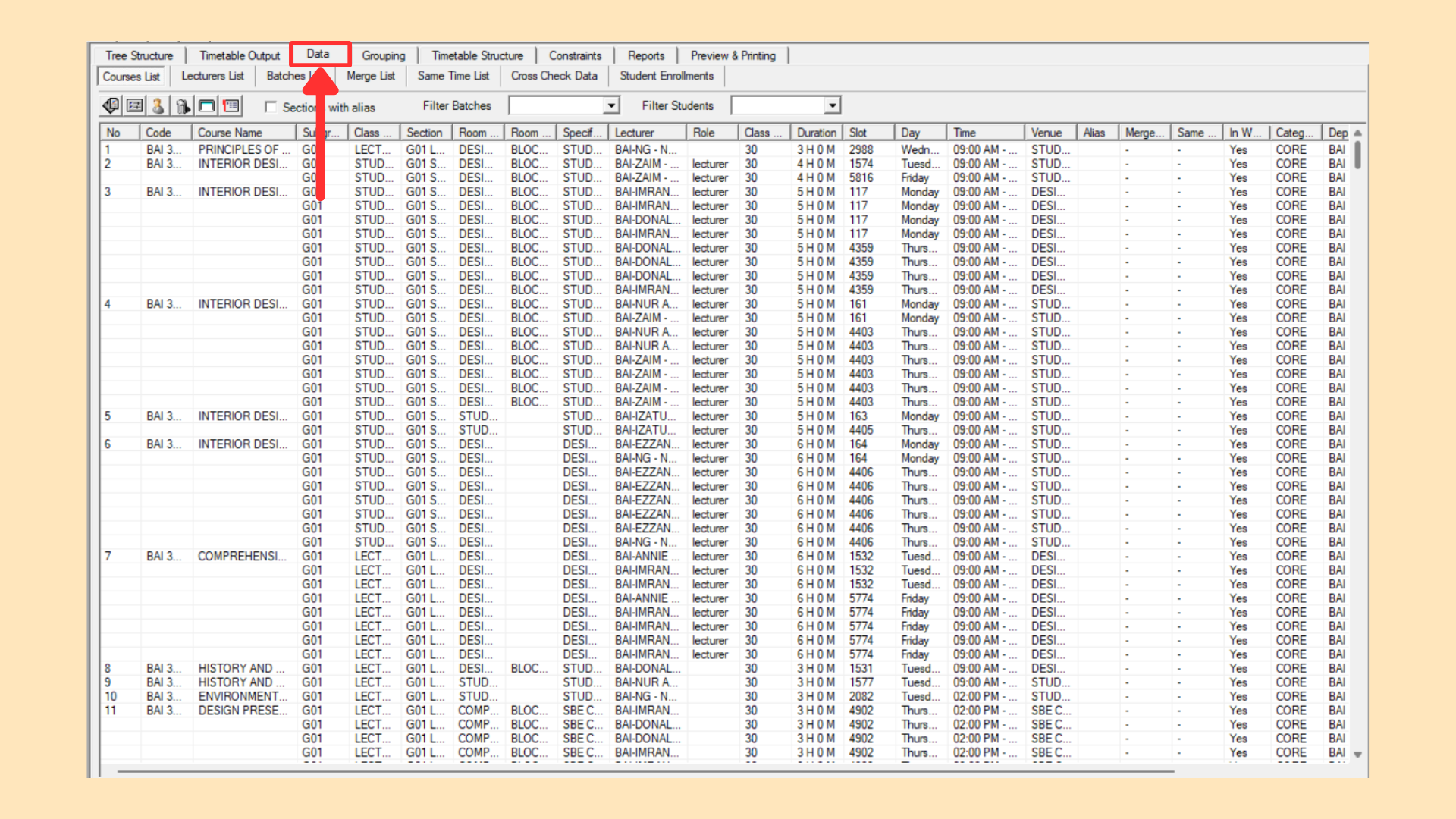
9.1 Courses List
The Courses List is reviewed after data entry to verify that every course has been set up correctly. It shows each course together with its subgroups, assigned lecturers and linked batches, so that any missing or incorrect record can be corrected before generation begins.
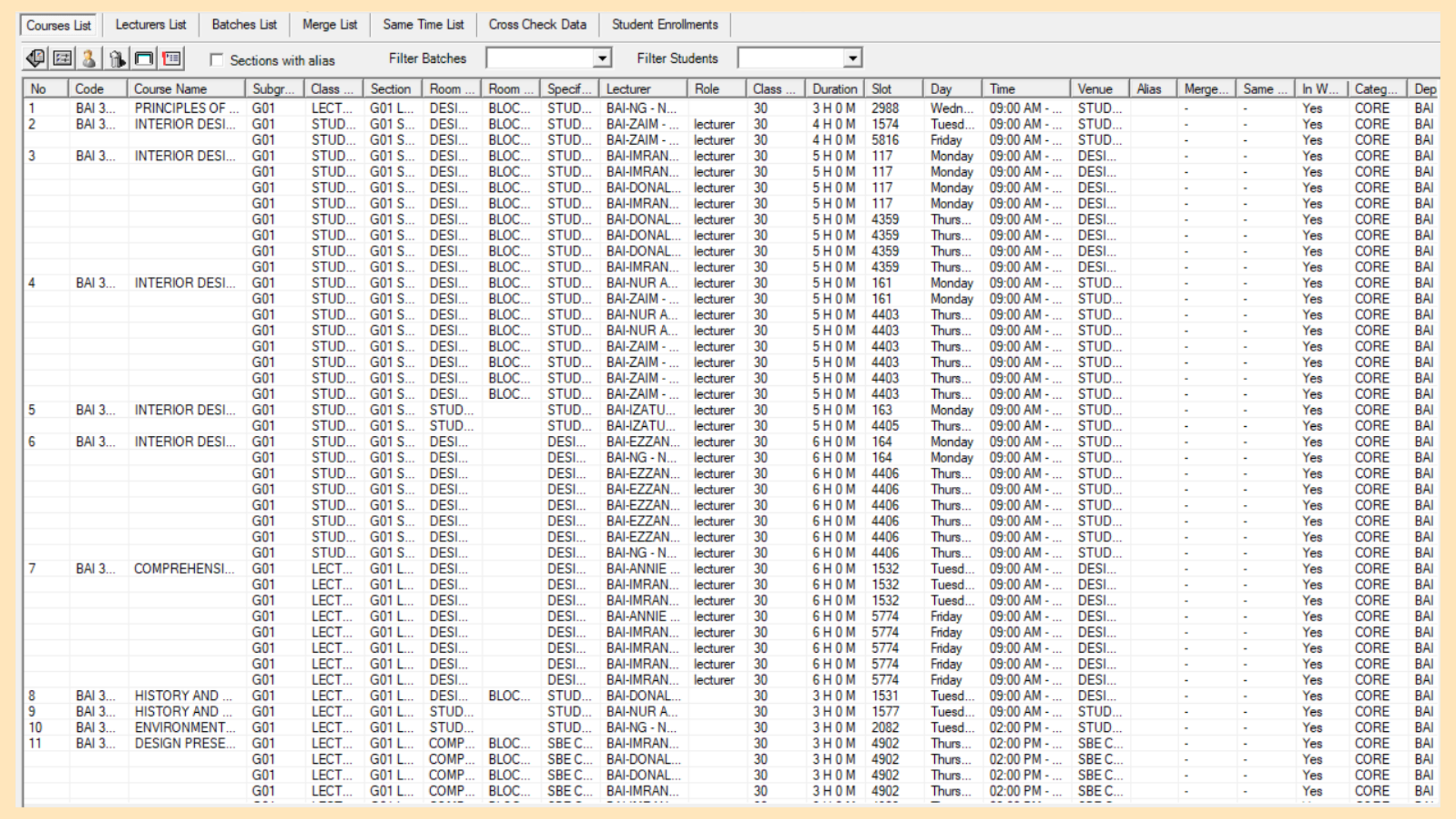
The shortcut bar at the top of the window provides quick access to the functions available for this list.
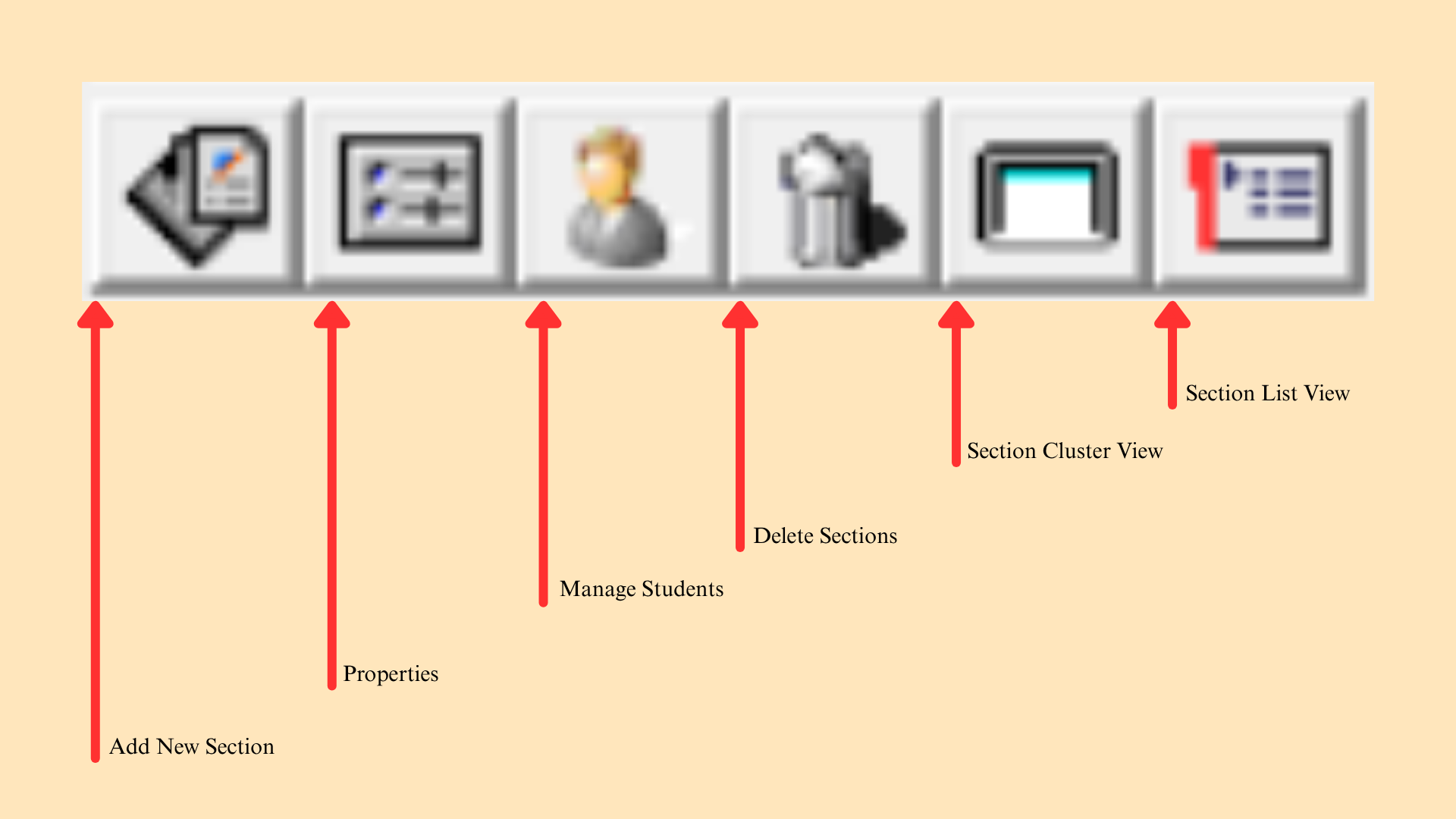
| Function | Description |
|---|---|
| Add New Section | Creates a new section under the selected course. |
| Properties | Opens the Section Properties window for the selected section. |
| Manage Students | Opens the student assignment window for the selected section. |
| Delete Sections | Removes the selected sections from the list. |
| Section Cluster View | Displays the sections grouped into clusters. |
| Section List View | Displays the sections as a flat list. |
Table 9.1: Courses List Shortcut Functions
9.2 Lecturers List
The Lecturers List groups all teaching assignments by lecturer, showing each lecturer’s courses, class types, subgroups and total workload for the selected semester. Use it to confirm that workload is distributed as intended before the timetable is generated.
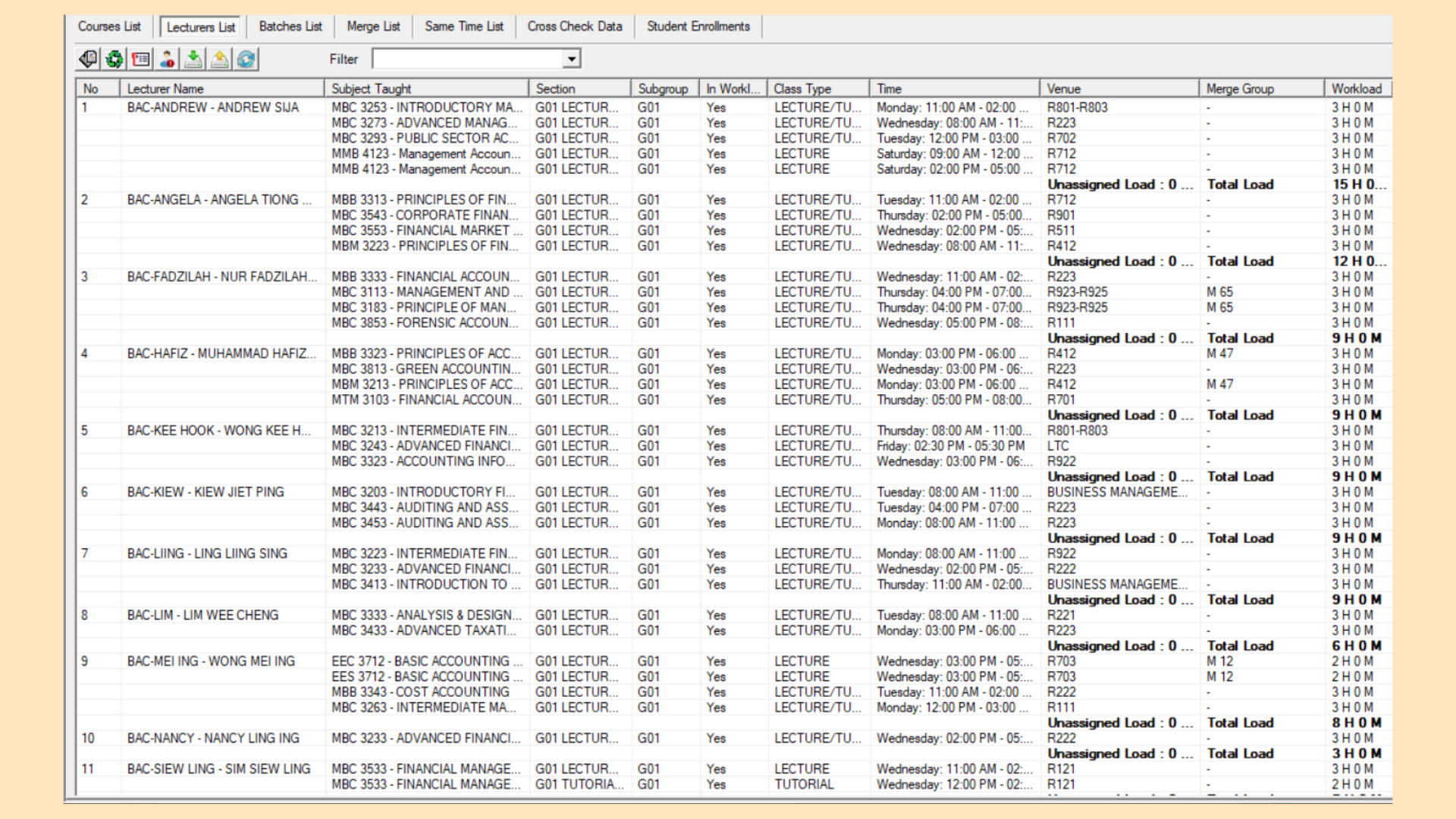
The shortcut bar at the top of the window provides quick access to the functions available for this list.
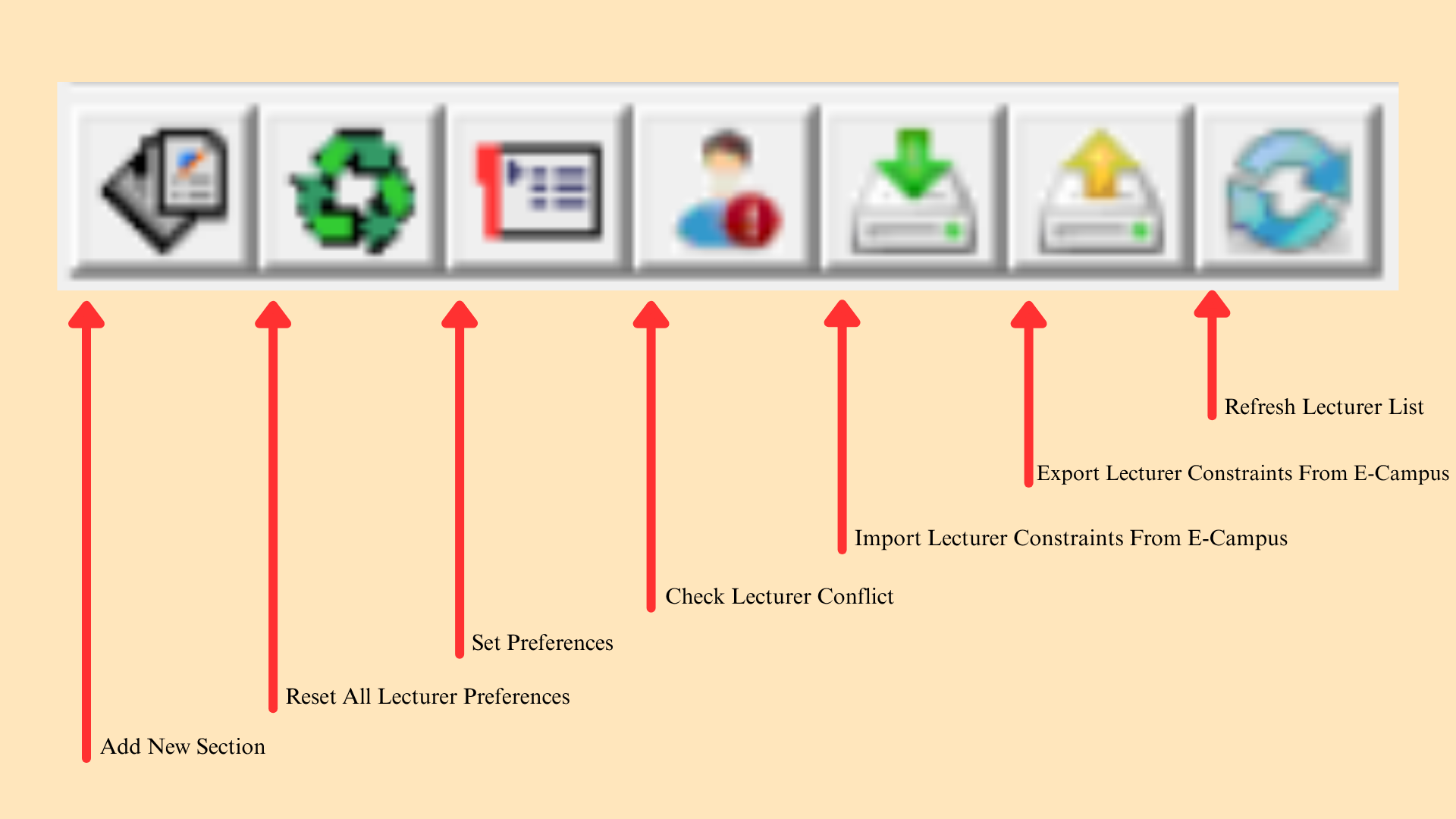
| Function | Description |
|---|---|
| Add New Section | Creates a new section for the selected lecturer. |
| Reset All Lecturer Preferences | Clears every preference that has been set, for all lecturers. |
| Set Preferences | Opens the preference settings for the selected lecturer. |
| Check Lecturer Conflict | Checks the selected lecturer’s assignments for conflicts. |
| Import Lecturer Constraints From E-Campus | Pulls the lecturer constraints from TPlus E-Campus. |
| Export Lecturer Constraints From E-Campus | Sends the lecturer constraints to TPlus E-Campus. |
| Refresh Lecturer List | Reloads the lecturer list to show the latest data. |
Table 9.2: Lecturers List Shortcut Functions
9.3 Batches List
The Batches List groups all course assignments by batch, showing each batch together with its linked courses, class sessions, room assignments and enrolled counts in a single view. The list may be viewed flat or grouped by batch.
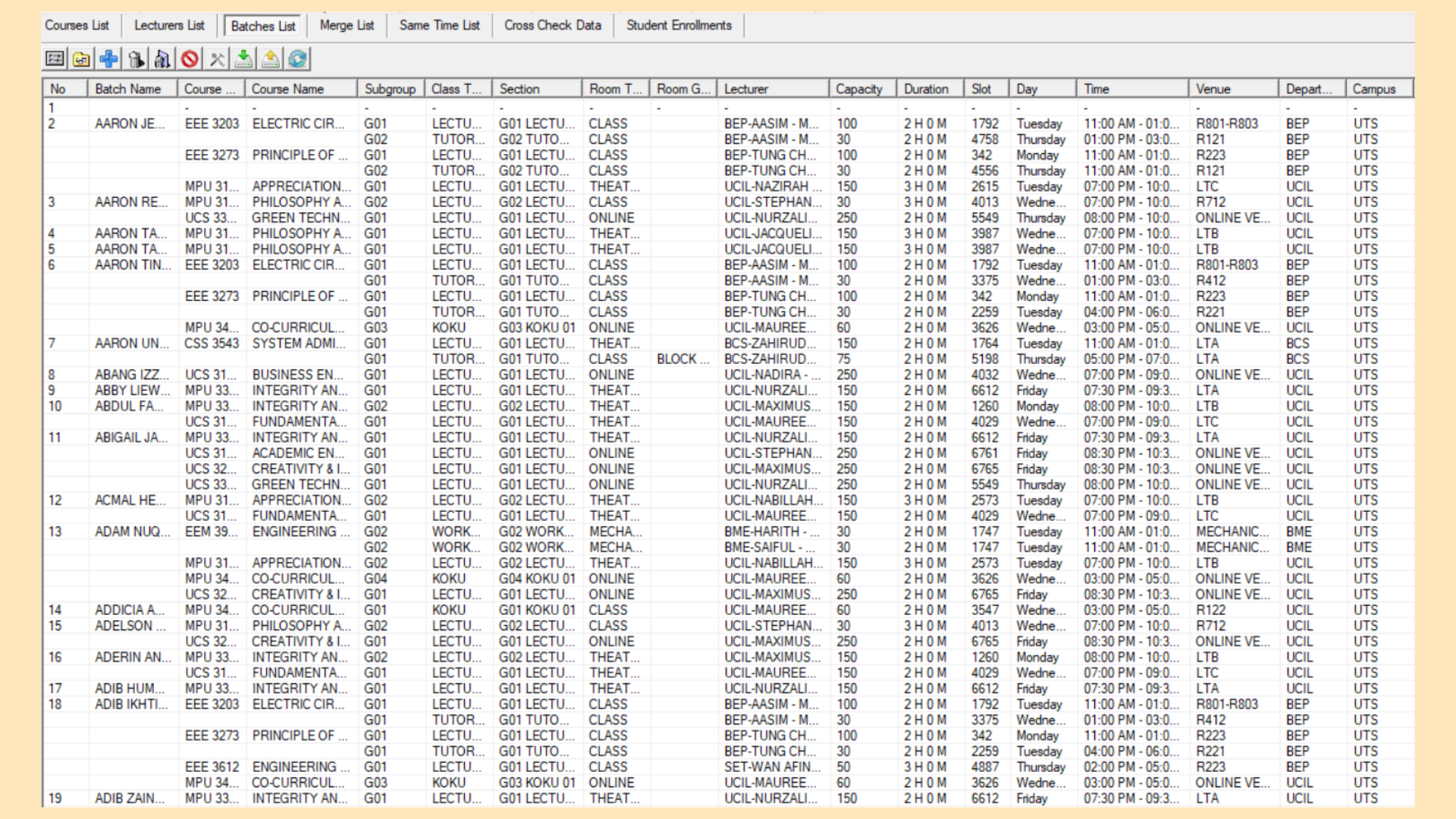
The shortcut bar at the top of the window provides quick access to the functions available for this list.
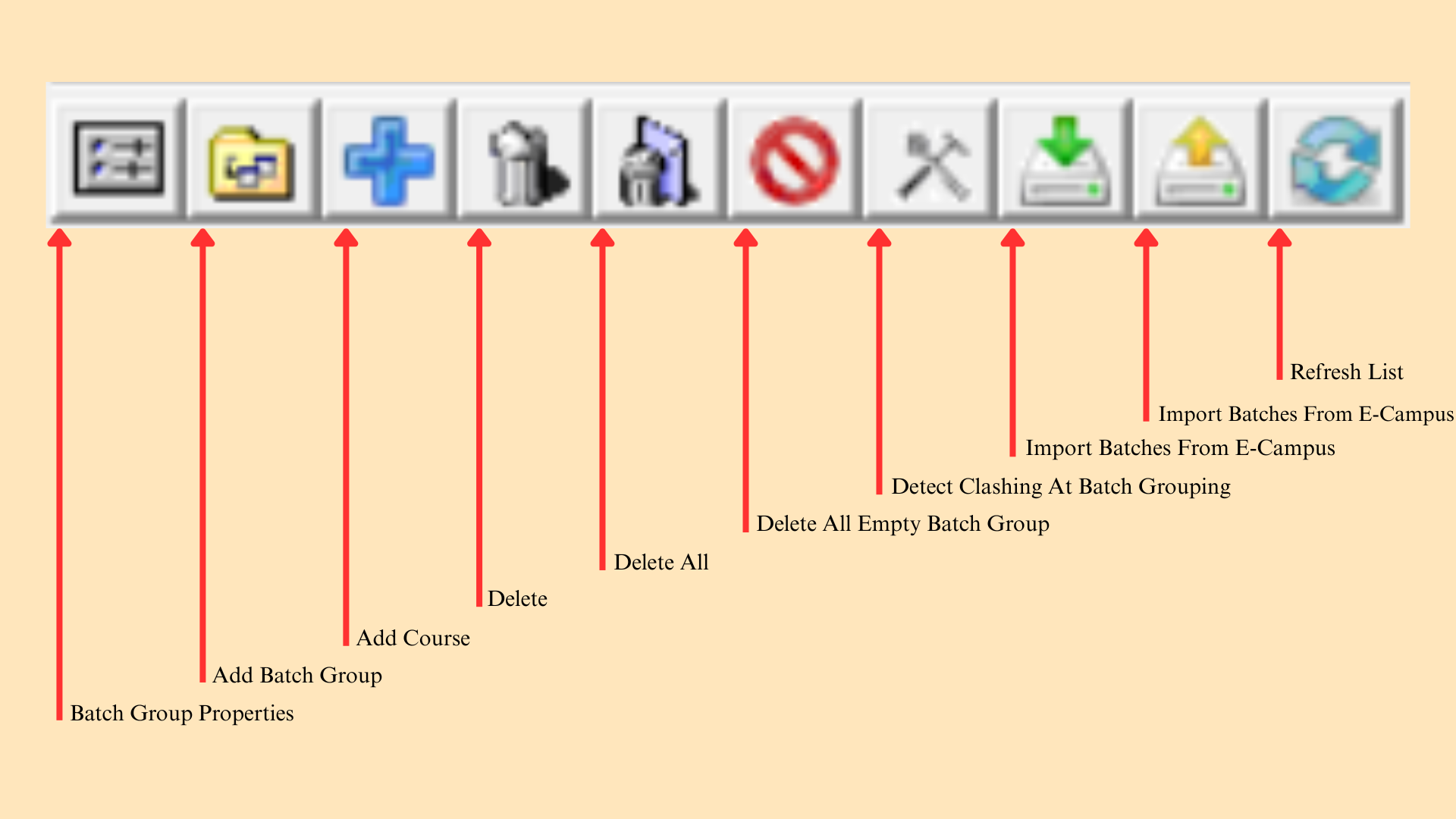
| Function | Description |
|---|---|
| Batch Group Properties | Opens the properties window for the selected batch group. |
| Add Batch Group | Creates a new batch group. |
| Add Course | Adds a course to the selected batch group. |
| Delete | Removes the selected entry from the list. |
| Delete All | Removes every entry from the list. |
| Delete All Empty Batch Group | Removes batch groups that no longer contain any courses. |
| Detect Clashing At Batch Grouping | Checks the batch groupings for clashes. |
| Import Batches From E-Campus | Pulls the batch records from TPlus E-Campus. |
| Export Batches From E-Campus | Sends the batch records to TPlus E-Campus. |
| Refresh List | Reloads the list to show the latest data. |
Table 9.3: Batches List Shortcut Functions
9.4 Merges List
The Merges List shows every merge configuration for the selected semester: which subgroups have been merged together, their individual enrolled counts, and the combined total capacity of each merge group. Check the combined total against the capacity of the assigned room, as a merge that exceeds it cannot be placed during generation.
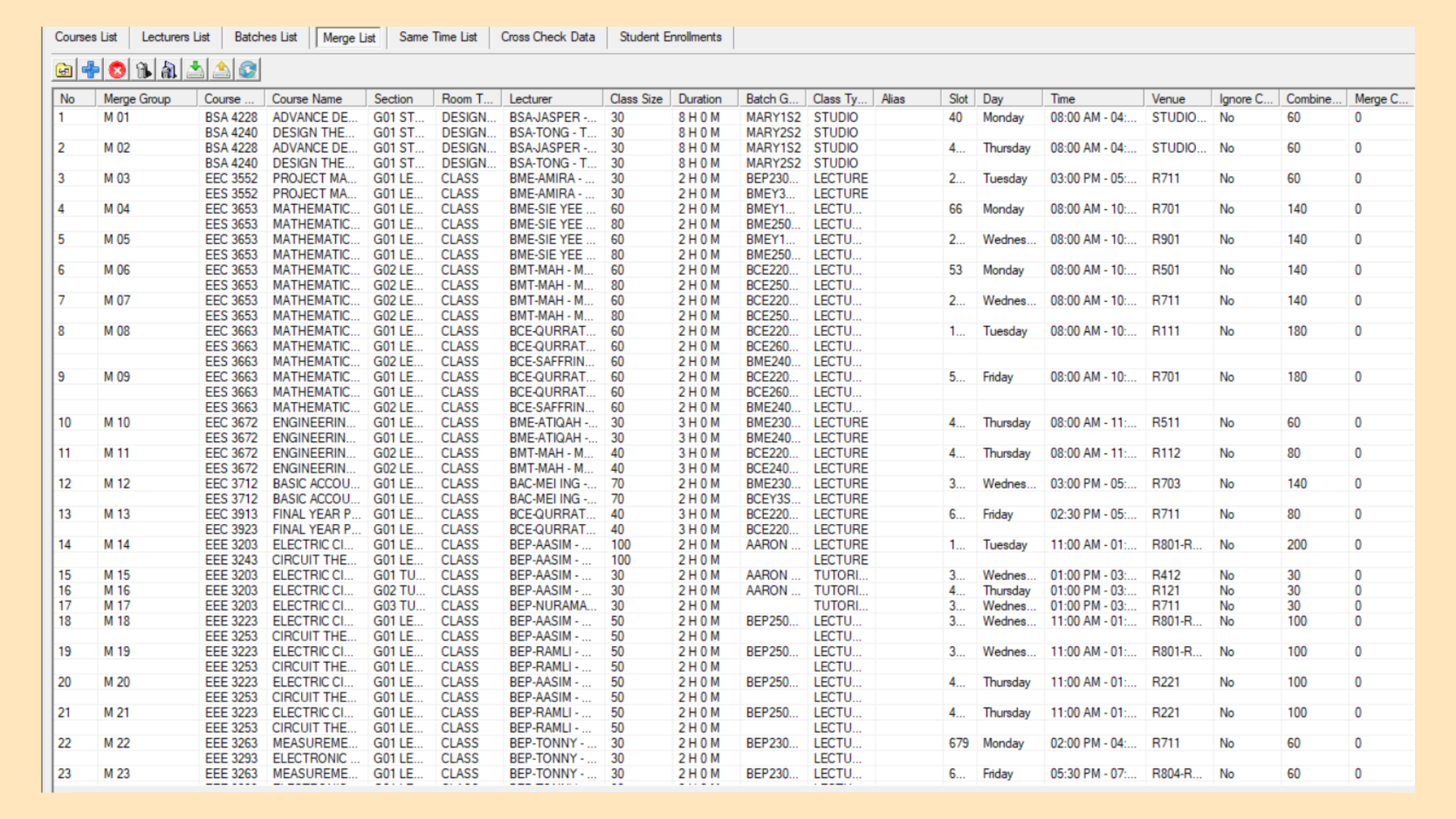
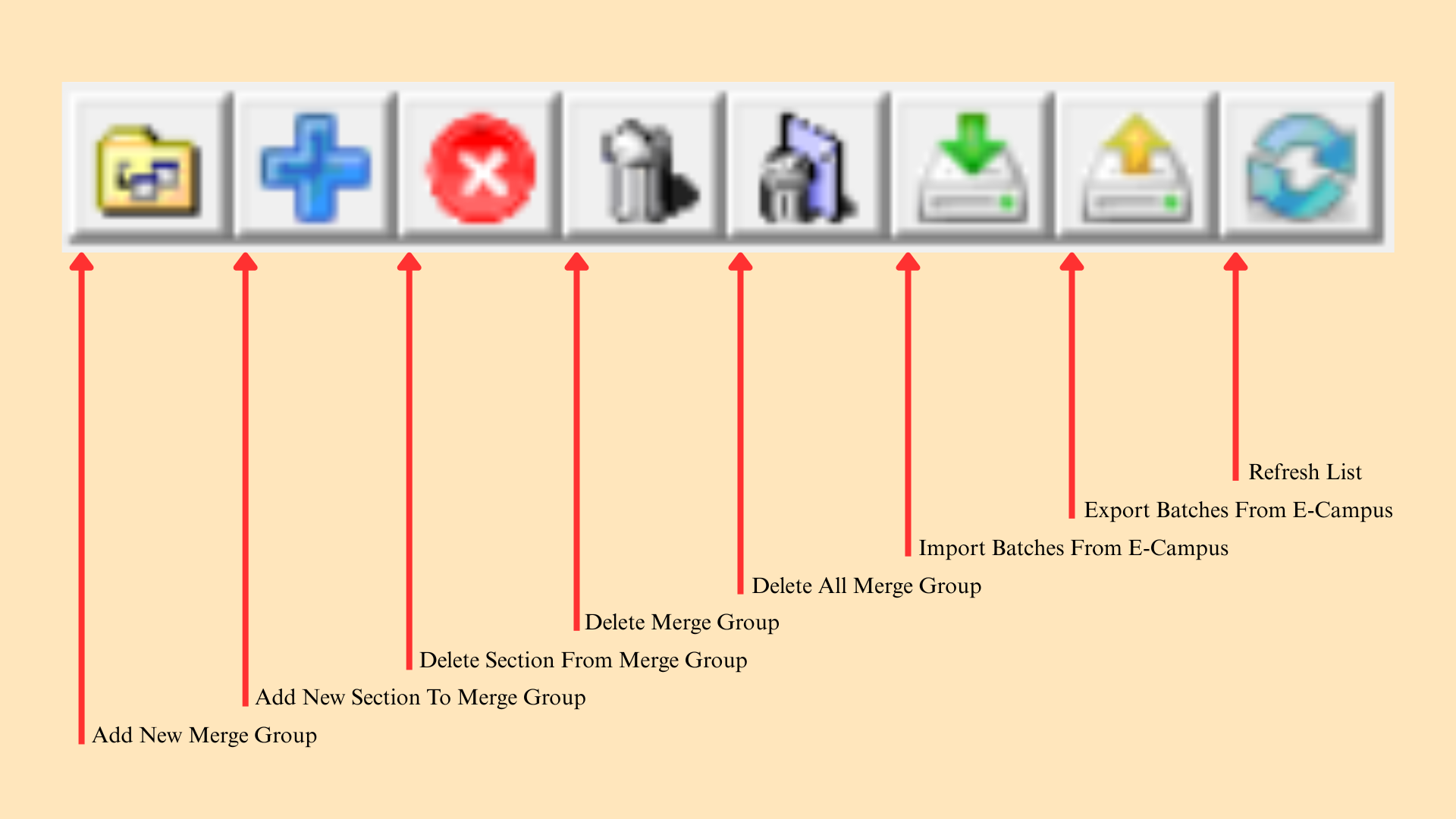
The shortcut bar at the top of the window provides quick access to the functions available for this list.
| Function | Description |
|---|---|
| Add New Merge Group | Creates a new merge group. |
| Add New Section To Merge Group | Adds a section to the selected merge group. |
| Delete Section From Merge Group | Removes the selected section from its merge group, leaving the group in place. |
| Delete Merge Group | Removes the selected merge group. |
| Delete All Merge Group | Removes every merge group from the list. |
| Import Batches From E-Campus | Pulls the batch records from TPlus E-Campus. |
| Export Batches From E-Campus | Sends the batch records to TPlus E-Campus. |
| Refresh List | Reloads the list to show the latest data. |
Table 9.4: Merges List Shortcut Functions
9.5 Same-Time List
The Same-Time List shows all subgroups configured to run at the same timetable slot, grouped by Same Time Group. Unlike the Merges List there is no combined capacity, as each subgroup keeps its own room and its own capacity. Use it to confirm that every intended parallel arrangement is in place before generation.
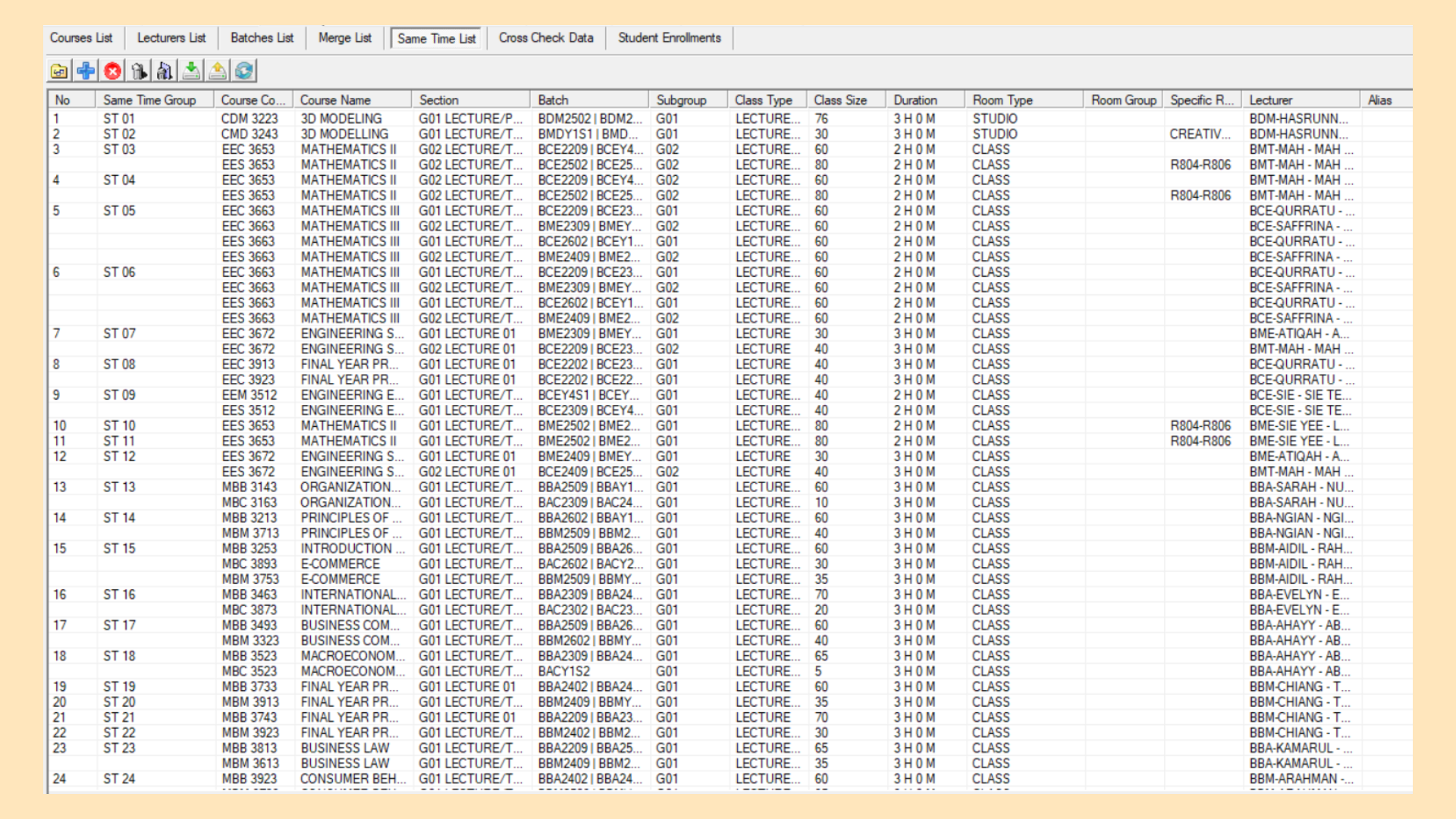
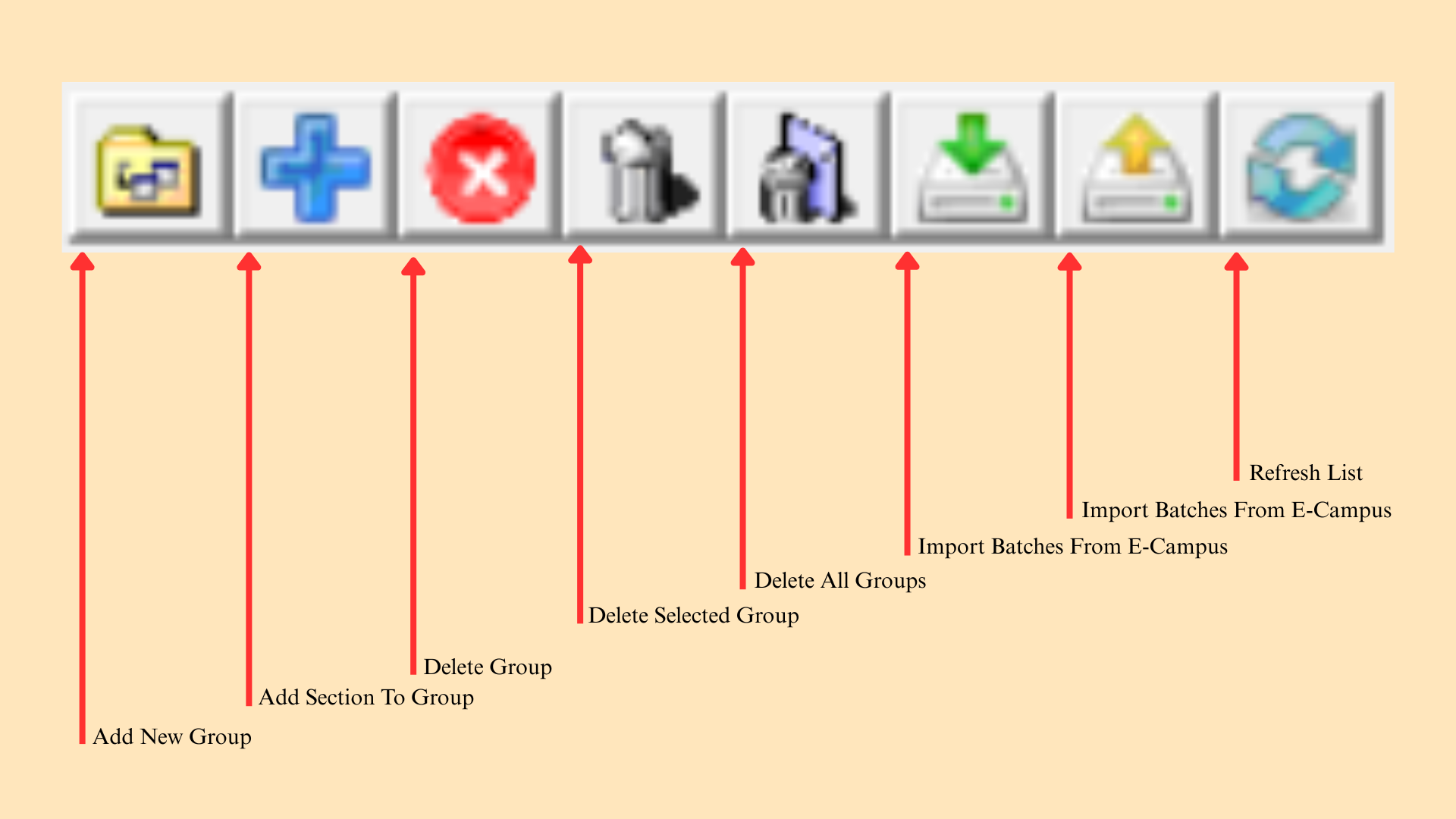
The shortcut bar at the top of the window provides quick access to the functions available for this list.
| Function | Description |
|---|---|
| Add New Group | Creates a new same time group. |
| Add Section To Group | Adds a section to the selected same time group. |
| Delete Group | Removes the selected same time group. |
| Delete Selected Group | Removes the group currently highlighted in the list. |
| Delete All Groups | Removes every same time group from the list. |
| Import Batches From E-Campus | Pulls the batch records from TPlus E-Campus. |
| Export Batches From E-Campus | Sends the batch records to TPlus E-Campus. |
| Refresh List | Reloads the list to show the latest data. |
Table 9.5: Same-Time List Shortcut Functions