Constraint
Set the scheduling rules the generator must respect: time, room, lecturer, and general constraints.
Constraints are the rules the generator must observe when placing classes into the timetable. They are set in two places: General Constraints, which hold the project-wide rules together with the time slot, room and room distance constraints applied to a section or folder; and Lecturer Constraints, which hold the settings for an individual lecturer. Constraints set on a parent folder in the tree structure are inherited by the sections beneath it.
8.1 General Constraint
General constraints are project-wide rules that apply to every section, rather than to an individual lecturer. They are configured once and govern the behaviour of the generator across the whole timetable. This section also covers the time slot, room and room distance constraints that are applied to a chosen section or folder.
Go to Constraints → General Constraints. The tab is arranged as a set of panels, each covered by one of the sub-sections below.
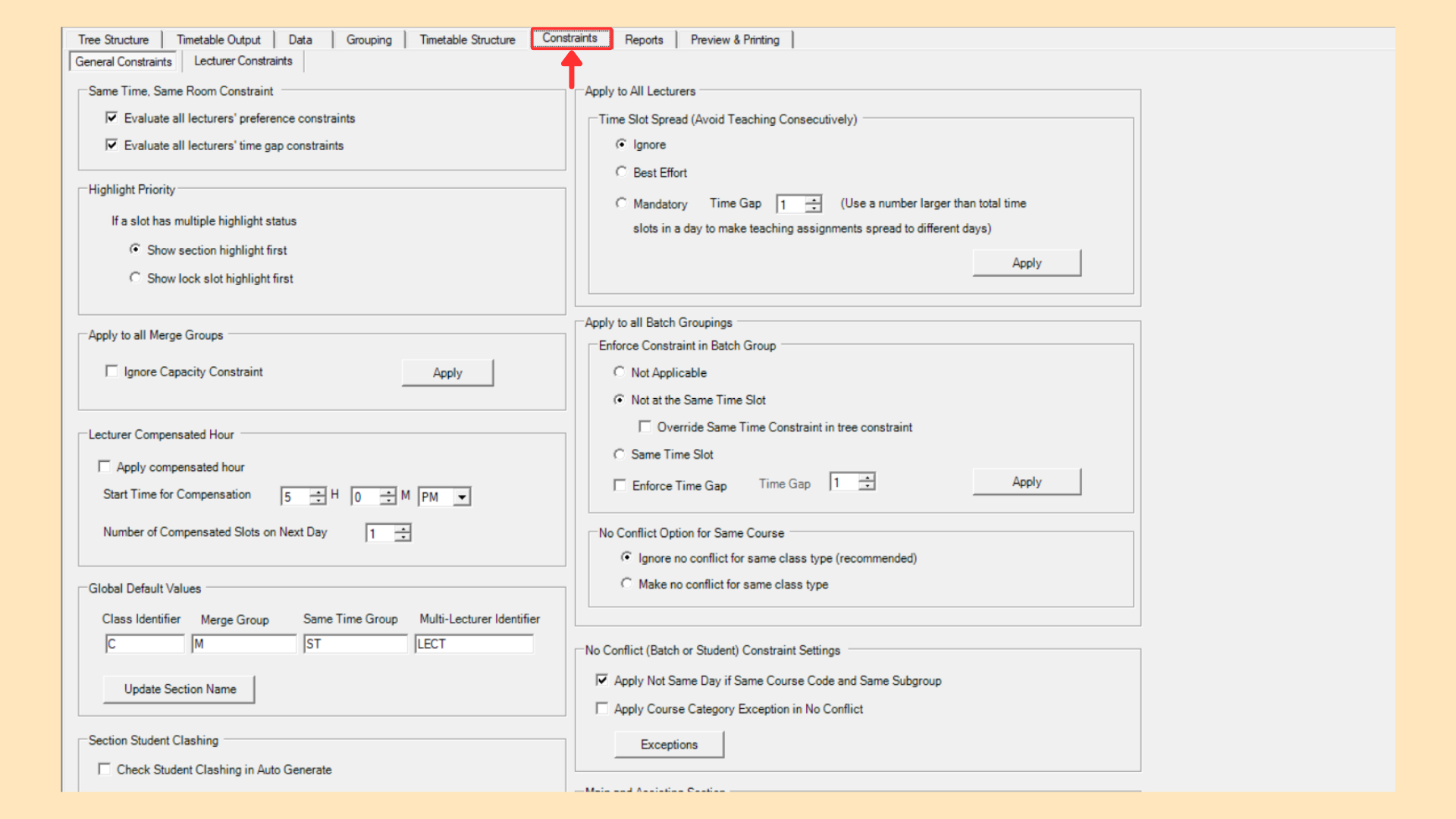
8.1.1 Same Time Same Room
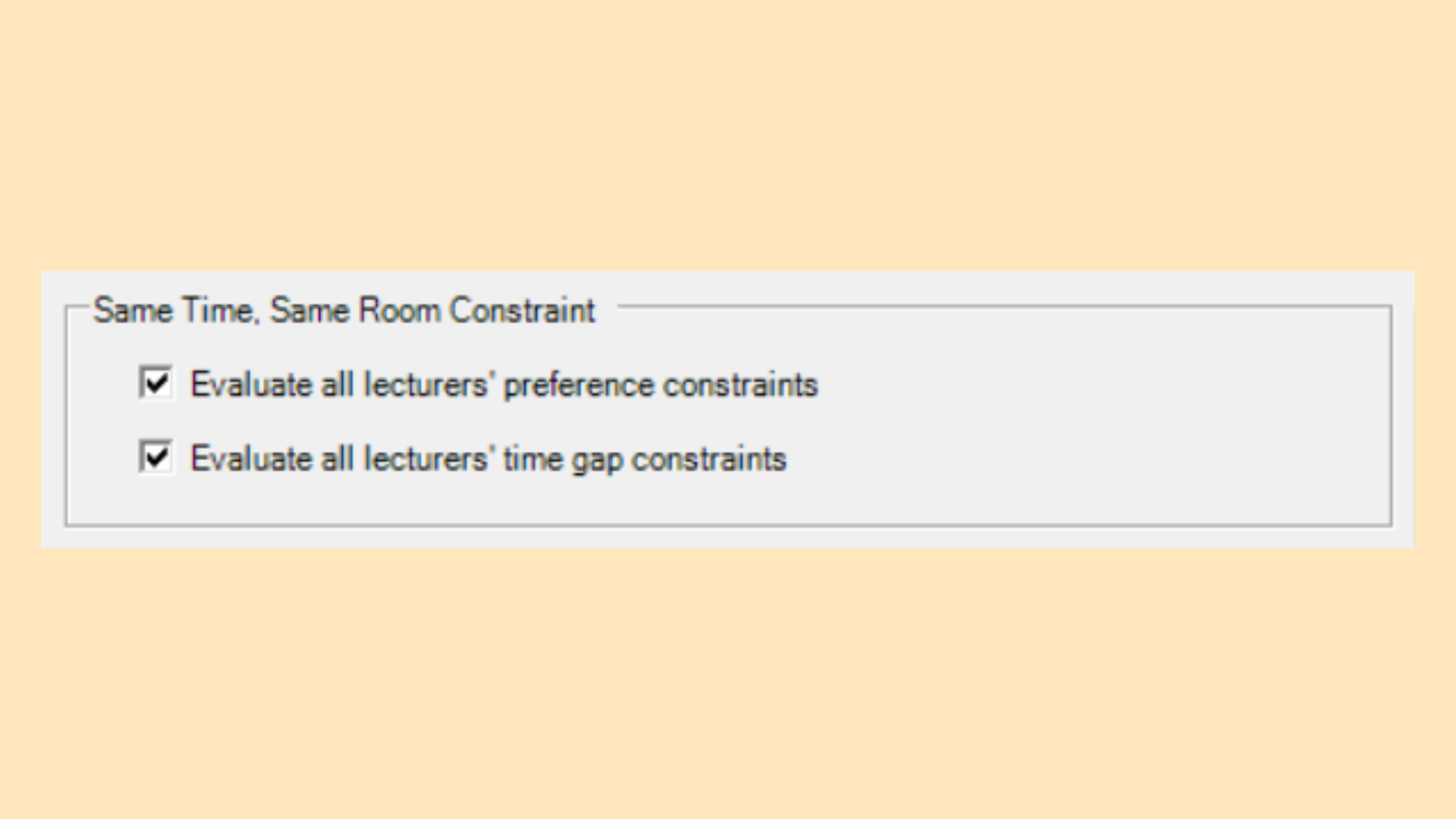
Controls whether the lecturers’ own constraints are taken into account when the Same Time, Same Room rule is applied.
| Setting | Description |
|---|---|
| Evaluate all lecturers’ preference constraints | Takes every lecturer’s preference constraints into account when applying the rule. |
| Evaluate all lecturers’ time gap constraints | Takes every lecturer’s time gap constraints into account when applying the rule. |
Table 8.1: Same Time Same Room Settings
8.1.2 Highlight Priority
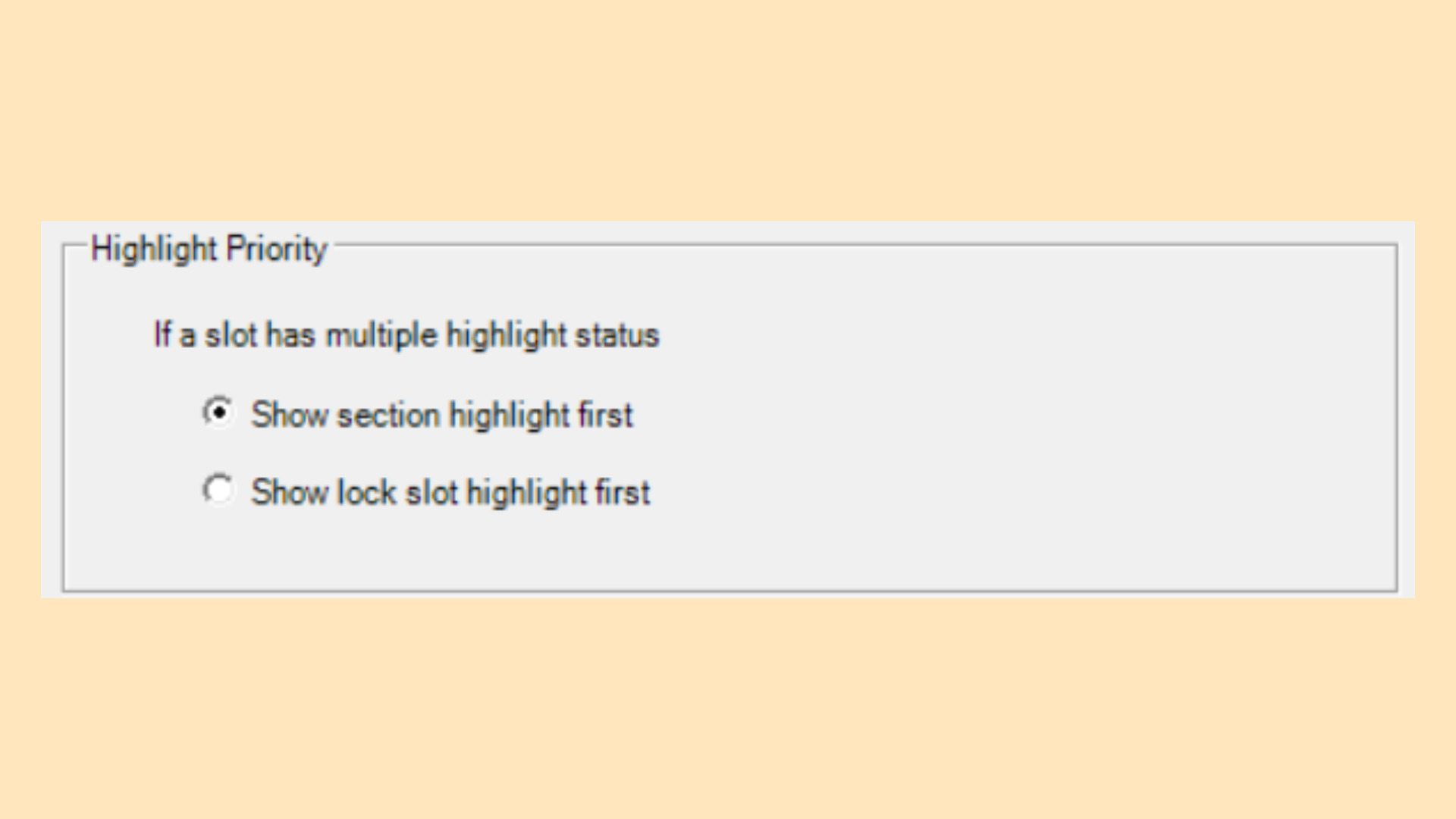
Decides which highlight is shown first when a slot carries more than one highlight status.
| Setting | Description |
|---|---|
| Show section highlight first | The section highlight takes precedence. |
| Show lock slot highlight first | The lock slot highlight takes precedence. |
Table 8.2: Highlight Priority Settings
8.1.3 Global Default Values
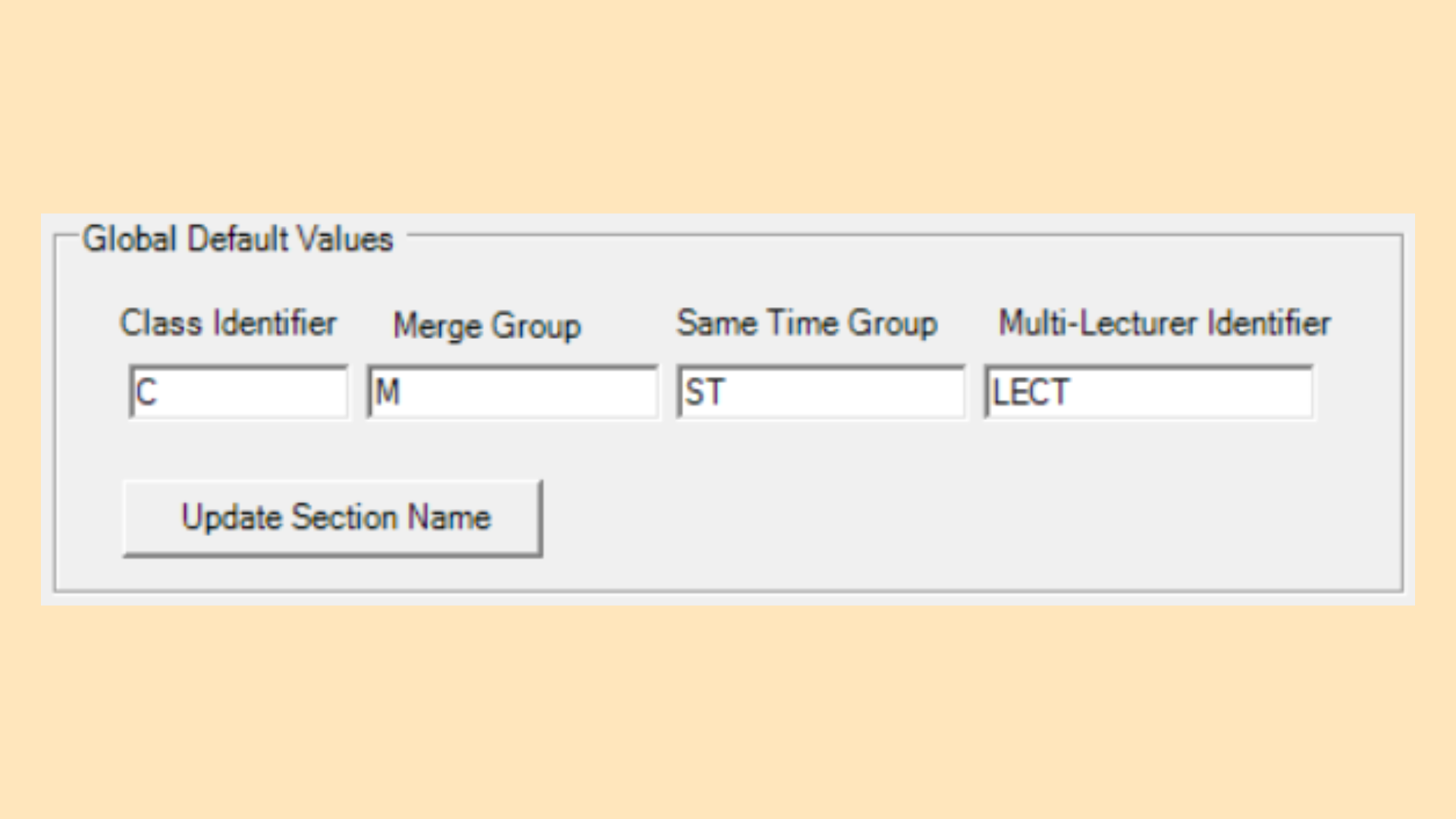
Sets the identifiers used when section names are built. Click Update Section Name to rebuild the section names using the current values.
| Field | Description |
|---|---|
| Class Identifier | Prefix identifying a class in the section name. Default: C |
| Merge Group | Prefix identifying a merge group in the section name. Default: M |
| Same Time Group | Prefix identifying a same time group in the section name. Default: ST |
| Multi-Lecturer Identifier | Prefix identifying a class taught by more than one lecturer. Default: LECT |
Table 8.3: Global Default Values
8.1.4 Merge Group
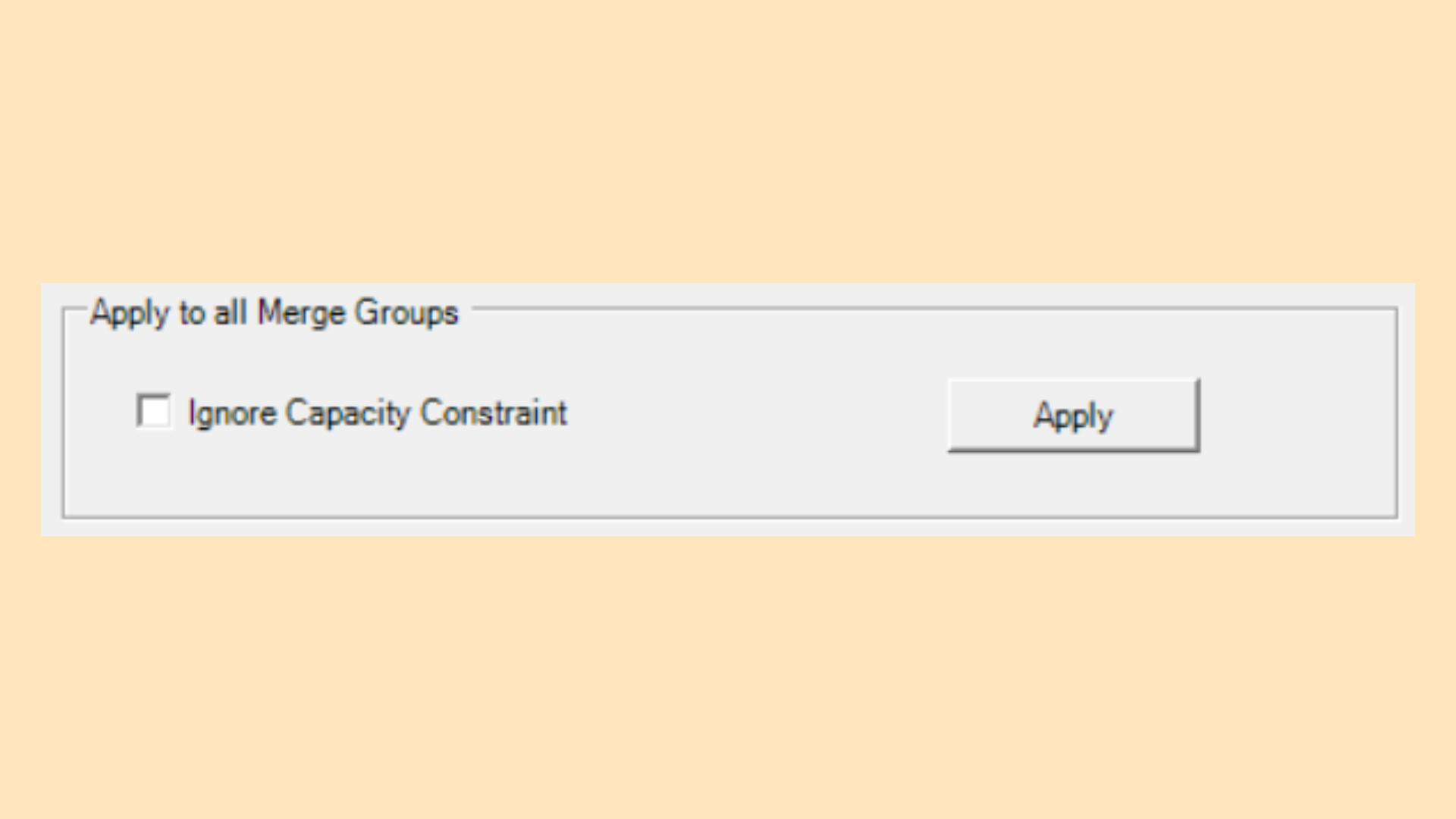
Applies a single setting to every merge group in the project at once.
| Setting | Description |
|---|---|
| Ignore Capacity Constraint | Bypasses the capacity check for every merge group, so a merged class larger than its room can still be placed. |
| Apply | Pushes the setting to all merge groups. |
Table 8.4: Merge Group Settings
8.1.5 Compensation Hour
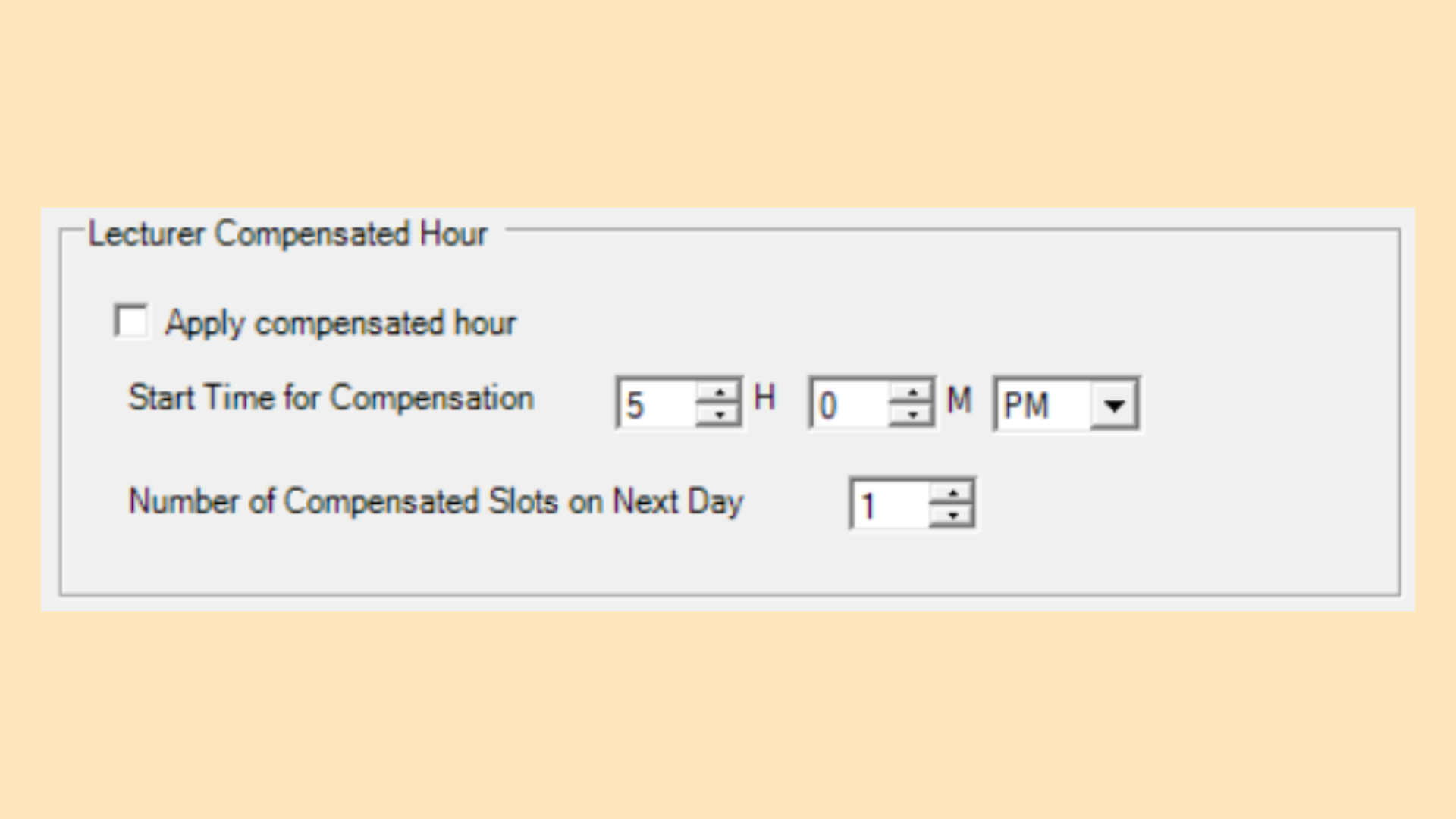
Compensates a lecturer on the following day for teaching that runs late into the evening.
| Field | Description |
|---|---|
| Apply compensated hour | Tick to enable the compensation rule. |
| Start Time for Compensation | The time from which teaching qualifies for compensation, set in hours and minutes with AM/PM. Default: 5:00 PM |
| Number of Compensated Slots on Next Day | How many slots the lecturer is compensated on the following day. Default: 1 |
Table 8.5: Compensation Hour Settings
8.1.6 Student Clashing
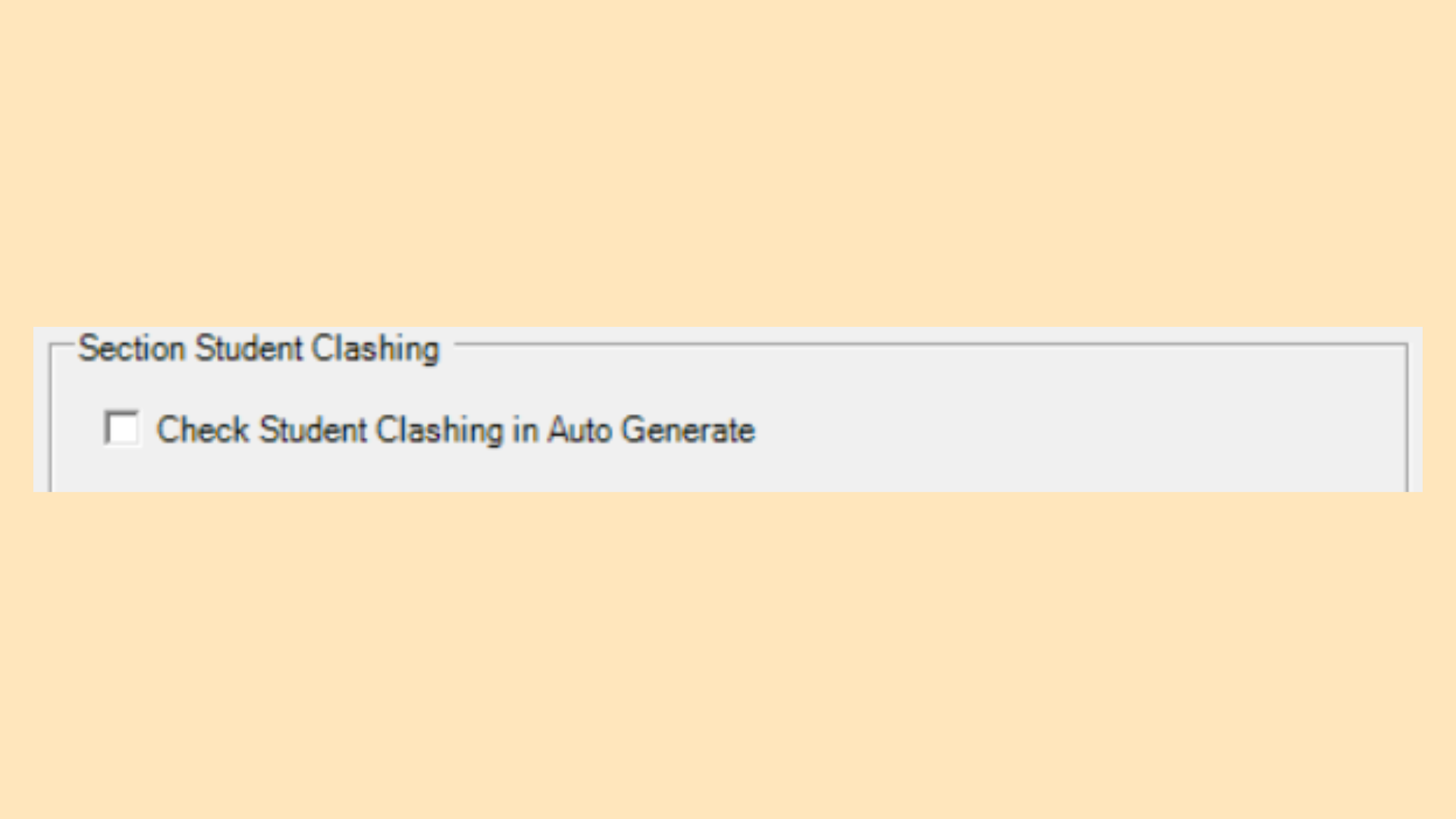
Determines whether student clashes are checked while the timetable is being generated automatically.
| Setting | Description |
|---|---|
| Check Student Clashing in Auto Generate | The generator checks for student clashes while auto-generating. |
Table 8.6: Student Clashing Settings
8.1.7 Time Slot Spread
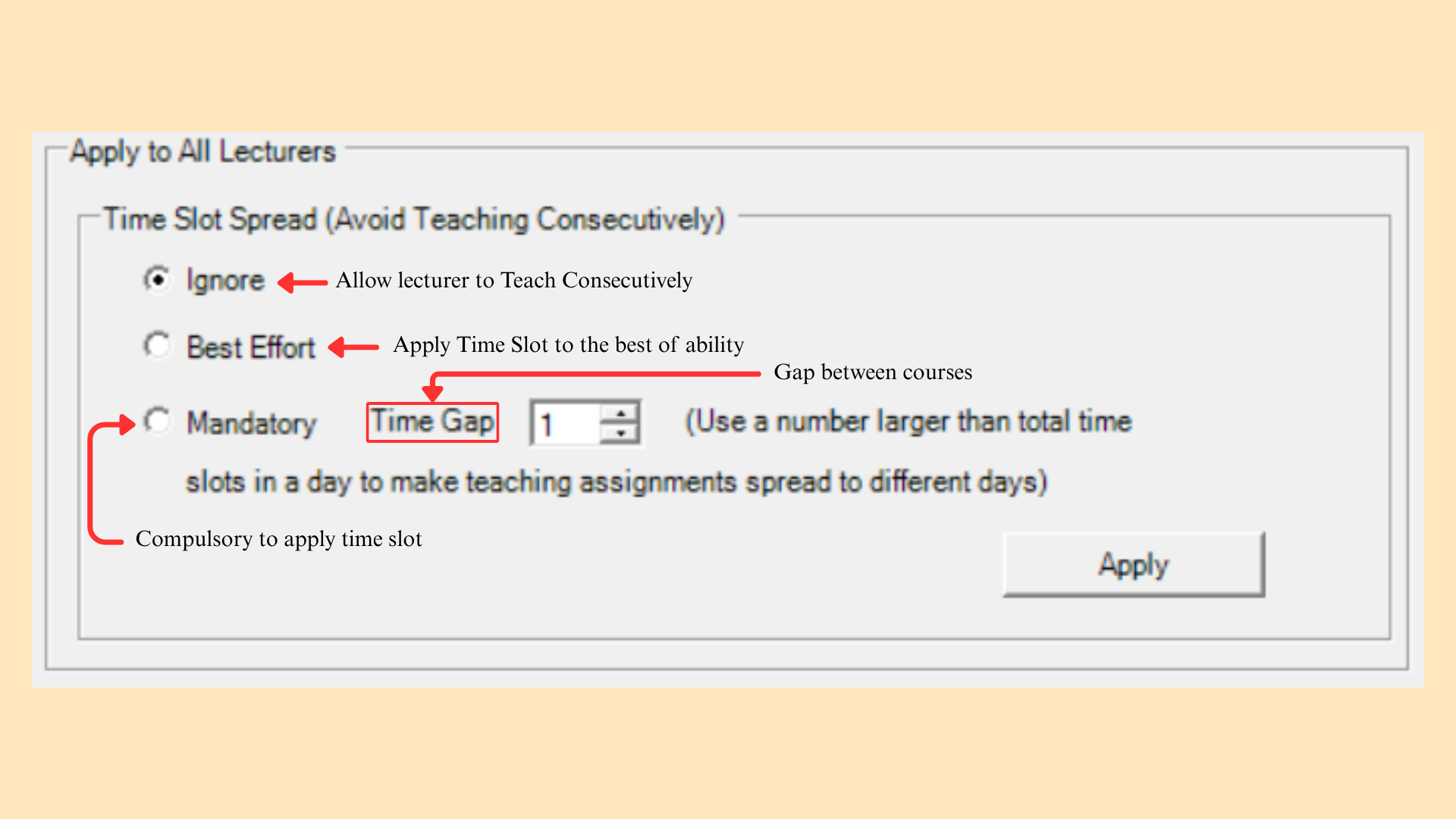
Spreads a lecturer’s teaching across the timetable instead of leaving it in consecutive blocks. This panel applies the rule to all lecturers at once; the per-lecturer equivalent is in Section 8.2.2.
| Setting | Description |
|---|---|
| Ignore | Allow the lecturer to teach consecutively. |
| Best Effort | Apply the time slot spread to the best of the system’s ability. |
| Mandatory | Compulsory to apply the time slot spread. Set Time Gap to the gap required between courses. Use a number larger than the total time slots in a day to spread teaching assignments to different days. |
Table 8.7: Time Slot Spread Settings
8.1.8 Batch Grouping
Applies a constraint to every batch grouping at once, and sets how conflicts within the same course are treated.
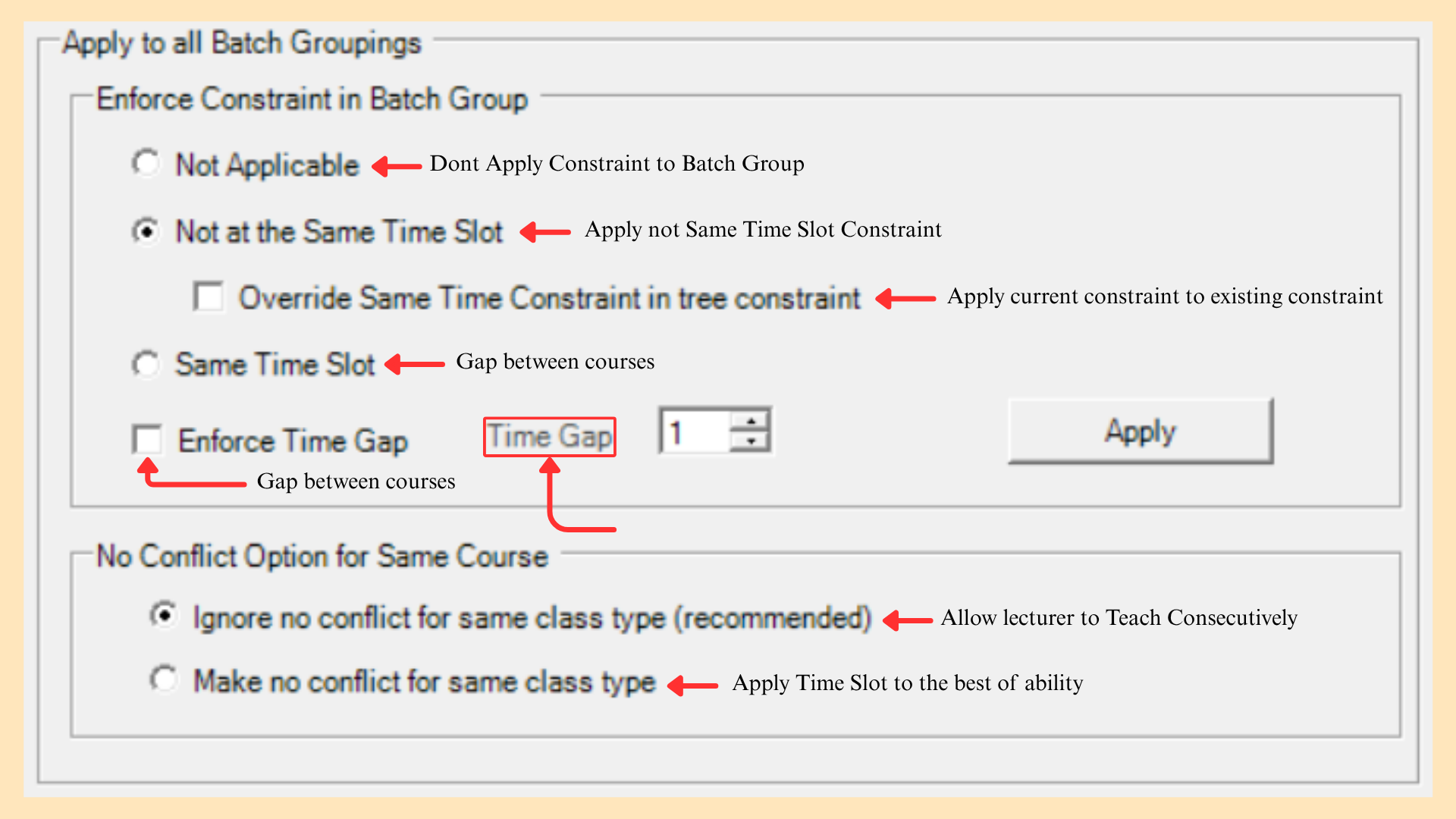
Enforce Constraint in Batch Group
| Setting | Description |
|---|---|
| Not Applicable | Do not apply a constraint to the batch group. |
| Not at the Same Time Slot | Apply the not-same-time-slot constraint. Tick Override Same Time Constraint in tree constraint to apply this setting over any constraint already set in the tree. |
| Same Time Slot | Apply the same-time-slot constraint. |
| Enforce Time Gap | Enforce a gap between courses, set in the Time Gap field. |
Table 8.8: Enforce Constraint in Batch Group
No Conflict Option for Same Course
| Setting | Description |
|---|---|
| Ignore no conflict for same class type (recommended) | Allow classes of the same type to run consecutively. |
| Make no conflict for same class type | Apply the no-conflict rule to classes of the same type. |
Table 8.9: No Conflict Option for Same Course
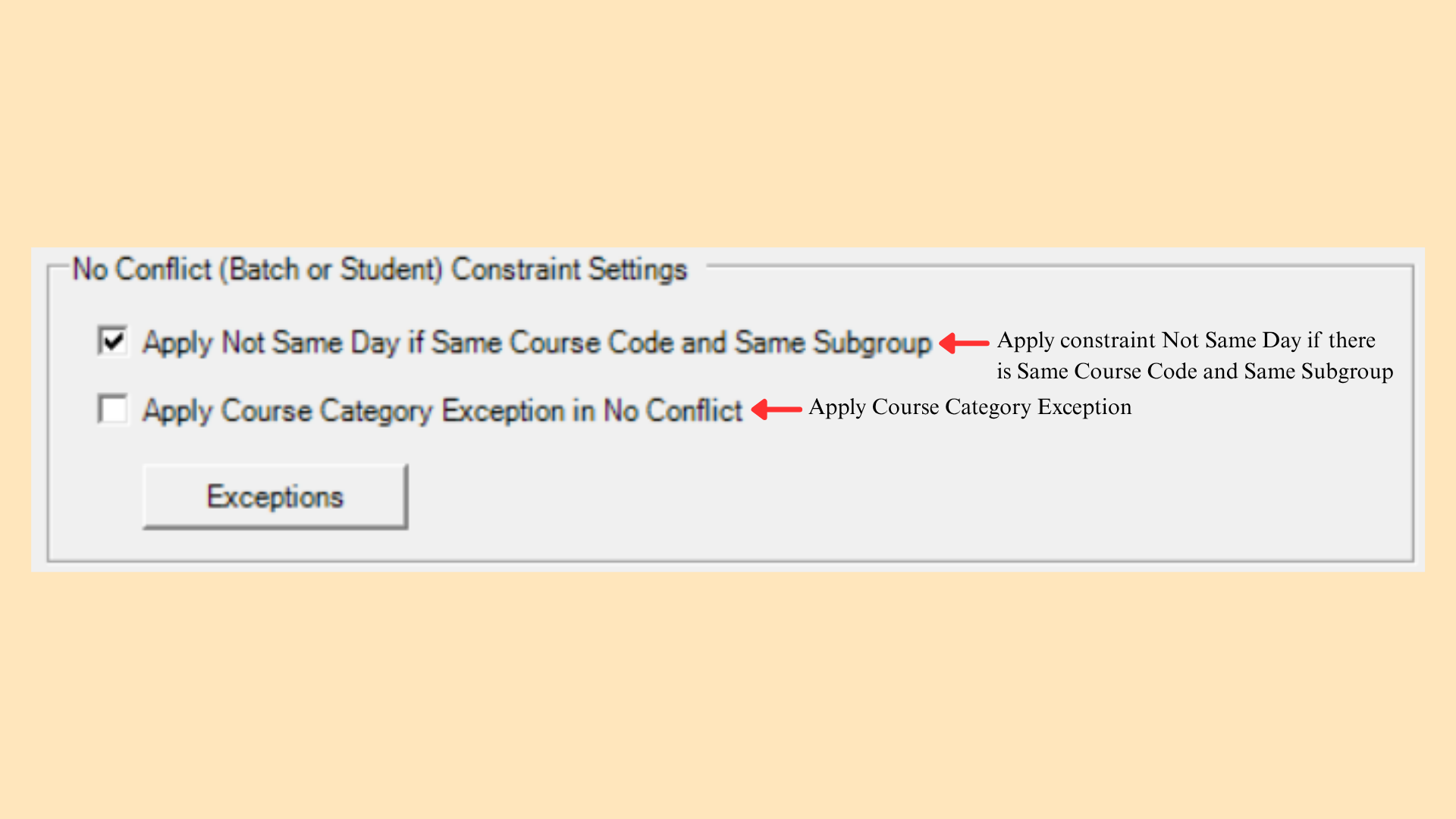
8.1.9 Avoid Student/Batch Clashing
Sets the rules used to keep a batch or an individual student from being scheduled into two classes at once.
| Setting | Description |
|---|---|
| Apply Not Same Day if Same Course Code and Same Subgroup | Applies the not-same-day constraint where the course code and the subgroup are the same. |
| Apply Course Category Exception in No Conflict | Applies the course category exception to the no-conflict rule. |
| Exceptions | Opens the list of course categories that are exempt from the no-conflict rule. |
Table 8.10: Avoid Student/Batch Clashing Settings
8.1.10 Time Slot Constraint
Time slot constraints govern when a section may be scheduled. They are applied through the tree structure, where a setting placed on a parent folder is inherited by every section beneath it, and they may also be applied to a merge group so that all of its members share the same restriction.
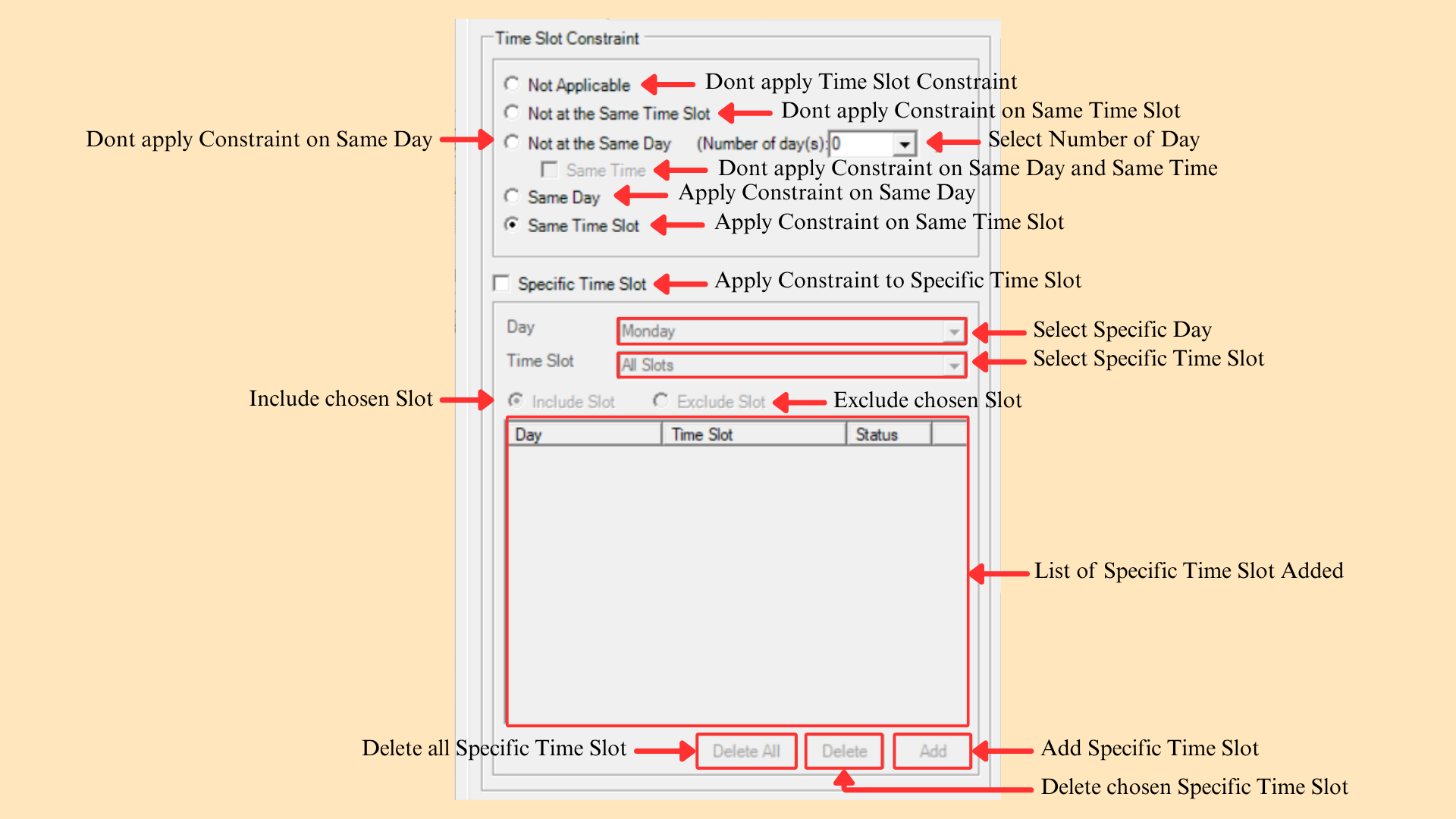
Select one of the following constraint modes:
| Setting | Description |
|---|---|
| Not Applicable | Do not apply any time slot constraint to the selected sections. |
| Not at the Same Time Slot | The sections must not be scheduled at the same time slot. |
| Not at the Same Day | The sections must not be scheduled on the same day. Set Number of day(s) to define the gap. Tick Same Time to exclude the same day and the same time. |
| Same Day | The sections must be scheduled on the same day. |
| Same Time Slot | The sections must be scheduled at the same time slot. |
Table 8.11: Time Slot Constraint Settings
To restrict the sections to a particular day and slot, tick Specific Time Slot. There are 5 simple steps to do so.
Step 1: Tick Specific Time Slot to enable the panel below it.
Step 2: Select the Day from the dropdown list.
Step 3: Select the Time Slot from the dropdown list.
Step 4: Choose Include Slot to allow the chosen slot, or Exclude Slot to block it.
Step 5: Click Add. The entry appears in the list with its Day, Time Slot and Status.
Use the buttons below the list to manage the entries:
| Function | Description |
|---|---|
| Add | Adds the selected day and time slot to the list. |
| Delete | Removes the selected entry from the list. |
| Delete All | Removes every entry from the list. |
Table 8.12: Specific Time Slot Buttons
8.1.11 Room Constraint
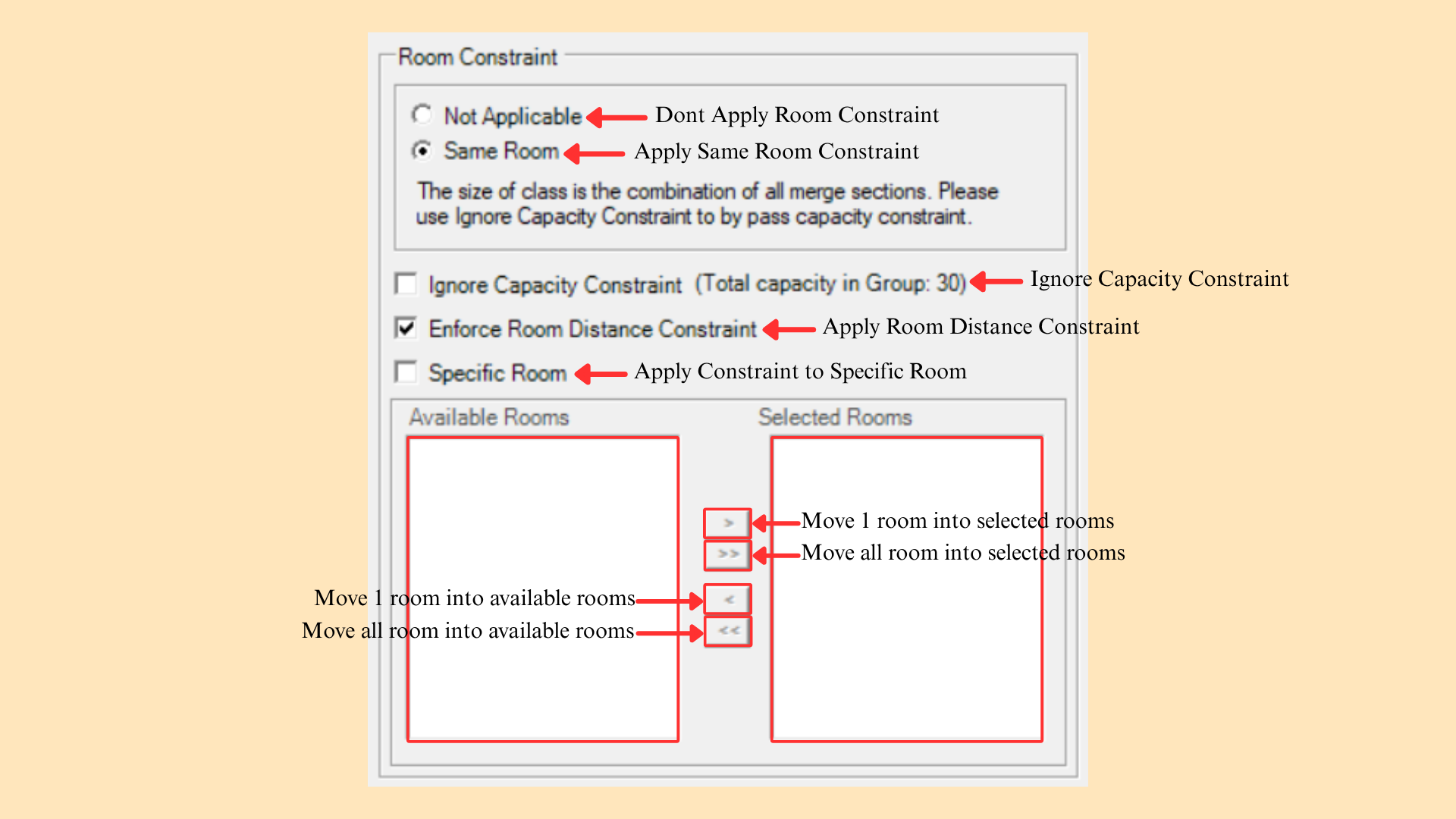
Room constraints restrict which rooms a class may occupy. A section can be limited to a specific room, to a room group, or to a room type, so that the generator only considers venues suitable for that class.
| Setting | Description |
|---|---|
| Not Applicable | Do not apply any room constraint to the selected sections. |
| Same Room | All sections under the group must be scheduled into the same room. |
| Ignore Capacity Constraint | Bypasses the capacity check for the group. The panel shows the combined figure as Total capacity in Group. |
| Enforce Room Distance Constraint | Applies the room distance constraint to the selected sections. See Section 8.1.12. |
| Specific Room | Restricts the sections to a chosen set of rooms, selected in the two lists below. |
Table 8.13: Room Constraint Settings
Once Specific Room is ticked, move rooms between the two lists using the arrow buttons:
| Function | Description |
|---|---|
| > | Moves one room into Selected Rooms. |
| >> | Moves all rooms into Selected Rooms. |
| < | Moves one room back into Available Rooms. |
| << | Moves all rooms back into Available Rooms. |
Table 8.14: Specific Room Buttons
8.1.12 Room Distance
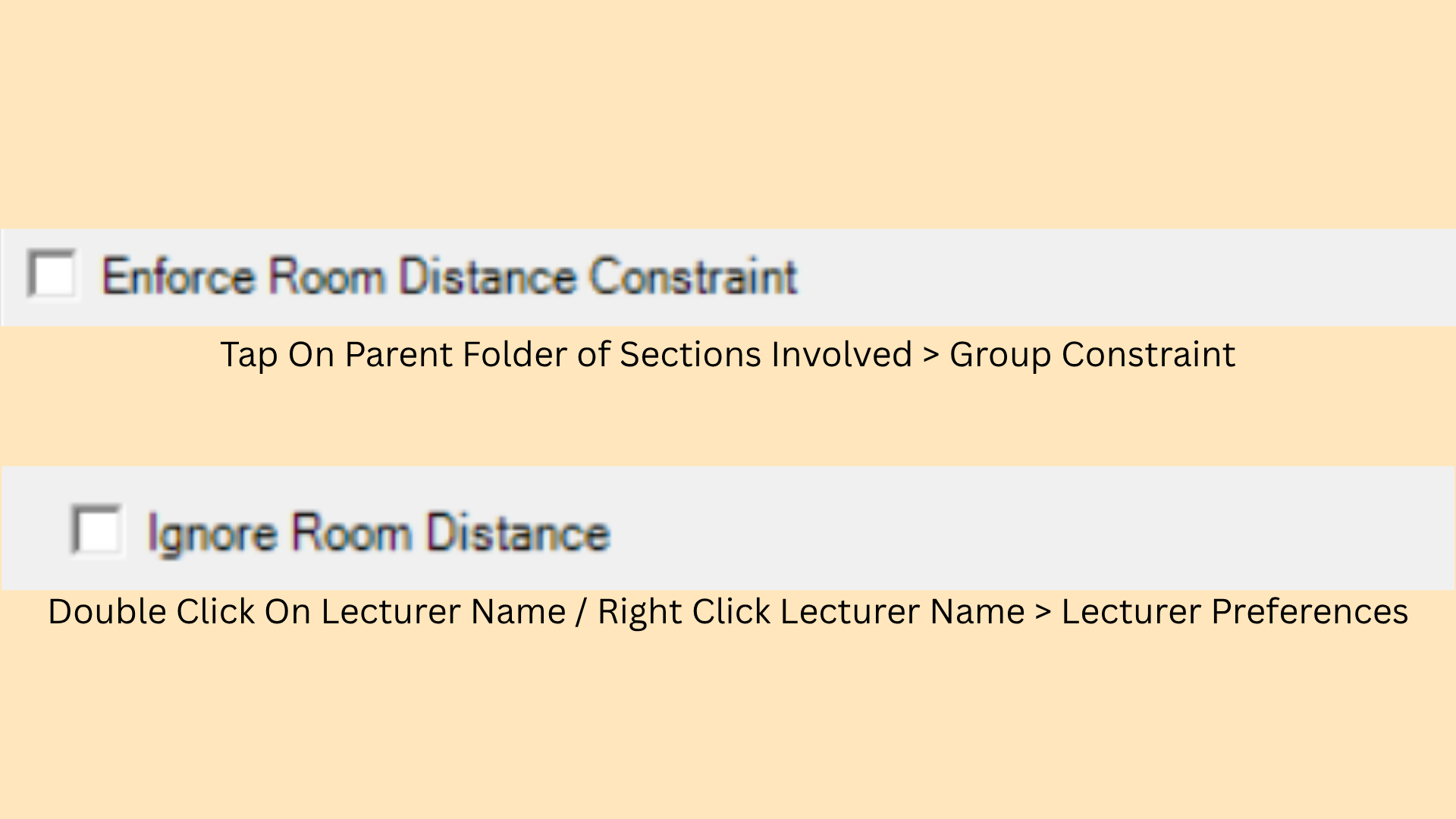
Room distance accounts for the travel time between rooms and buildings. When enforced, the generator avoids placing consecutive sessions in venues that are too far apart for students or lecturers to move between within the time available. The setting appears in two places, depending on whether it is being applied to a group of sections or to a single lecturer.
| Setting | Description |
|---|---|
| Enforce Room Distance Constraint | Applies the constraint to a group of sections. Tap the parent folder of the sections involved, then go to Group Constraint. |
| Ignore Room Distance | Exempts one lecturer from the constraint. Double click the lecturer name, or right click the lecturer name → Lecturer Preferences. |
Table 8.15: Room Distance Settings
8.2 Lecturer Constraint
Lecturer constraints record when a lecturer is unavailable and which rooms they may not use. Blocked timeslots are excluded from that lecturer’s assignments, and excluded rooms are removed from the venues the generator may select for their classes.
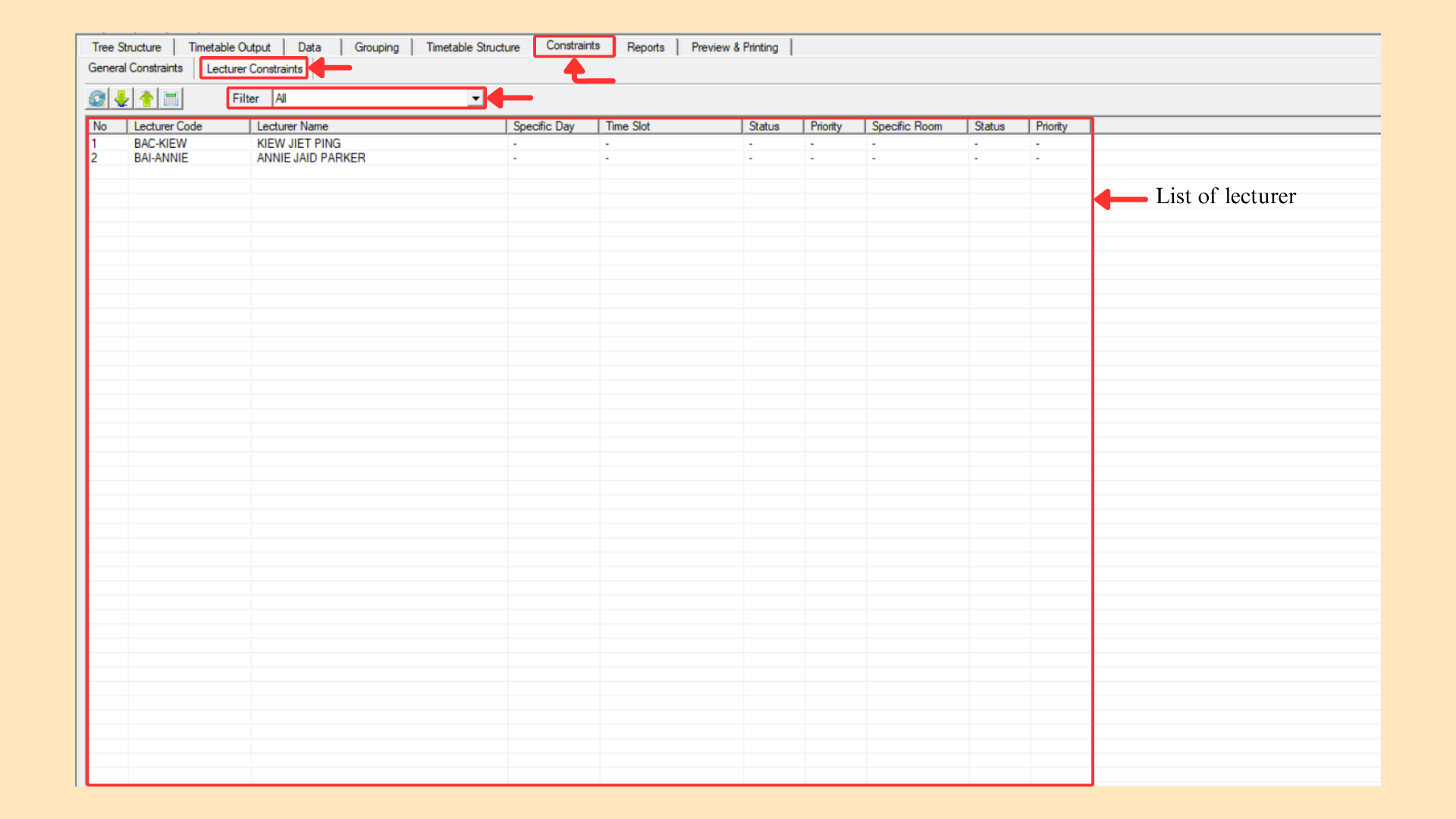
Go to Constraints → Lecturer Constraints to open the list. Every lecturer is listed with their current constraint summary: Specific Day, Time Slot, Status, Priority, Specific Room, Status and Priority. Use the Filter dropdown to narrow the list.
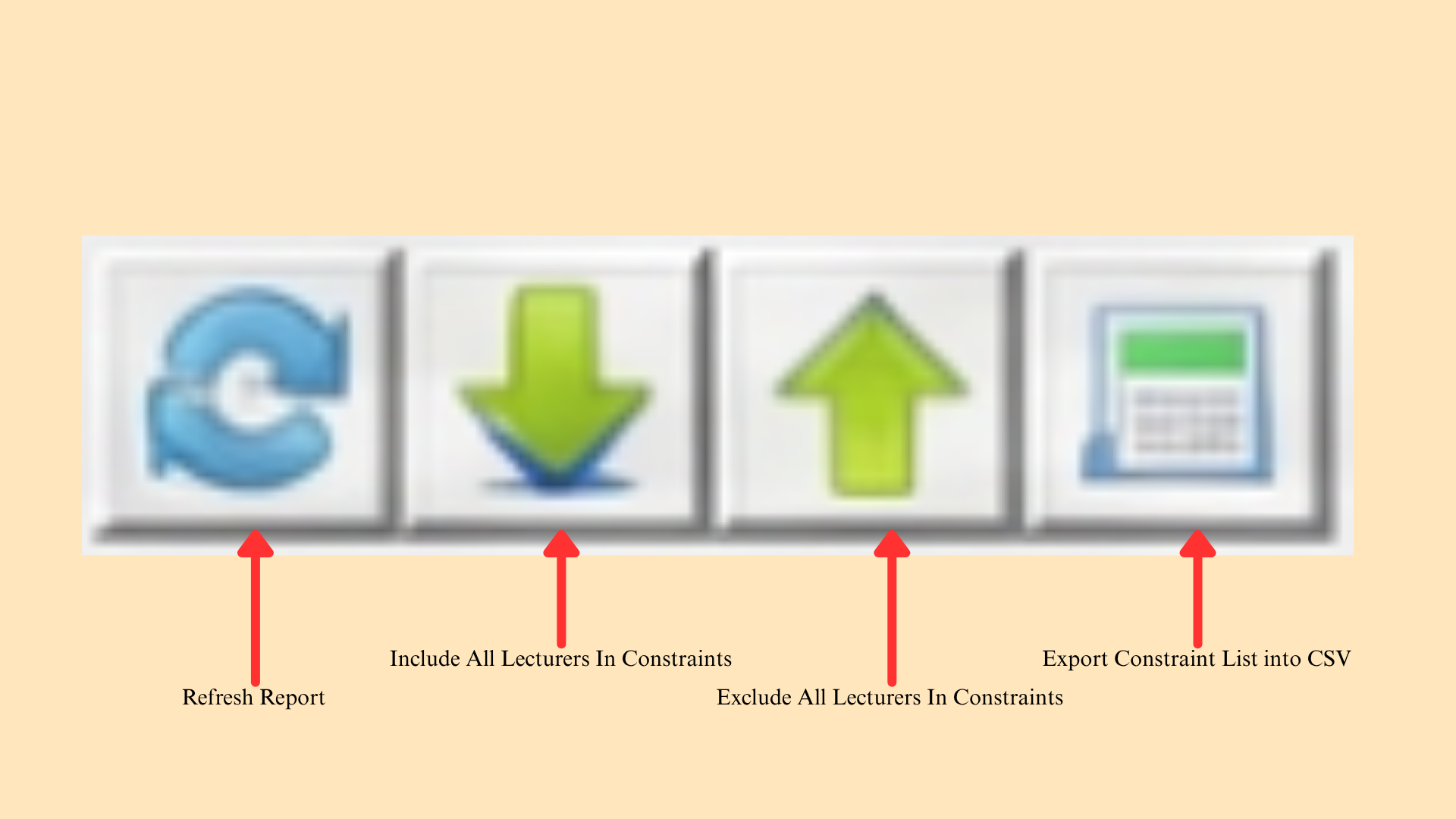
The shortcut bar above the list provides quick access to the functions available for this report.
| Function | Description |
|---|---|
| Refresh Report | Reloads the list to show the latest data. |
| Include All Lecturers In Constraints | Includes every lecturer in the constraint list. |
| Exclude All Lecturers In Constraints | Excludes every lecturer from the constraint list. |
| Export Constraint List into CSV | Exports the constraint list to a CSV file. |
Table 8.16: Lecturer Constraints Shortcut Functions
To set the constraints for one lecturer, double click the lecturer name, or right click the lecturer name and select Lecturer Preferences. The Lecturer Constraints window opens with the window title showing the lecturer code and name.
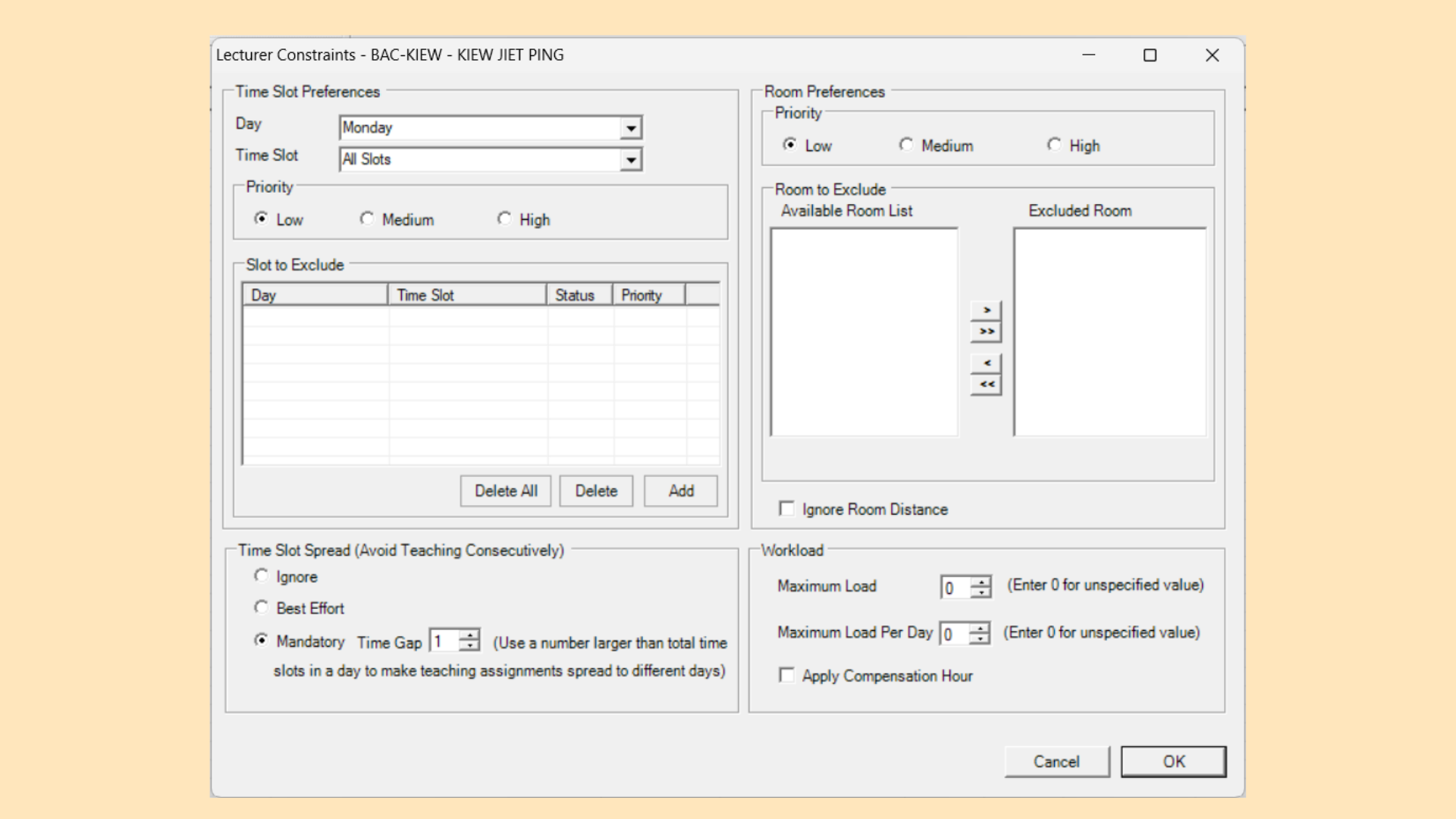
The window is divided into four panels, each covered below. Click OK to save the settings, or Cancel to discard them.
8.2.1 Time Slot Preferences
Records the days and time slots the lecturer is not available to teach, each with a priority.
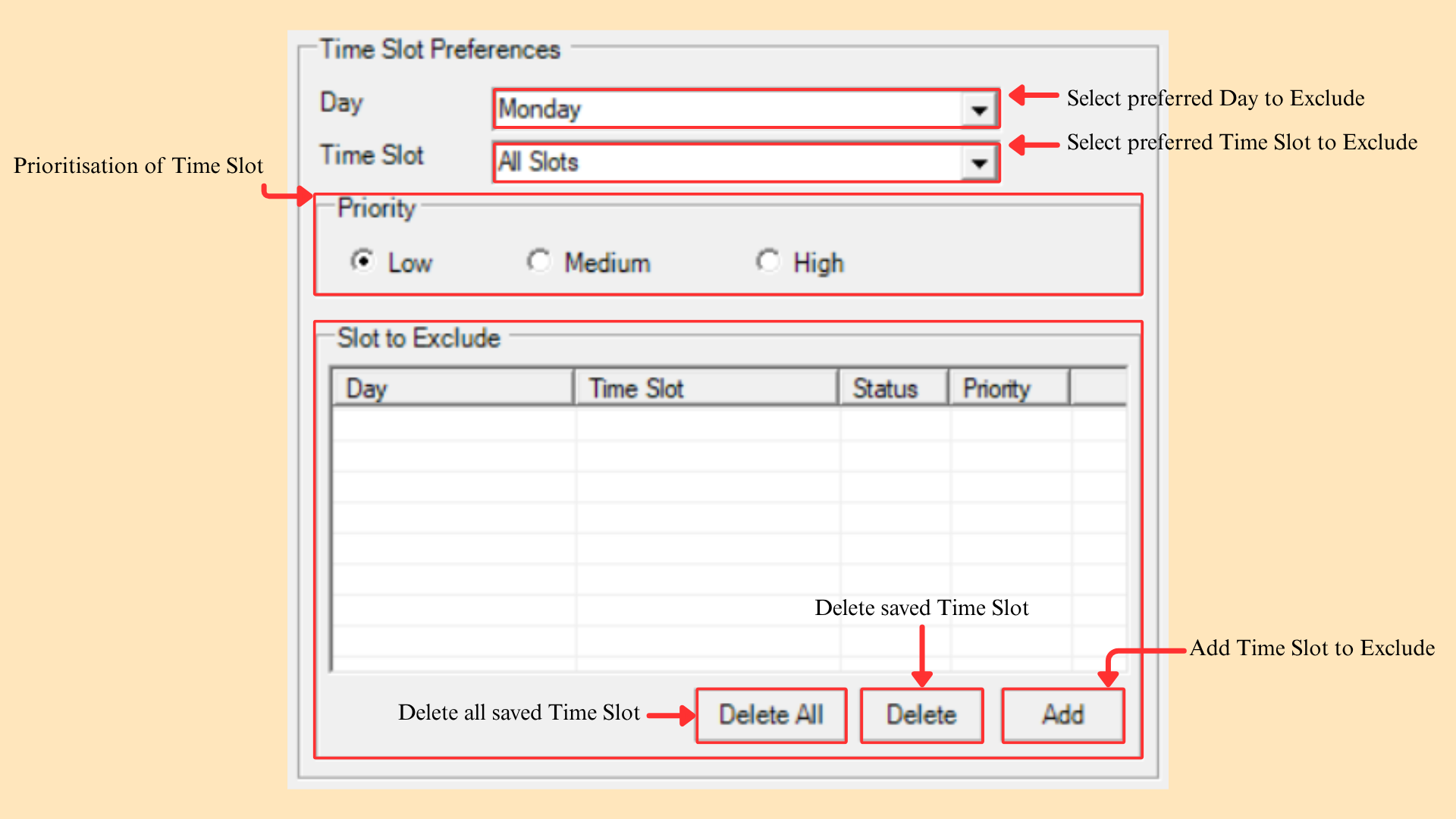
To exclude a slot, there are 4 simple steps to do so.
Step 1: Select the Day to exclude from the dropdown list.
Step 2: Select the Time Slot to exclude from the dropdown list.
Step 3: Set the Priority to Low, Medium or High.
Step 4: Click Add. The entry appears in the Slot to Exclude list with its Day, Time Slot, Status and Priority.
| Function | Description |
|---|---|
| Add | Adds the selected day and time slot to the exclusion list. |
| Delete | Removes the selected entry from the list. |
| Delete All | Removes every entry from the list. |
Table 8.17: Slot to Exclude Buttons
8.2.2 Time Slot Spread
The same spread rule described in Section 8.1.7, applied to this lecturer only rather than to all lecturers.
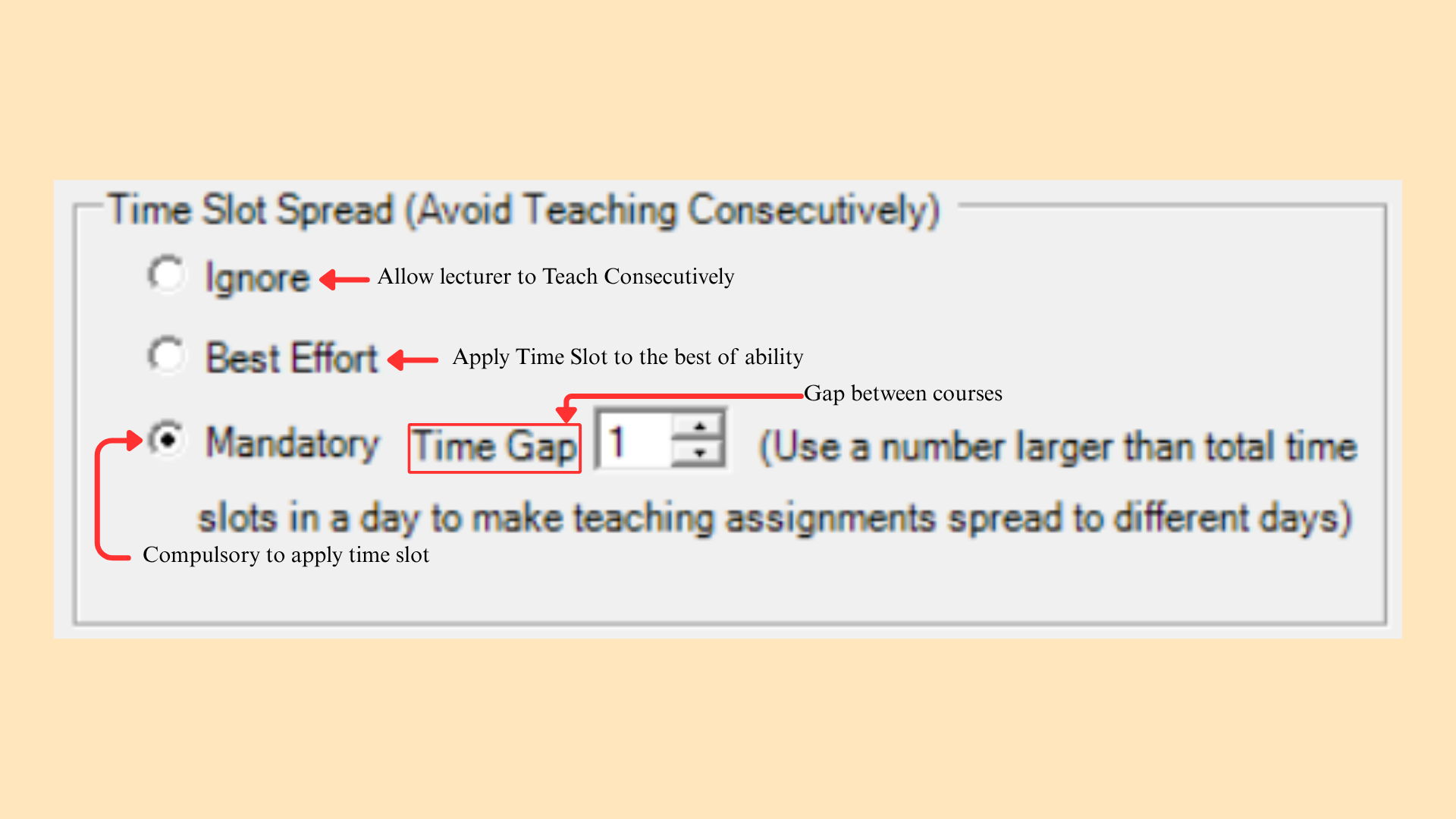
| Setting | Description |
|---|---|
| Ignore | Allow this lecturer to teach consecutively. |
| Best Effort | Apply the time slot spread to the best of the system’s ability. |
| Mandatory | Compulsory to apply the time slot spread, with the required Time Gap between courses. |
Table 8.18: Time Slot Spread Settings (Lecturer)
8.2.3 Room Preferences
Records the rooms this lecturer may not use, and whether the room distance constraint applies to them.
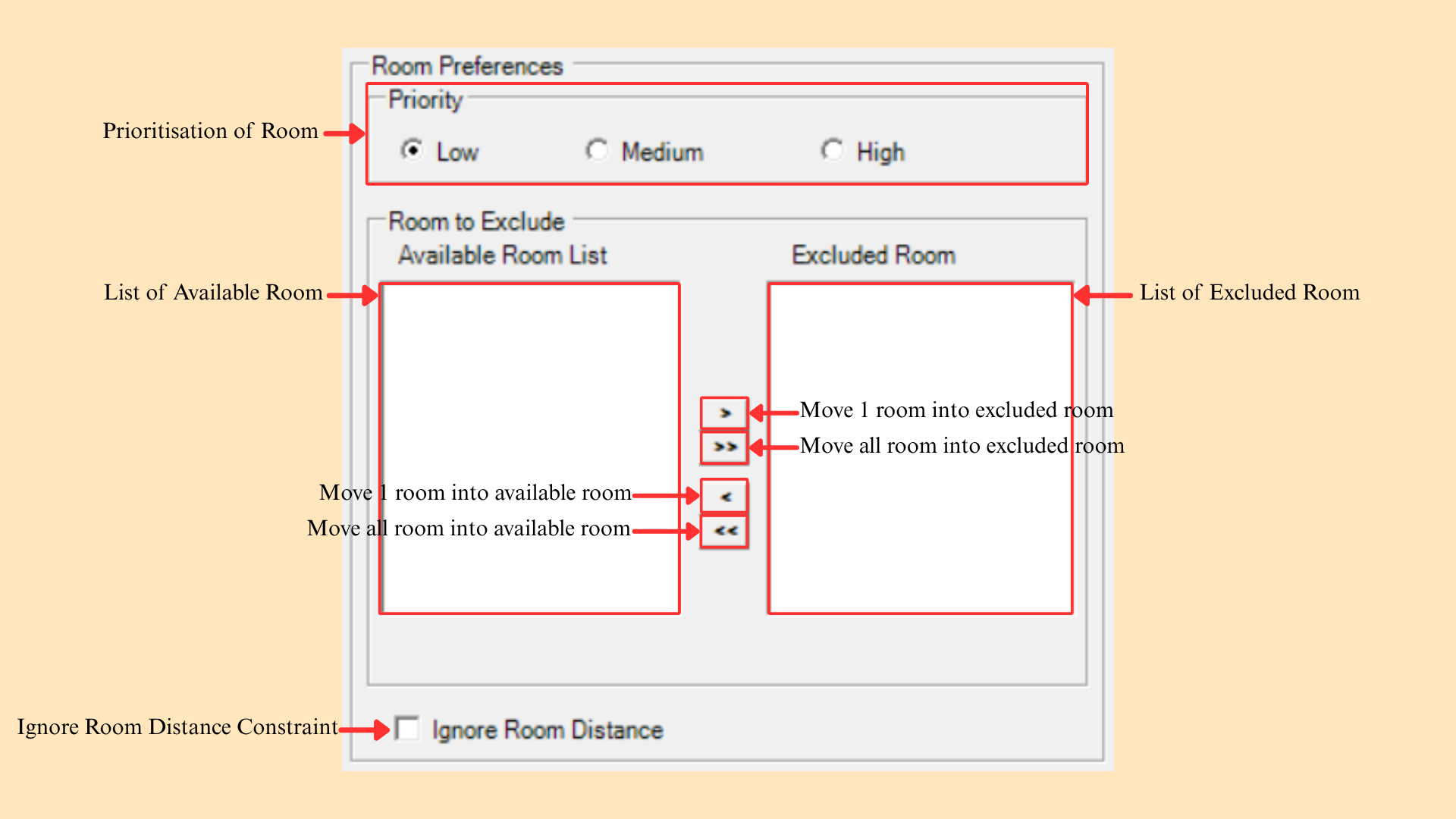
| Function | Description |
|---|---|
| Priority | Sets the prioritisation of the room preference as Low, Medium or High. |
| > | Moves one room into Excluded Room. |
| >> | Moves all rooms into Excluded Room. |
| < | Moves one room back into Available Room List. |
| << | Moves all rooms back into Available Room List. |
| Ignore Room Distance | Exempts this lecturer from the room distance constraint. See Section 8.1.12. |
Table 8.19: Room Preferences Functions
8.2.4 Workload
Caps the teaching hours that may be assigned to this lecturer.
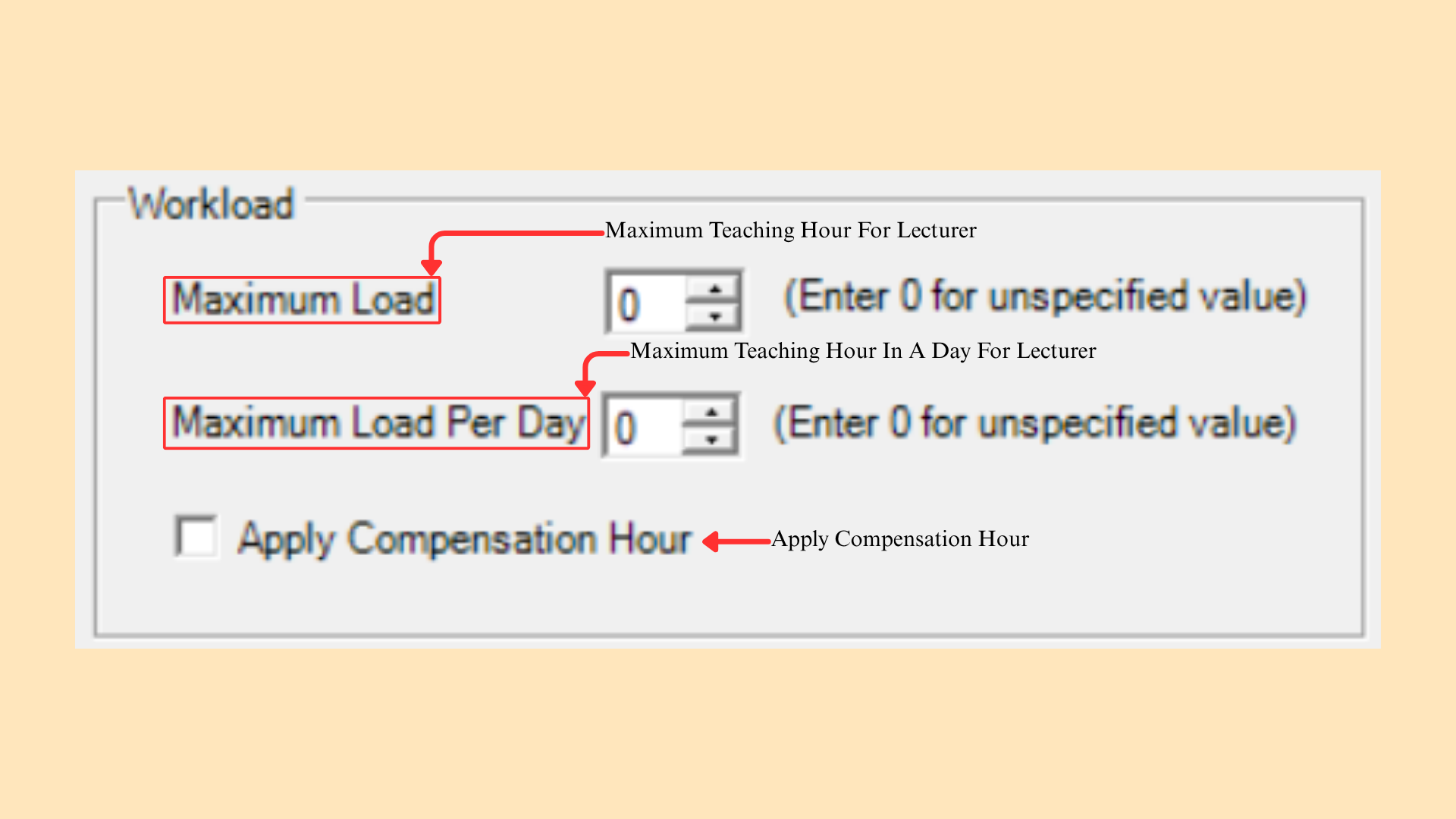
| Field | Description |
|---|---|
| Maximum Load | The maximum teaching hours for the lecturer. Enter 0 for an unspecified value. |
| Maximum Load Per Day | The maximum teaching hours in a day for the lecturer. Enter 0 for an unspecified value. |
| Apply Compensation Hour | Applies the compensation hour rule to this lecturer. The rule itself is set in Section 8.1.5. |
Table 8.20: Workload Settings