Installation & Setup
This chapter guides you through installation, launching the system, understanding the interface, and creating your first exam timetable project.
2.1 System Installation Overview
The TPlus Exam system is provided as an application package. You will need to extract the folder and ensure the required files are available before running the system.
- Open the provided installation folder (or extract the ZIP file if you received a ZIP package).
- Ensure the folder contains the main application file and supporting files.
- Do not rename, move, or delete any files inside the folder to avoid system errors.
2.2 Launching the Application
After confirming the installation folder is complete, you can launch the system using the main executable file.
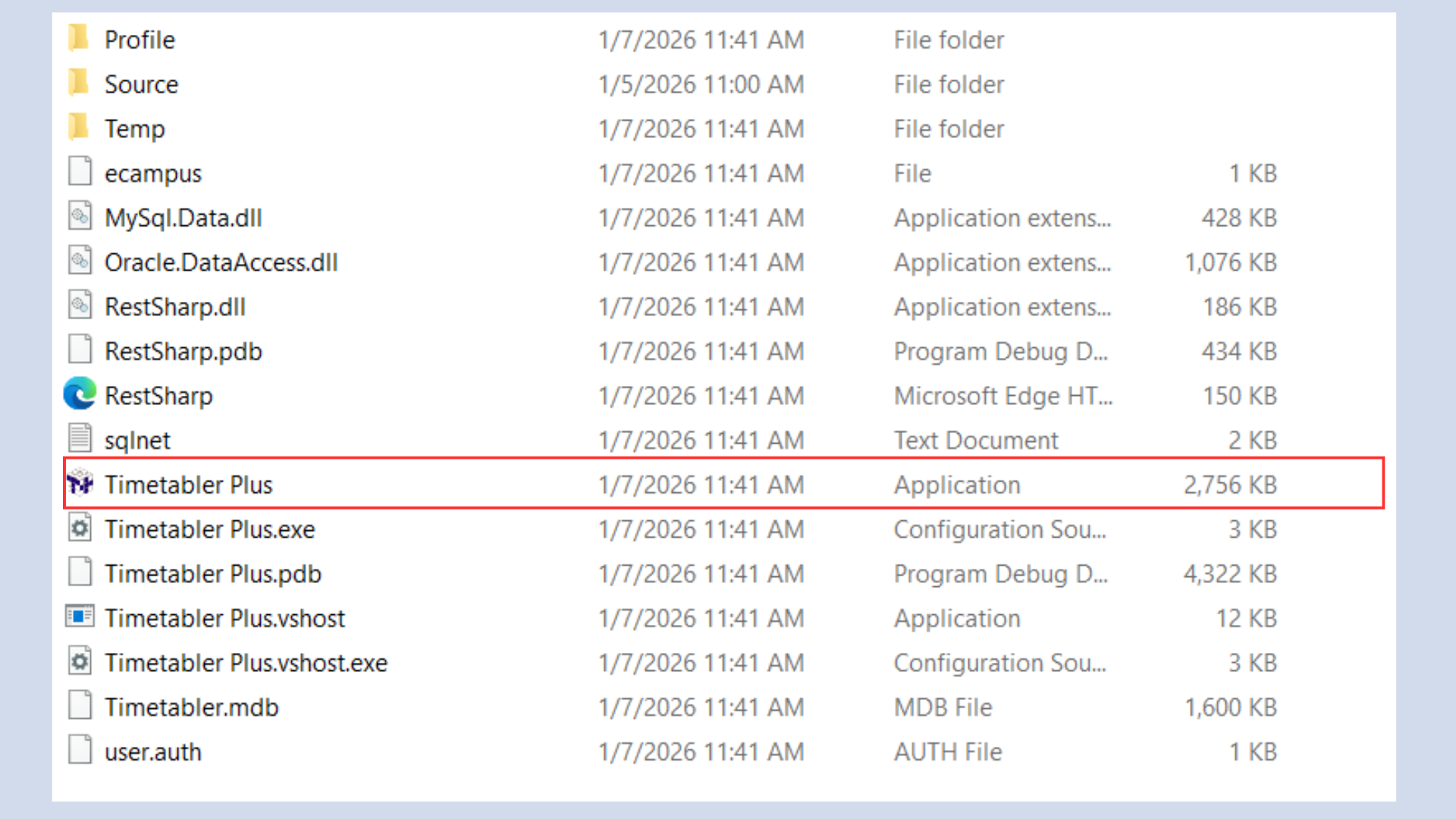
- Open the TPlus Exam installation folder.
- Locate Timetabler Plus.
- Double click the file to launch the system.
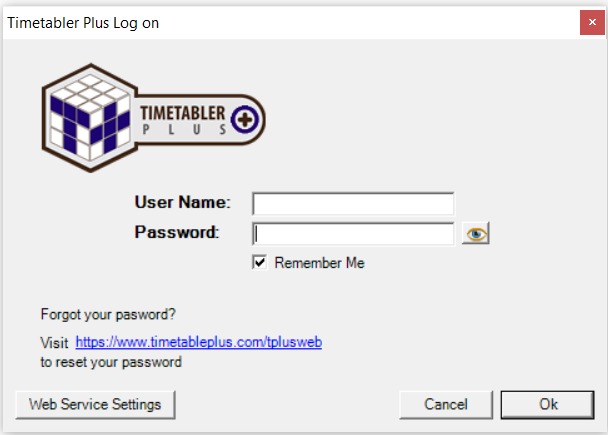
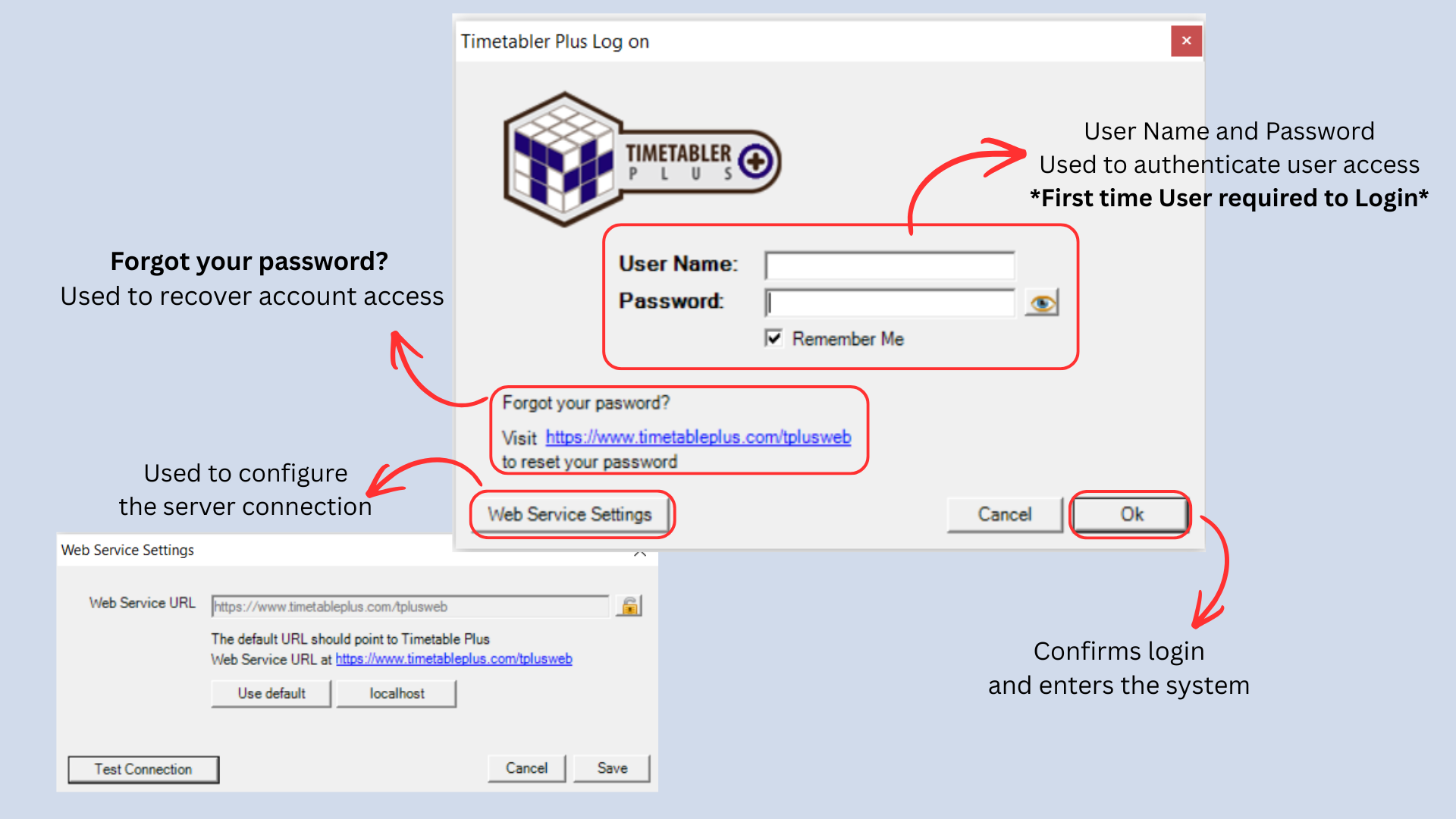
- If a login page appears, enter your credentials provided by the administrator.
2.3 Interface Overview
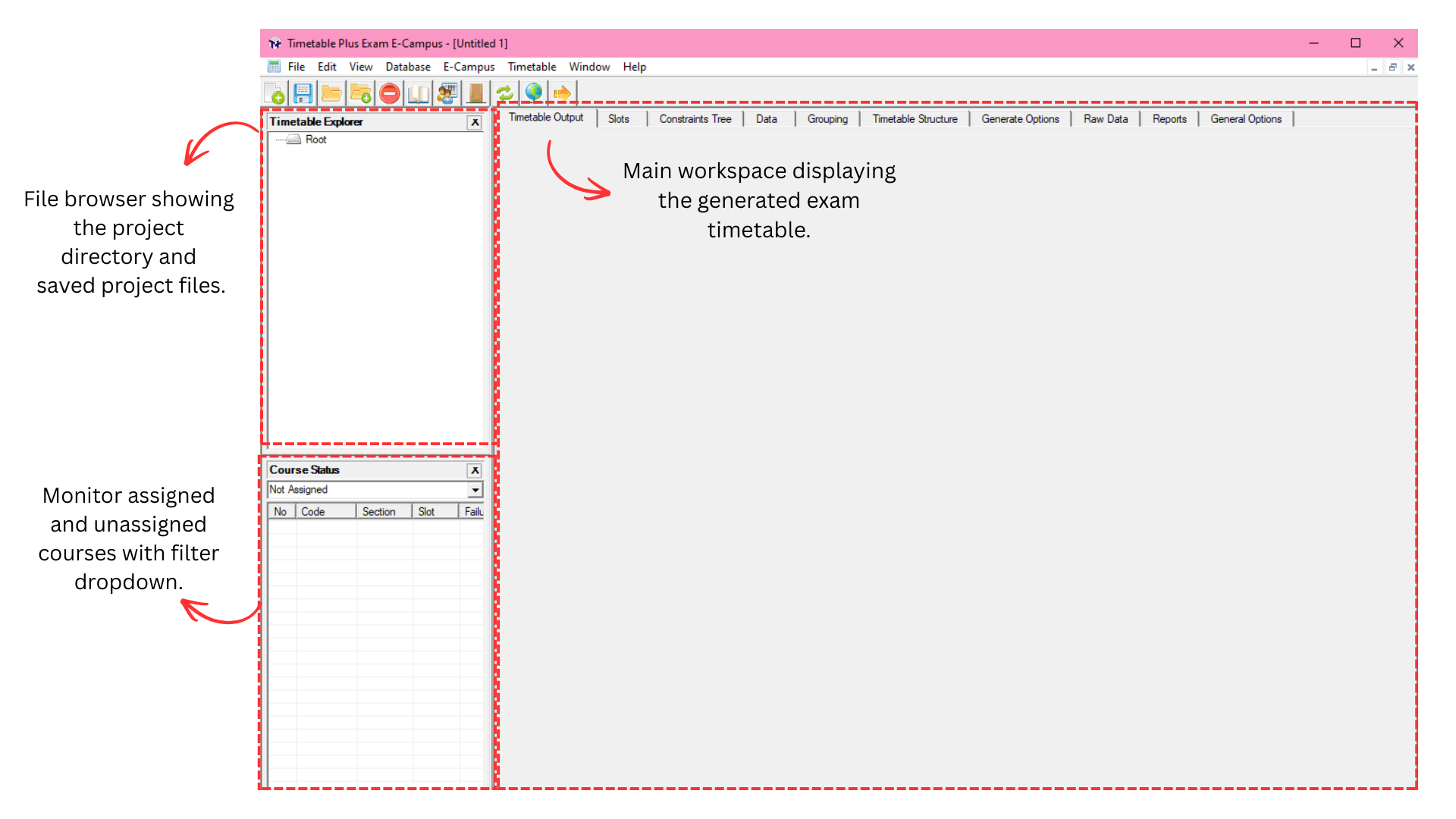
When you first log in, the main interface opens with several key areas. Understanding each component will help you navigate the system efficiently.
2.3.1 Menu Bar
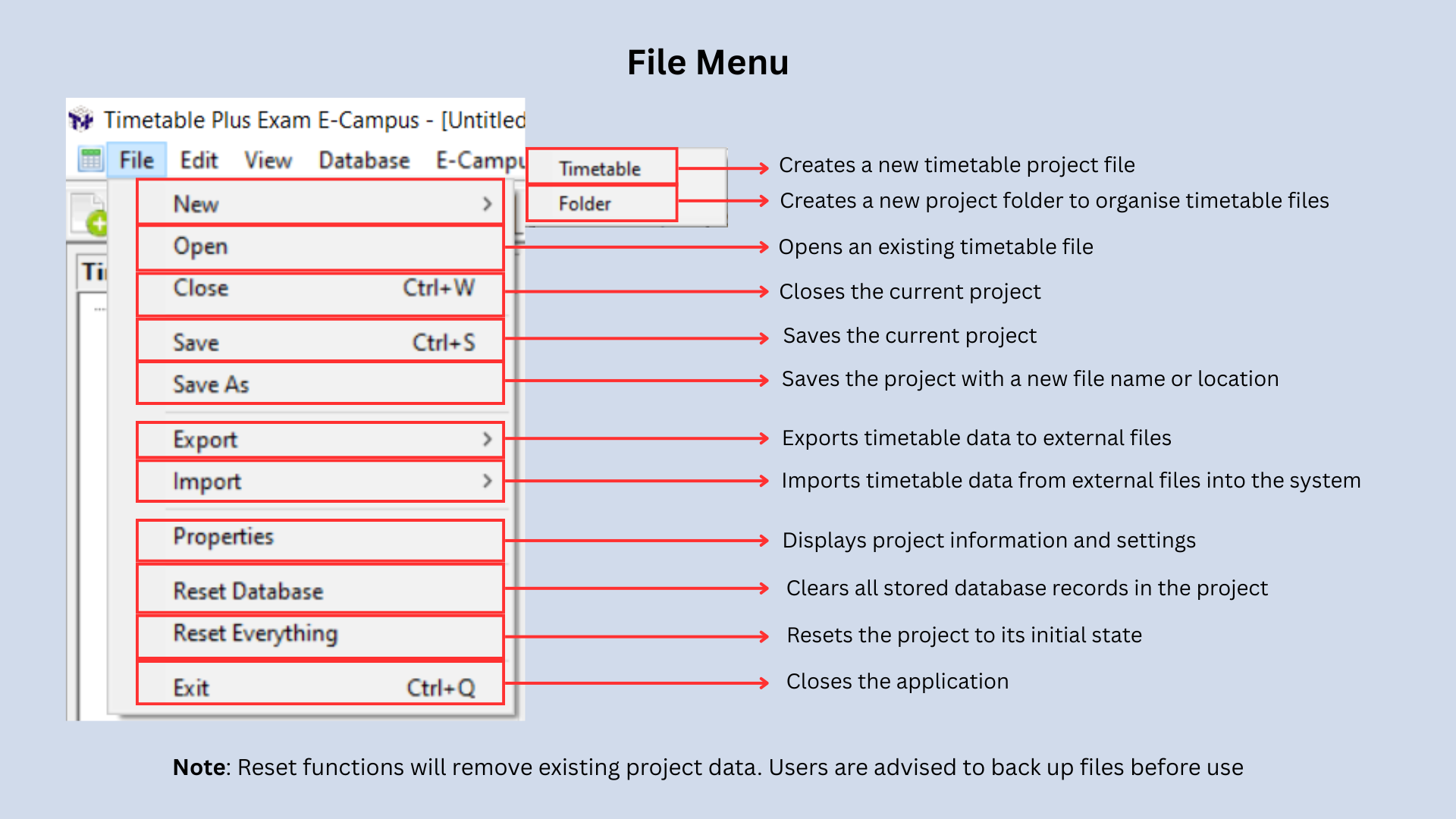
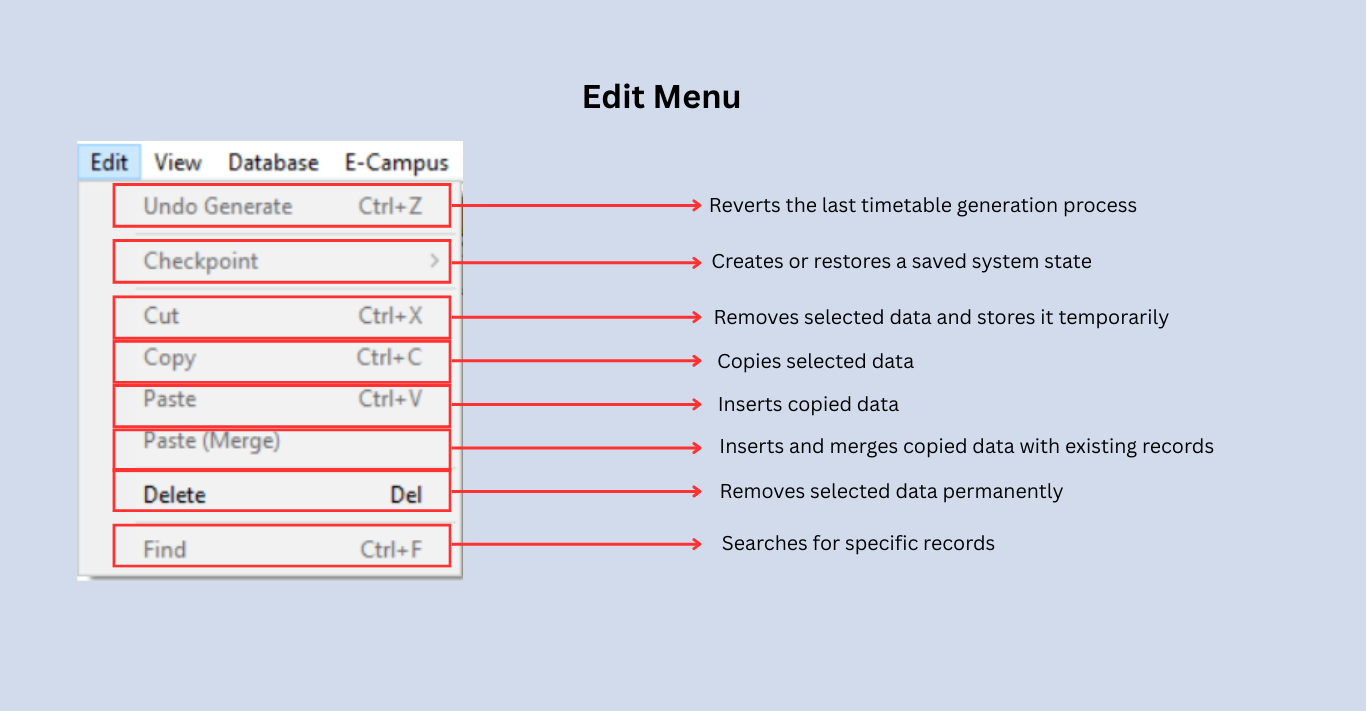
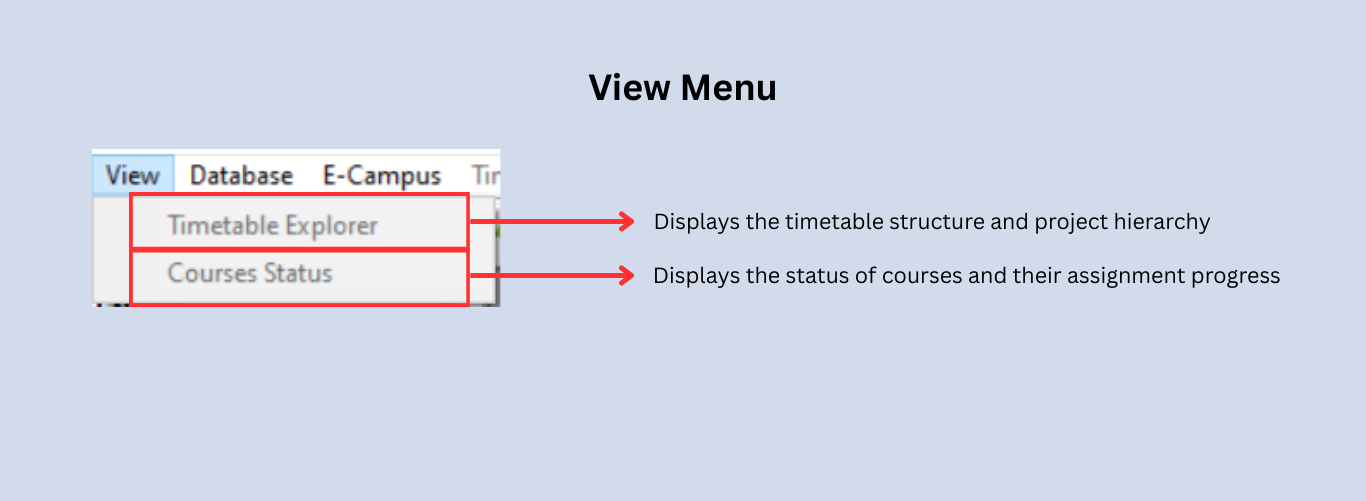
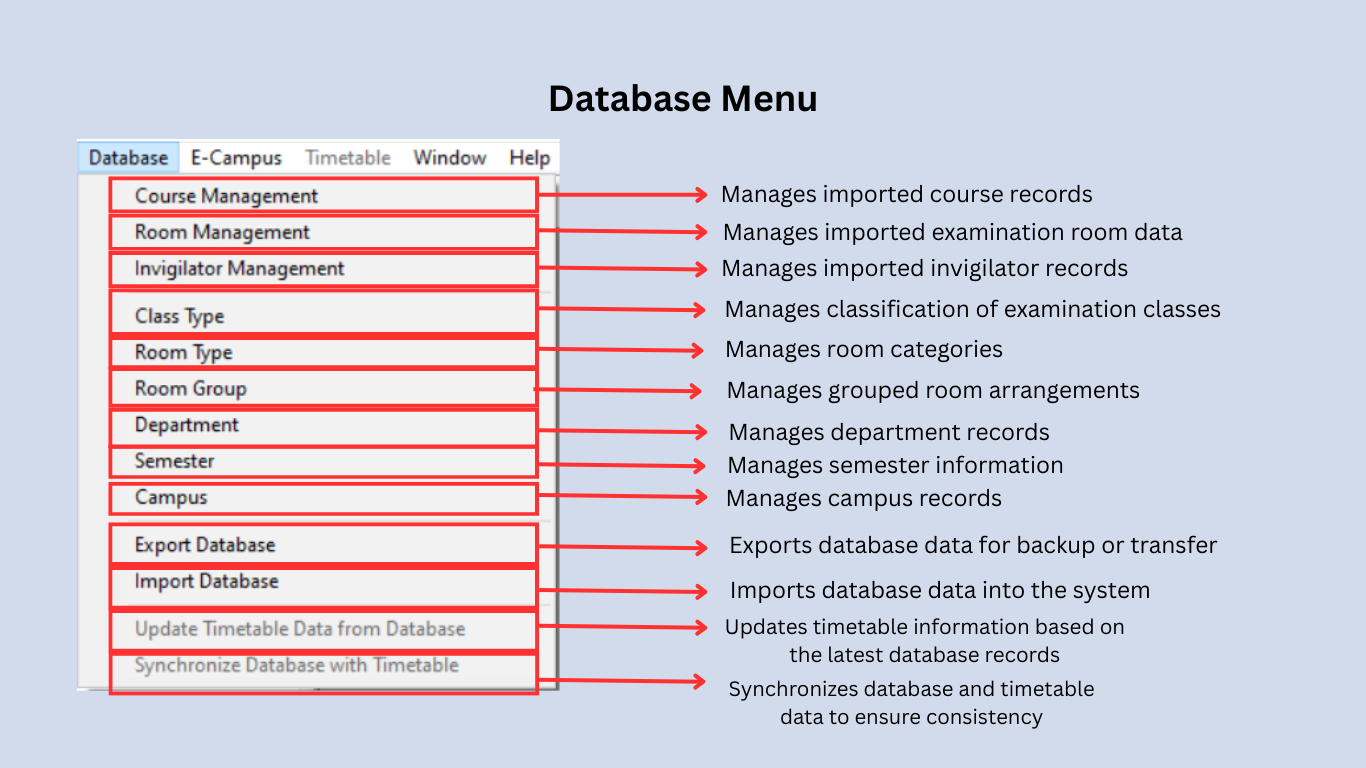
The menu bar is the primary way to access all system functions. Each menu groups related actions, as shown in the figures below.
What is TPlus E-Campus?
TPlus E-Campus is a portal platform that provides direct integration with your institution's Student Management System through API connectivity.
Relationship of TPlus E-Campus with TPlus Exam
Since all the data and database are stored at TPlus E-Campus, users can directly access all the data and database from TPlus E-Campus to TPlus Exam seamlessly.
System (SIS)
E-Campus Settings (To Import Database)
To import database using E-Campus, first you need to know about E-Campus Settings.
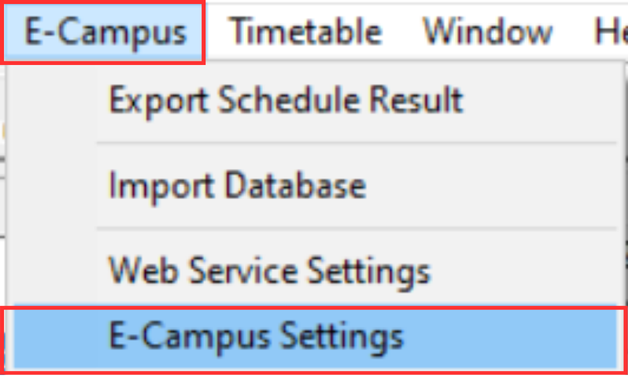
Go to the Database Menu and select E-Campus. You will see a drop-down menu under E-Campus. Click on E-Campus Settings.
E-Campus Settings Window will pop-up. The window contains two sections:
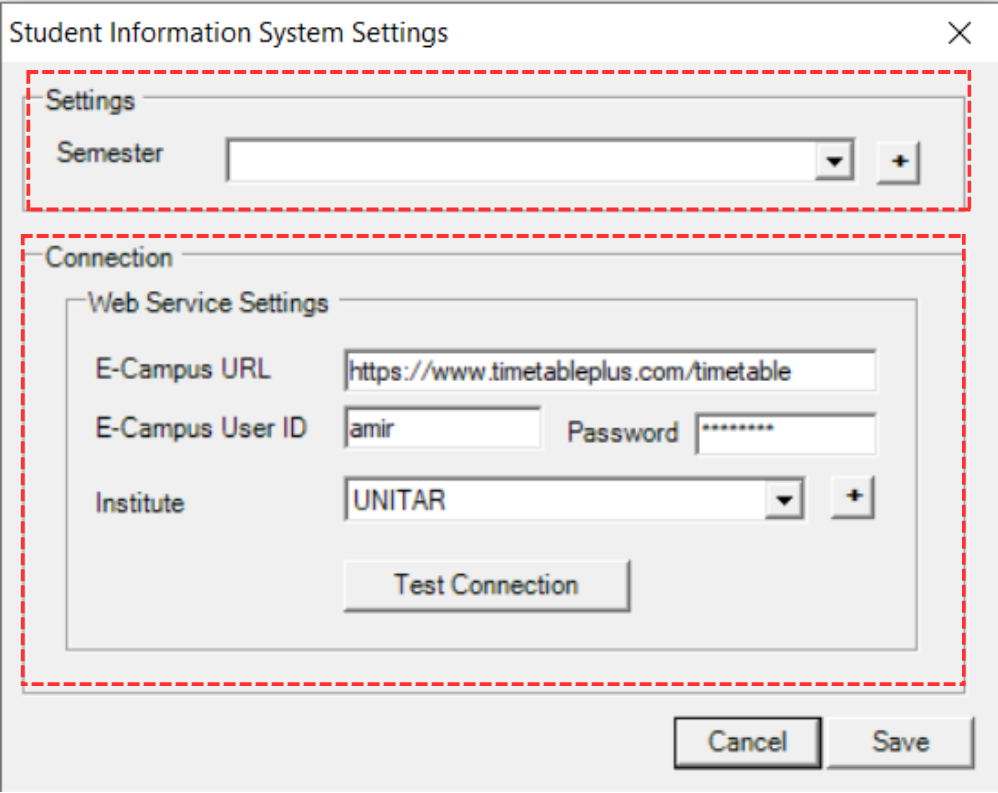
1. Connection
First you need to connect your TPlus Exam with your E-Campus Student Information System.
To know how to fill in the empty slots, refer to the table below.
| Field | Description |
|---|---|
| SIS URL | Always fixed to the website where it contains the online database. Default is https://www.timetableplus.com/timetable. |
| SIS User ID | User ID used in online database. Example: Admin99 |
| Password | Password used in online database. |
| Institute | Your institute. You may click the drop-down menu to choose your institute. If there is none, you can click the add sign to add your institute. |
Table 2.3.1: Fill In Information in Connection
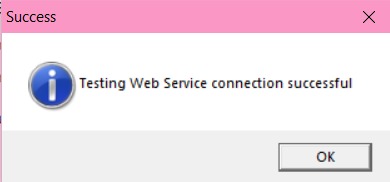
After done filling the slots, click Test Connection button.
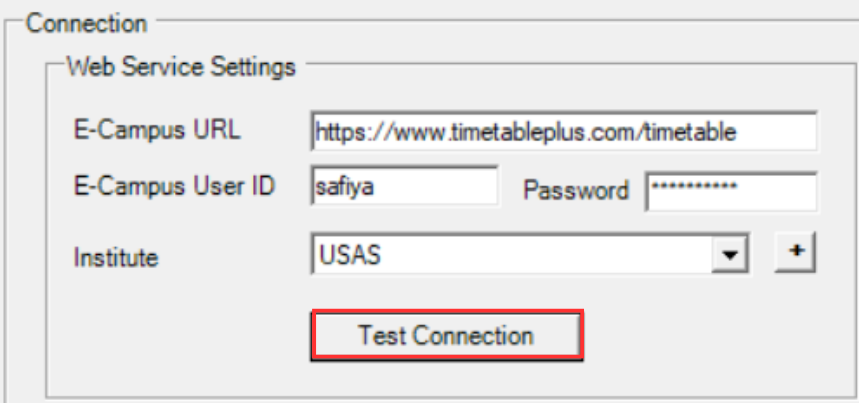
A pop-up message will appear, stating that it has been successful.
2. Settings

You may select the preferred semester of the data that will be imported from E-Campus.
Once everything has been filled and connected, you may click Save.
2.3.2 Toolbar
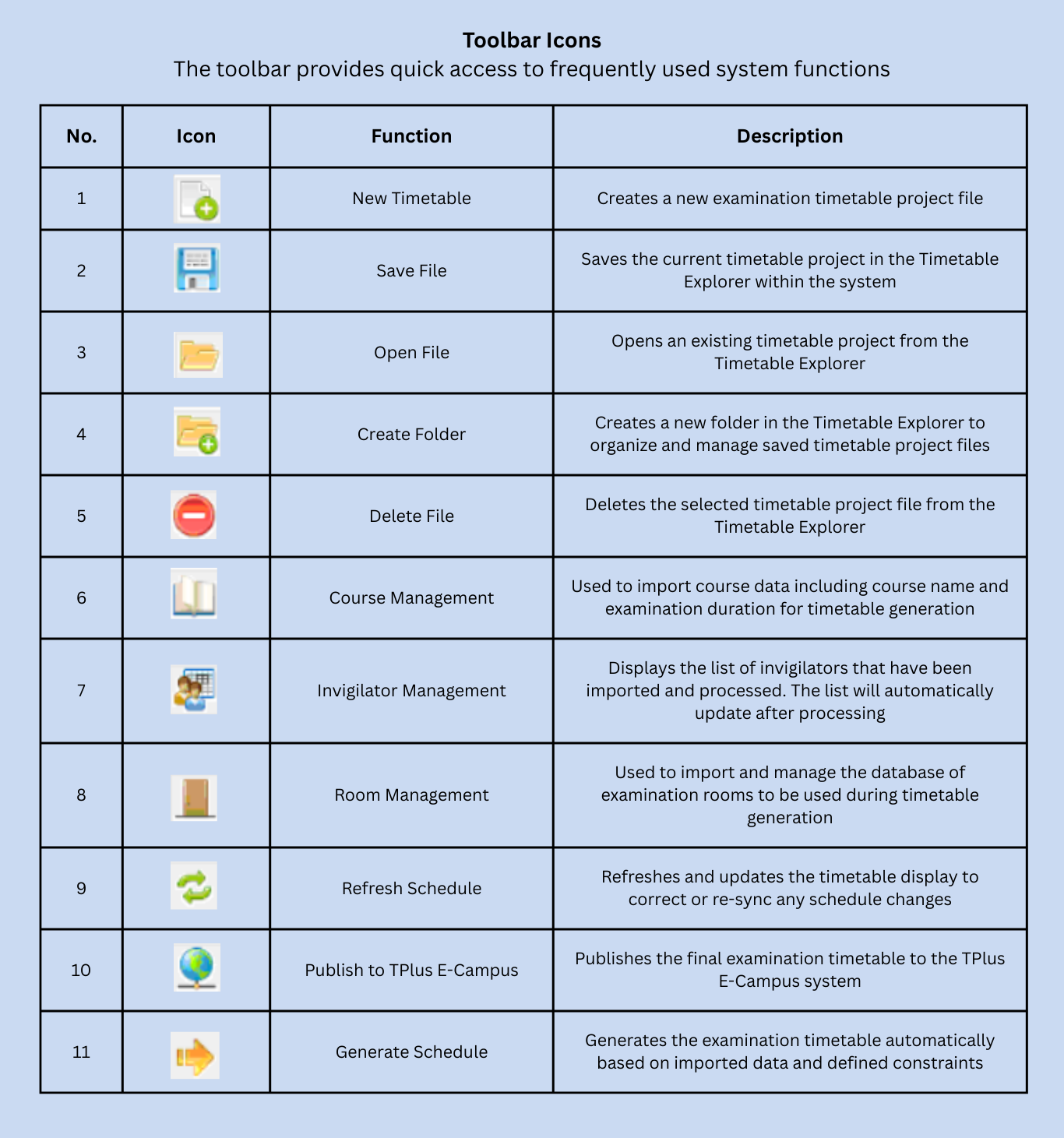
The toolbar provides shortcut buttons for the most common actions, such as creating a new project or saving your work, without going through the menu. You will use it most at the start of each session and throughout your work when saving progress.
2.3.3 Main Tabs
The tabs divide the workspace into the main stages of the timetabling process. Work through them in order from left to right; each tab is covered in the chapters that follow. You will switch tabs as you move from data preparation through to generation and finalisation.

2.3.4 Timetable Explorer Panel
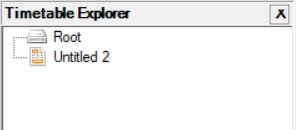
The Timetable Explorer is located on the left side of the screen. It displays all saved timetable projects under the Root directory. Use it to navigate between different parts of your project. You will refer to it when working with multiple timetable groups within the same project.
Right-Click Management Options
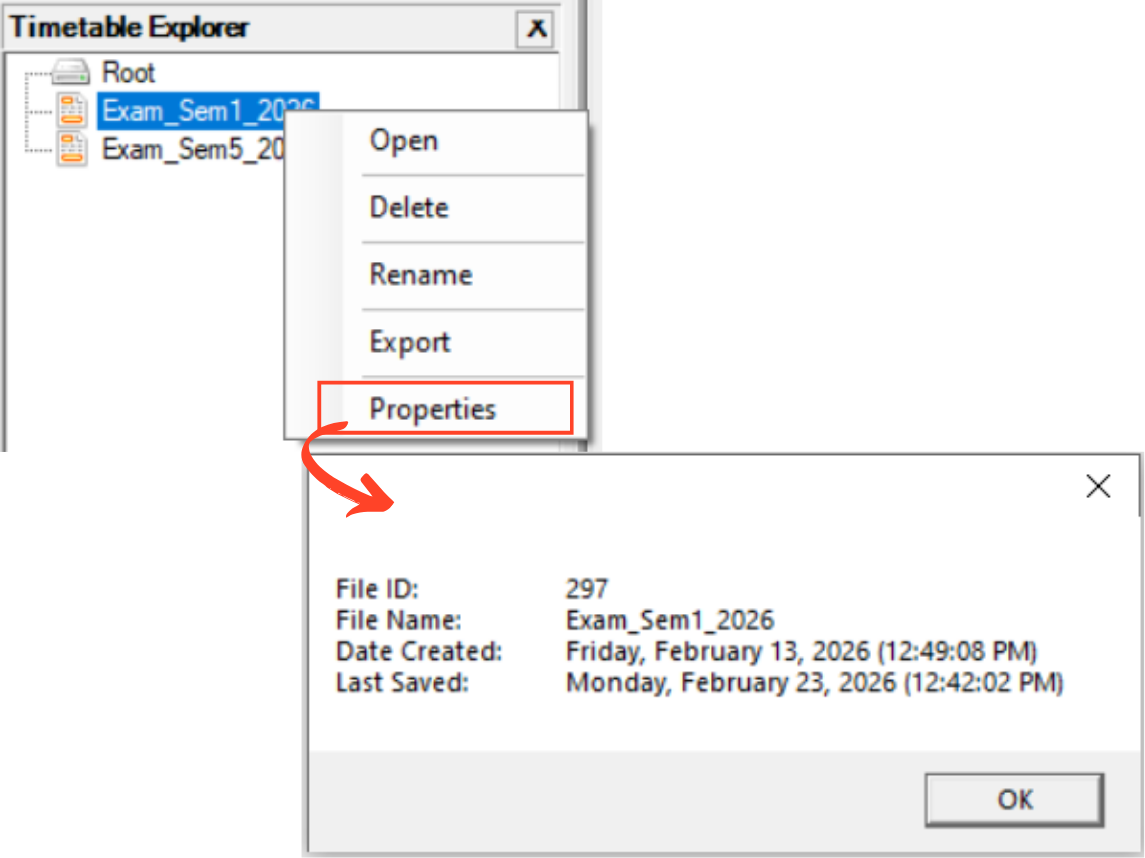
Right-clicking on a project in the Timetable Explorer opens a context menu with the following options:
- Open: Opens the selected timetable project.
- Delete: Removes the selected project from the system.
- Rename: Changes the name of the selected project.
- Export: Exports the project as a file for backup or transfer.
- Properties: Displays project details such as file ID, file name, date created, and last saved.
Project Properties
Selecting Properties from the right-click menu opens a window that displays the following information about the selected project:
- File ID: The unique identifier assigned to the project by the system.
- File Name: The name given to the project when it was created.
- Date Created: The date and time the project was first saved.
- Last Saved: The date and time the project was last modified and saved.
Exporting a Timetable Project
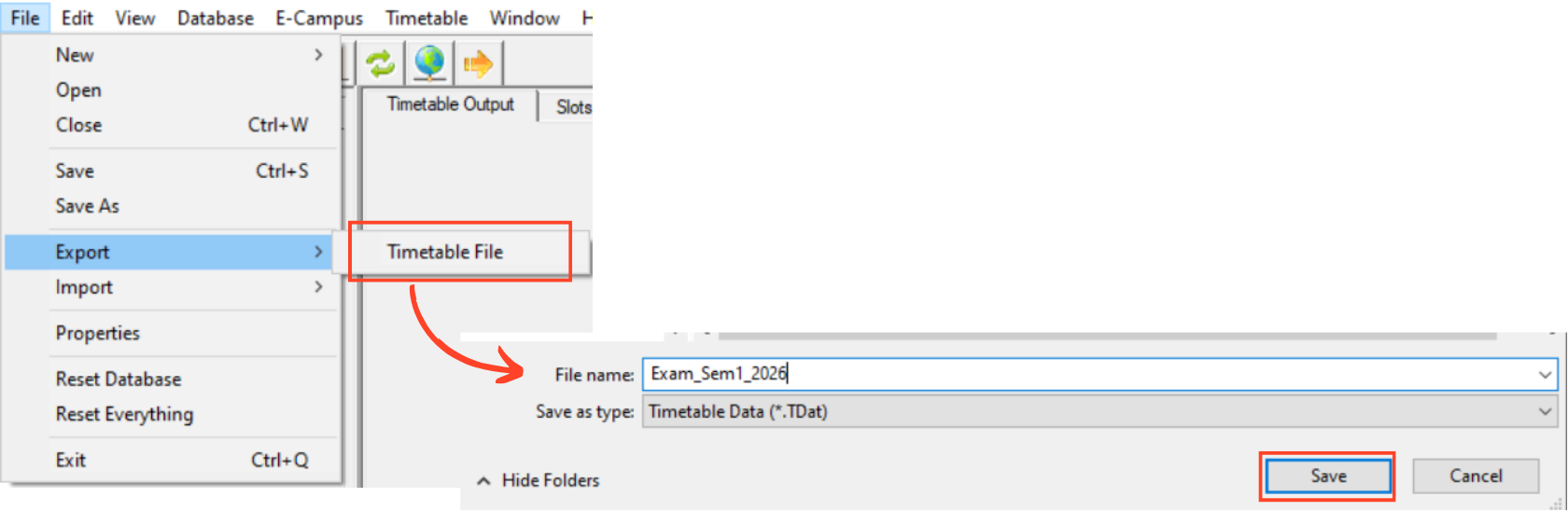
To export a timetable project outside the system, go to File → Export → Timetable File. The exported file uses the .TDat extension. This is useful for creating a backup copy of your project or transferring it to another machine.
2.3.5 Course Status Panel
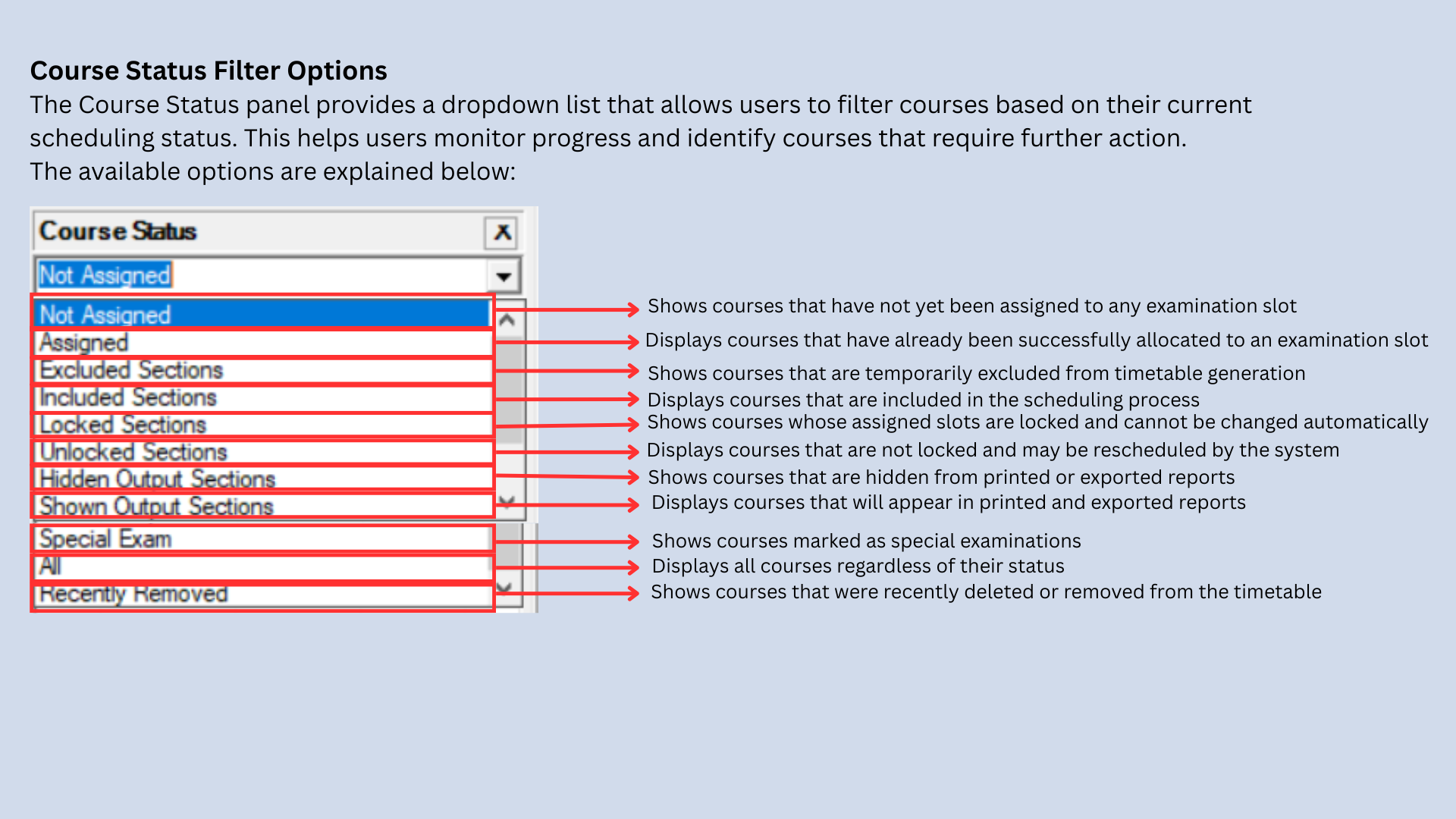
Located below the Timetable Explorer, this panel lists courses that have not yet been assigned to a time slot. Use it to track scheduling progress at a glance. You will check it regularly during the timetable generation stage to confirm all courses have been placed.
Detailed procedures for each stage are explained in the workflow chapters that follow.
2.4 Creating a New Project
Each examination session requires its own timetable project to keep data organized and separate from other exam periods.
Step 1: From the menu bar, click File and select New → Timetable.

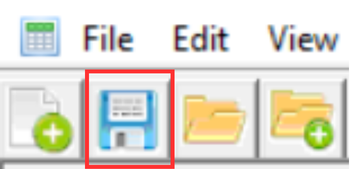
Step 2: Click Save to open the Save Schedule As window.
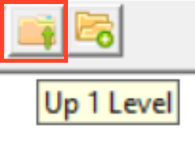
Step 3: Choose the save location. By default, the system opens to the Root directory. Use Up 1 Level to navigate to a parent folder if needed.

Step 4: Enter the Schedule Name (for example: Exam_Sem1_2026).
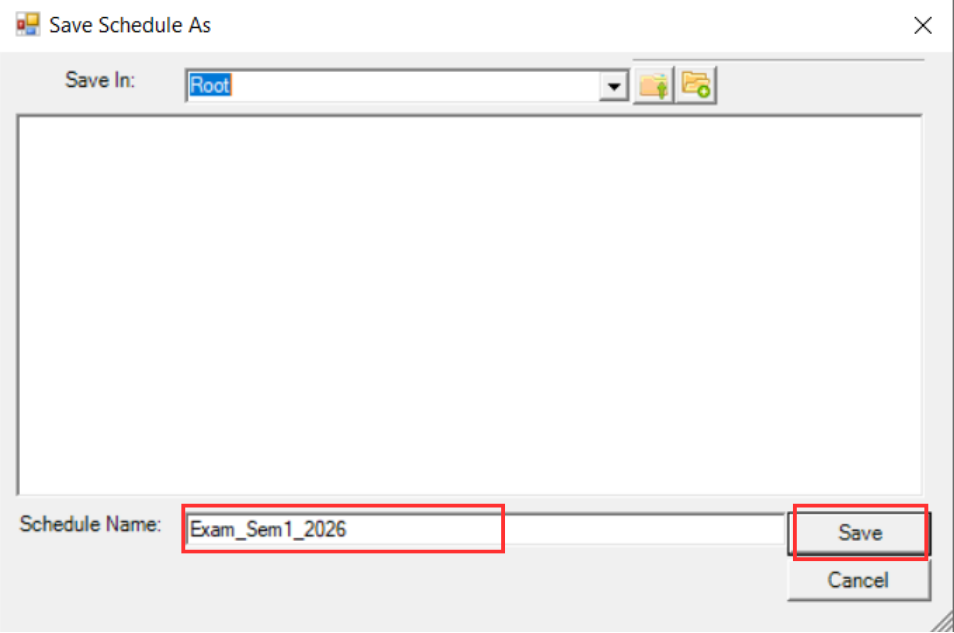
Step 5: Click Save.
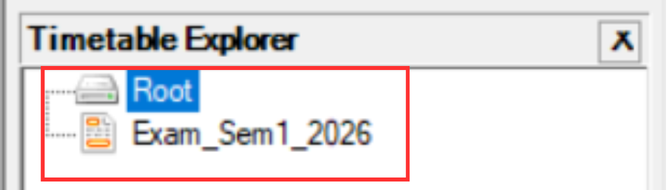
Step 6: Once saved, the new project will appear in the Timetable Explorer panel on the left side.
2.4.1 Organising Projects Using Folders
You can create folders within the save window to organise your projects by semester, year, or department.
New Folder: Click this icon to create a new folder within the current directory.
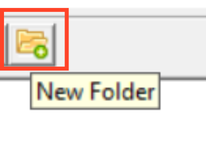
Create a New Folder: After clicking the icon, a new folder will appear in the Timetable Explorer panel.
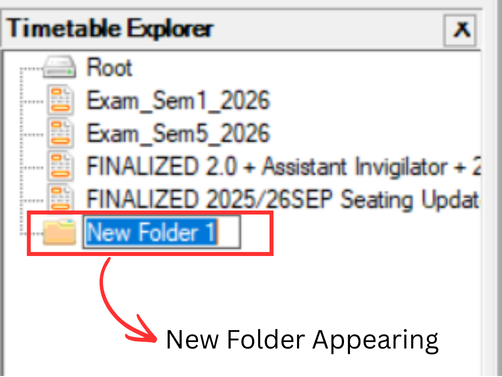
Rename the Folder: Rename the folder to reflect the examination session or year (for example: Exam2026).
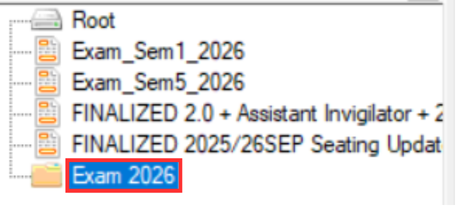
Move the Project File: Select the exam file and drag it into the newly created folder to organise the project structure.
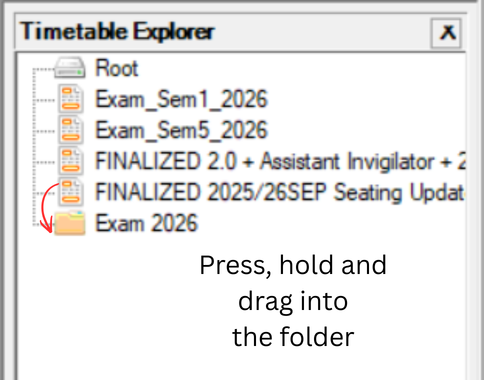
Final Folder Structure: Once moved, the project file will appear under the selected folder in the Timetable Explorer panel.

2.5 Pre Data Preparation Checklist
Before continuing to the next chapter, confirm the following items are completed.
- Installation folder is complete and extracted correctly
- The system launches using Timetabler Plus
- Login is successful (if required)
- You understand the main interface layout (menu, toolbar, panels)
- You are ready to proceed to data import and processing
Next, continue to Data Preparation to import and process exam data.