Apply Constraints
Set scheduling rules and exclusions before generating the exam timetable.
6.1 Overview
This phase allows users to define scheduling rules and exclusions before generating the timetable. These rules will directly affect how the system assigns exams to time slots and rooms during the generation process.
The main areas covered in this chapter are:
- Reorganize Tree Structure: Rearrange how courses are grouped in the tree view.
- Special Exam: Set up courses that need special scheduling treatment.
- Set Constraint: Define scheduling rules before generation.
After applying constraints, proceed to Timetable Generation to generate the schedule automatically.
- Section / Course: A group of students enrolled in a specific course. A course may have one or more sections.
- Slot: A specific time period on a specific day in the timetable (e.g., Monday 8:00 AM – 11:00 AM).
- Clashing Sections: Sections that share common students. These cannot be scheduled at the same time slot to avoid student conflicts.
- Similar Courses: Courses with different codes but the same exam content. These are grouped together and scheduled in the same slot.
6.2 Reorganize Tree Structure
Before generating the courses, you need to reorganize the Tree Structure by sorting the courses by size. This ensures that the largest courses are prioritized during the generation process.
The Constraints Tree is highly customizable. You can create new folders, drag and drop courses into different groups, and organize the tree structure according to your scenario. For example, you may create separate folders for first week exams, second week exams, or subjects that require special exam arrangements. Customize your tree structure accordingly based on your institution's needs.
To reorganize the tree structure:
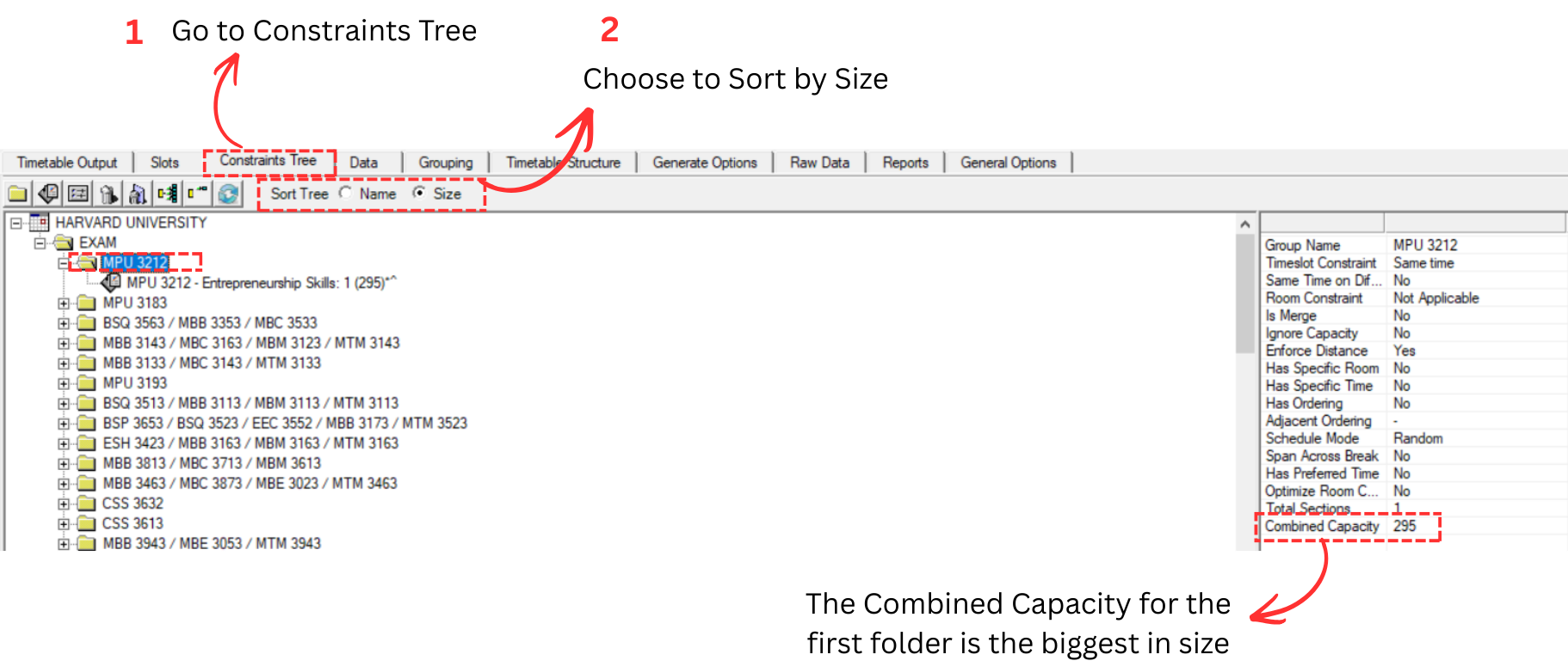
Step 1: Go to the Constraints Tree tab.
Step 2: Choose to Sort by Size. The tree will rearrange so that the folder with the biggest Combined Capacity appears first.

Customize Tree Structure
You can further customize the tree structure by creating new folders and organizing courses based on your needs. For example, you may want to group certain subjects into a "First Week" folder so they are scheduled in the first week of exams.
Step 1: Select the root group and click the Create New Constraint Group icon  to create a new folder.
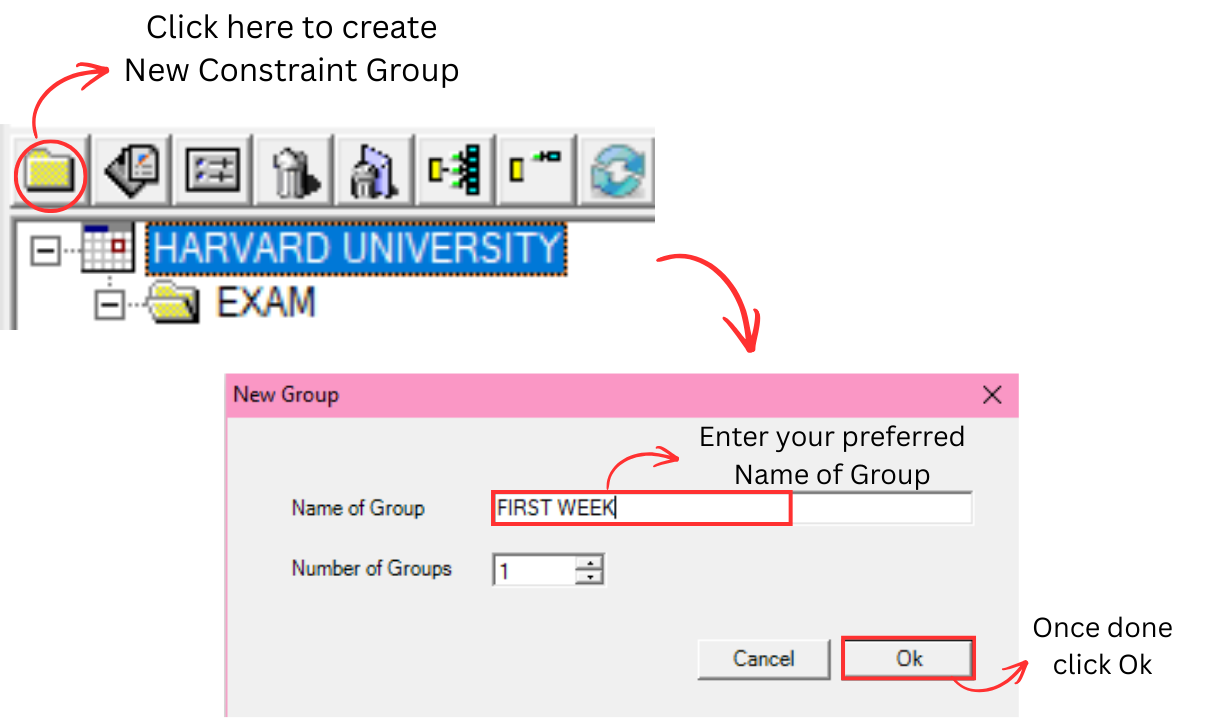
Step 2: Enter the folder name (e.g. FIRST WEEK) and click OK. The new folder will appear in the tree.
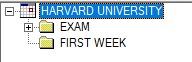
Step 3: Drag and drop the courses you want into the new folder. Select the course folder and drag it into the destination folder.
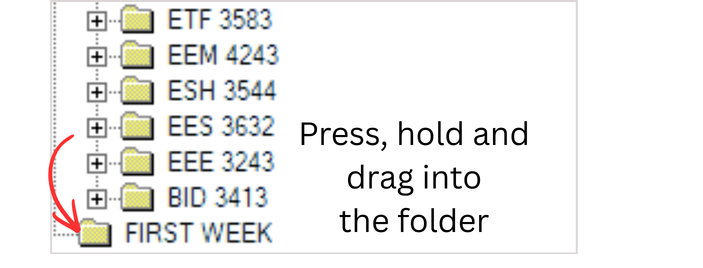
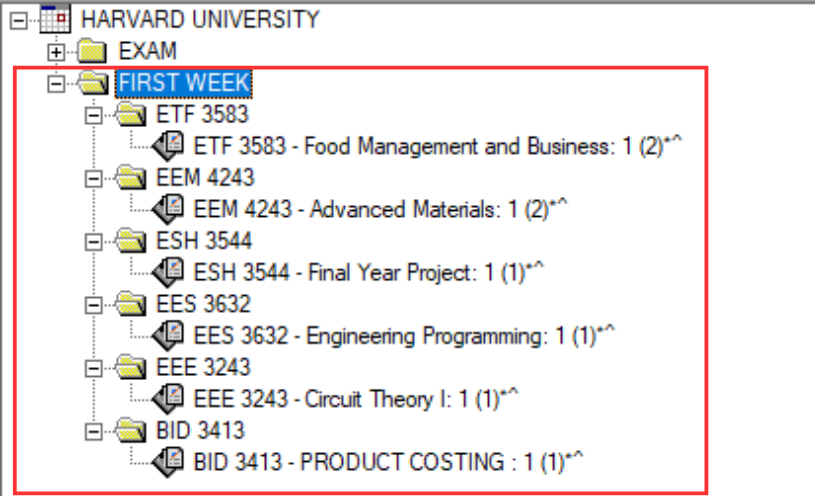
Step 4: After organizing, verify the final tree structure. Ensure all courses are placed in the correct folders according to your scheduling plan.
6.3 Special Exam
Special Exam is a course that does not have a venue or time assigned in the schedule. It will only appear as a remark on the exam slip. Typically, special exams involve courses with very small numbers of students. Below are a few ways to mark a course as a special exam. Ensure all special exams are marked before proceeding to the Exclude section.
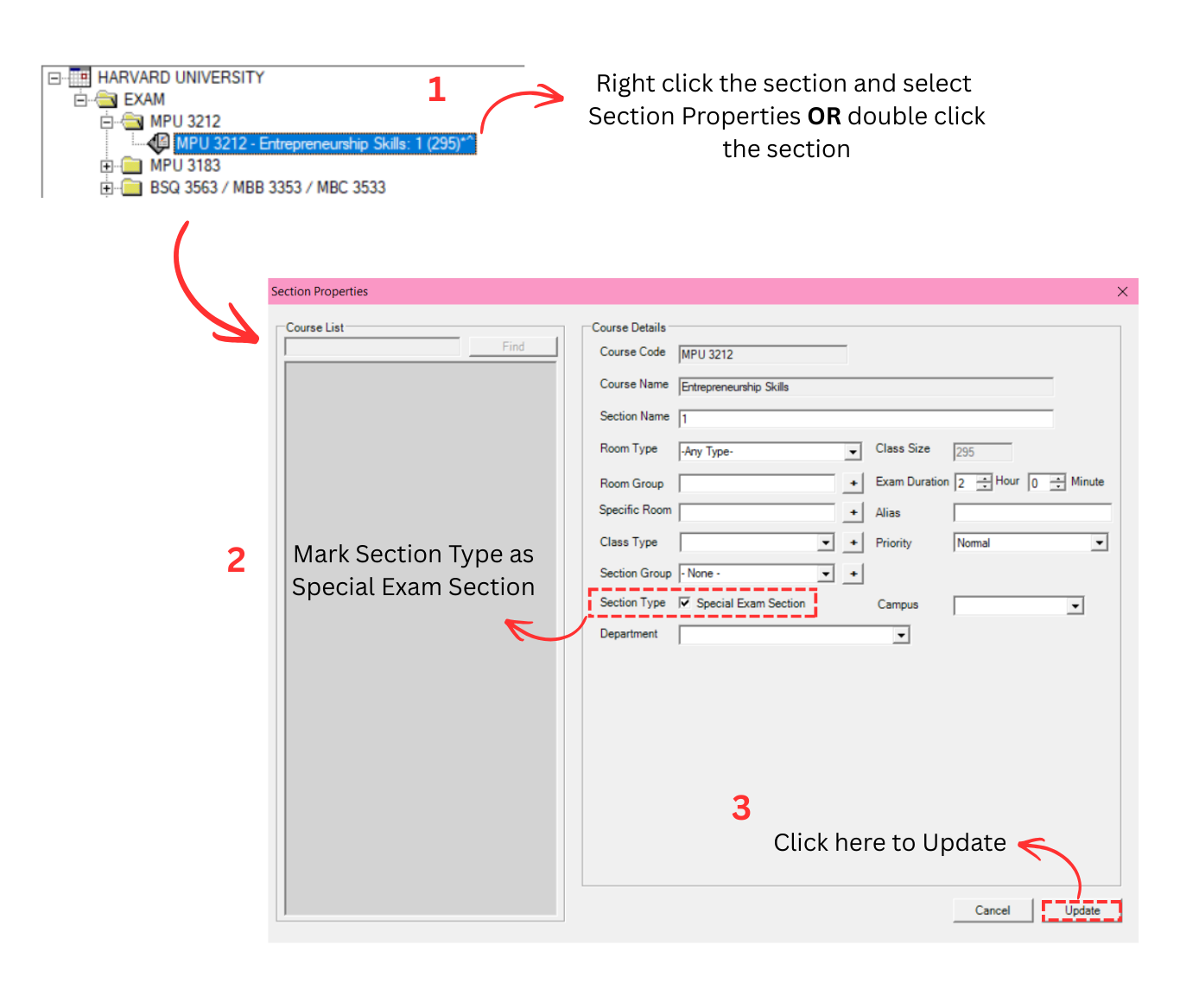
Alternative 1: Change Section Properties
You can change the section properties. There are 3 simple steps to do so.
Step 1: Go to Constraint Tree. Right click the section and select Section Properties OR double click the section.
Step 2: Mark the Section Type as Special Exam Section.
Step 3: Click Update to update the section.
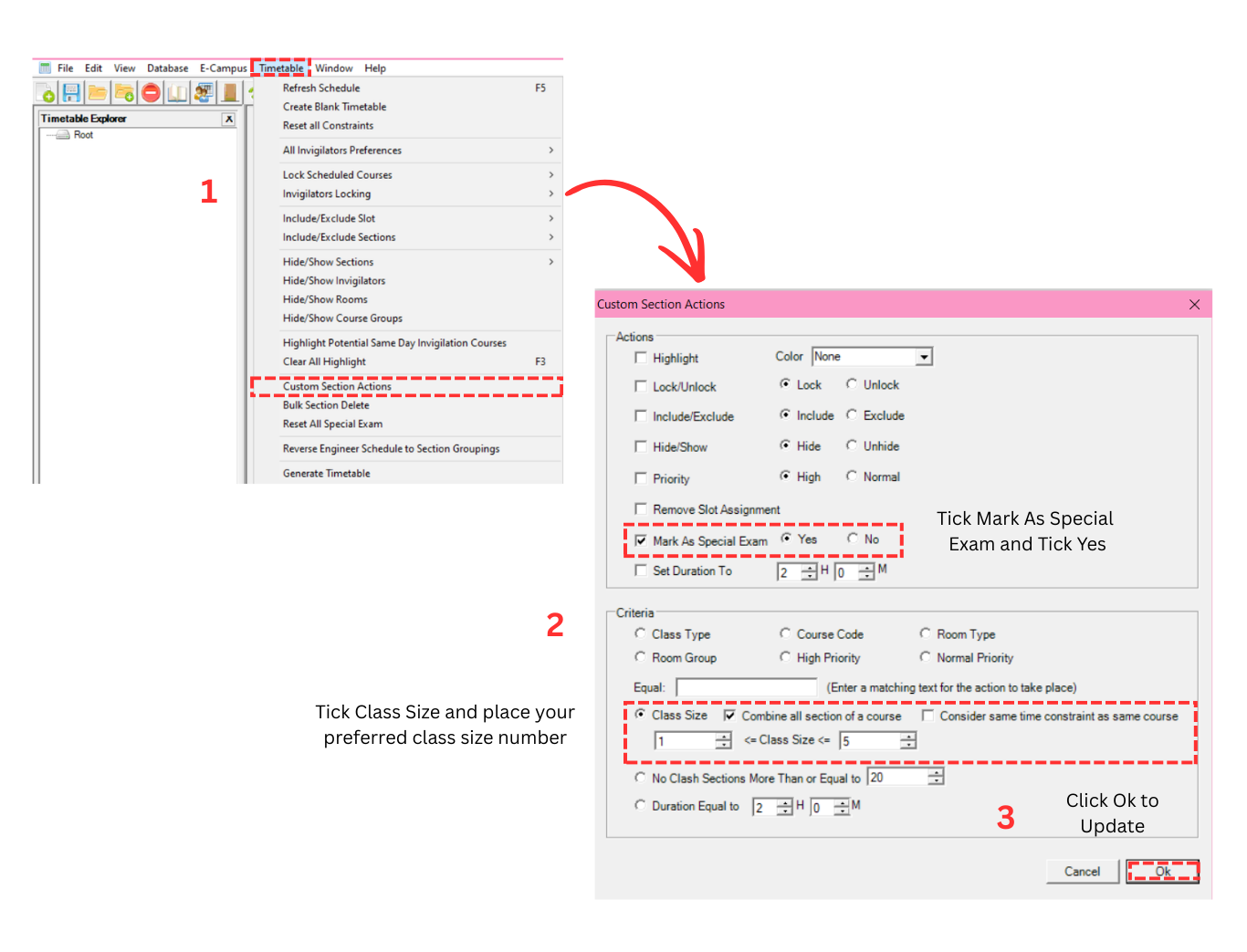
Alternative 2: Custom Section Action
You can set it using Custom Section Action. There are 3 simple steps to do so.
Step 1: Go to Timetable menu and select Custom Section Action.
Step 2: Tick Mark As Special Exam and Yes on Action. And then tick on the Class Size on Criteria. Put your desired number of size.
Step 3: Click Ok to update.
You can see the course being marked as special exam at the section's details at Constraint Tree or at the Section Summary Status.
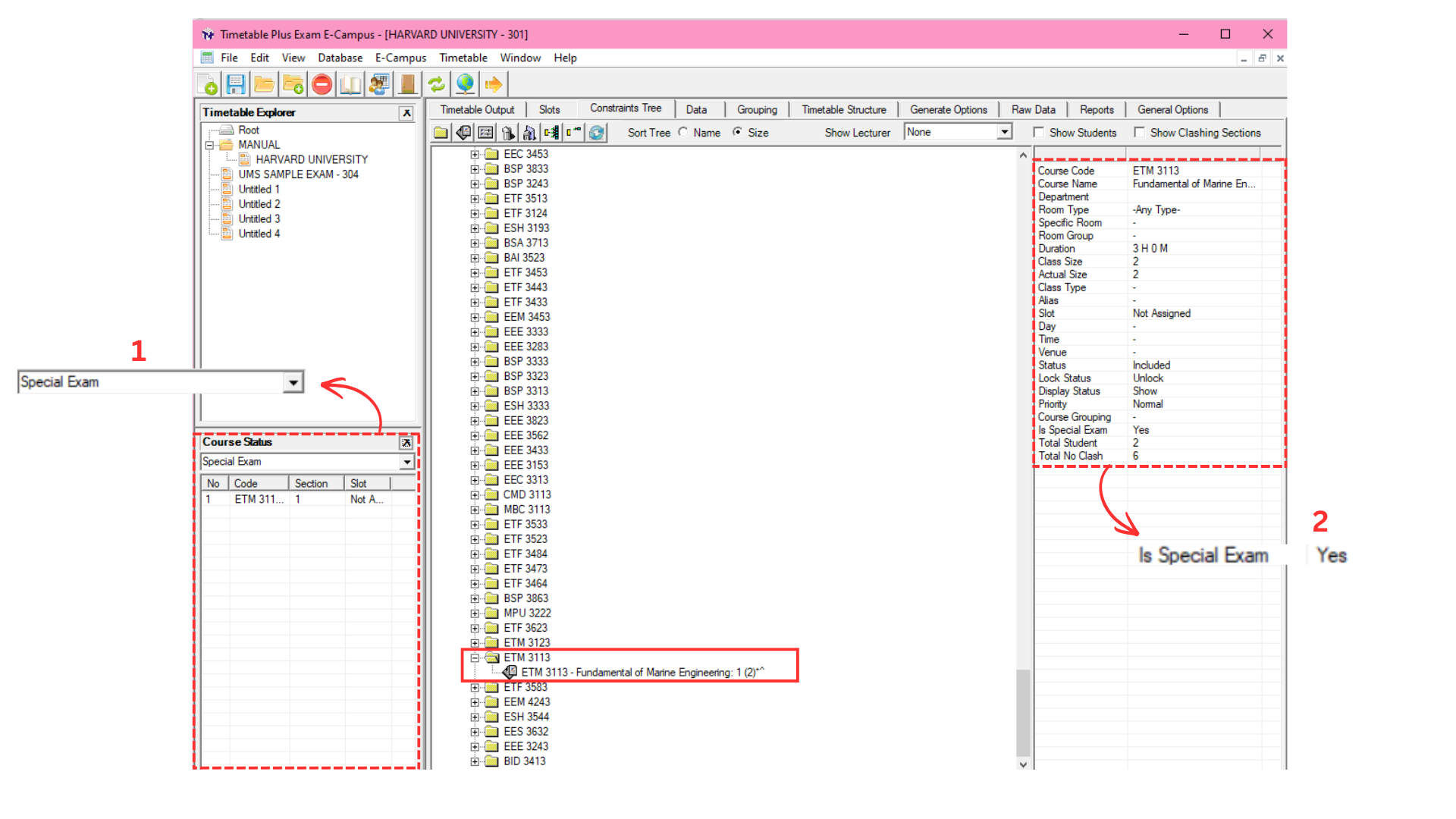
Organize Special Exam in Tree Structure
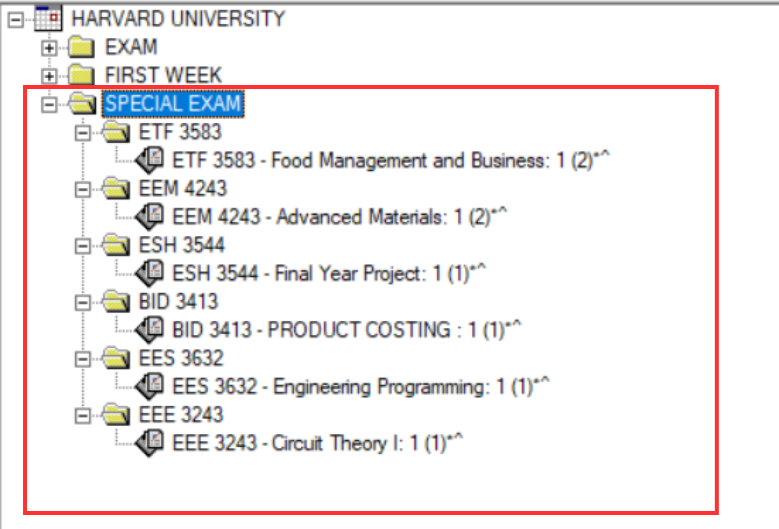
After marking courses as special exams, it is recommended to organize them into a separate folder in the Constraints Tree. This helps you easily identify and manage all special exam courses in one place.
Step 1: Select the root group and click the Create New Constraint Group icon to create a new folder for special exams.
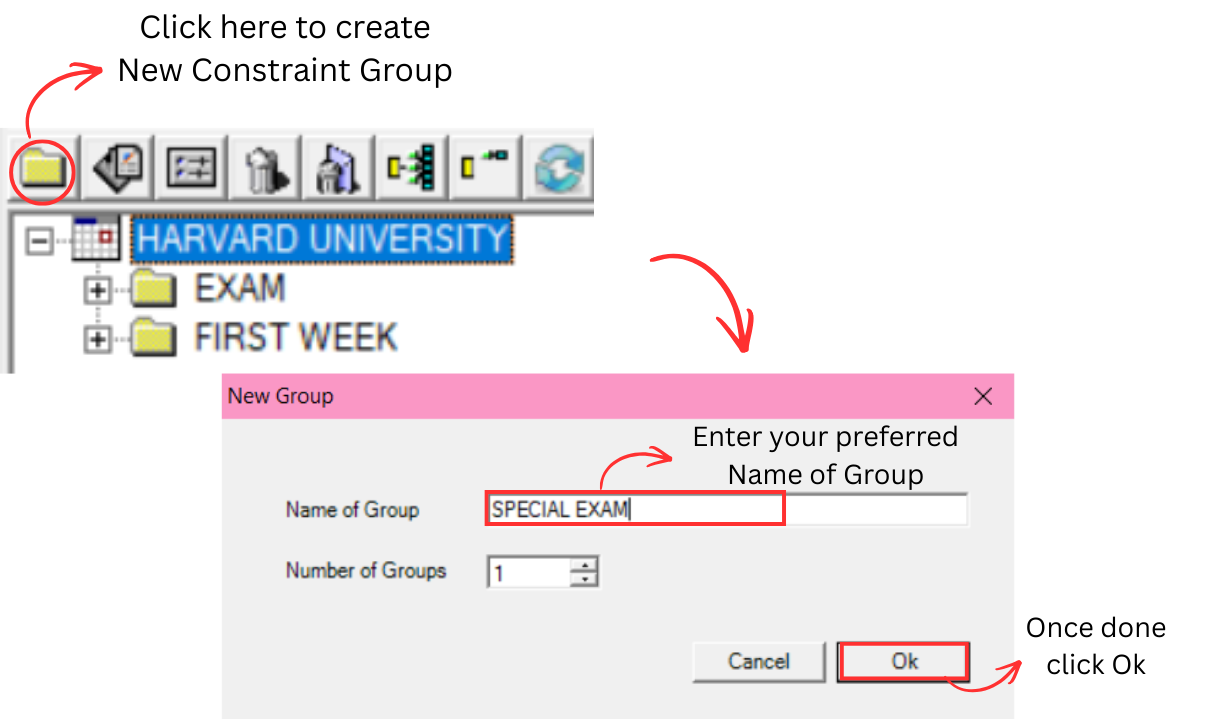
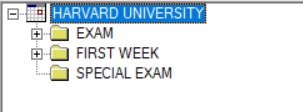
Step 2: Enter the folder name (e.g. SPECIAL EXAM) and click OK. The new folder will appear in the tree structure.
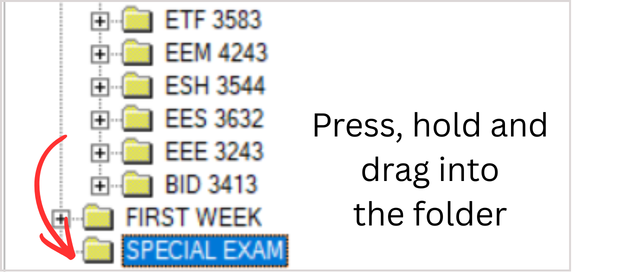
Step 3: Drag and drop the courses that have been marked as special exam into the SPECIAL EXAM folder.
Step 4: Verify the final tree structure. Ensure all special exam courses are placed inside the SPECIAL EXAM folder and separated from the regular exam courses.
6.4 Set Constraint
Constraints are rules that the system must follow when assigning exams to time slots and rooms. There are two areas where constraints can be set: at the Tree Structure level and at the Generate Option level.
6.4.1 Constraint at Tree Structure
You can set constraints at the Tree Structure. There are 2 types of constraints:
- Group Constraints
- Generate Constraints
You can set constraints at different levels of the tree. Settings applied to a Parent folder will automatically be inherited by all child folders underneath it. However, if you set a different constraint on a child folder, the child's setting will override the parent's setting for that specific folder only.
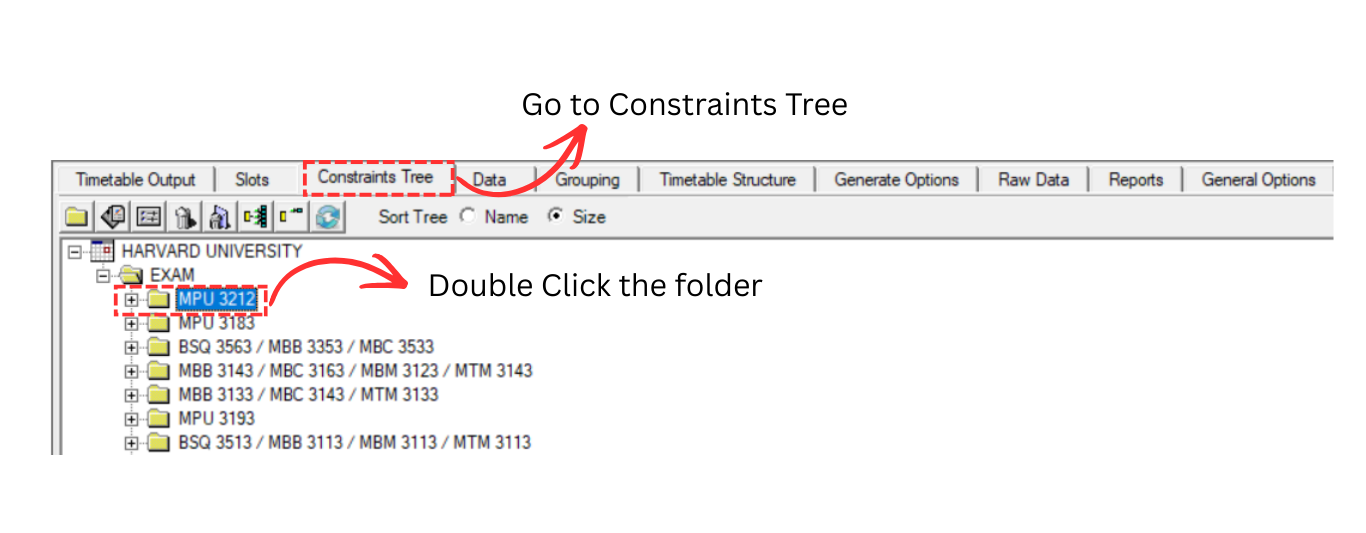
Go to Constraints Tree and double click the preferred folder to set the group constraints.
Group Constraints
Set Constraint window will appear. The Group Constraints tab allows you to set time slot and room constraints for the selected group.
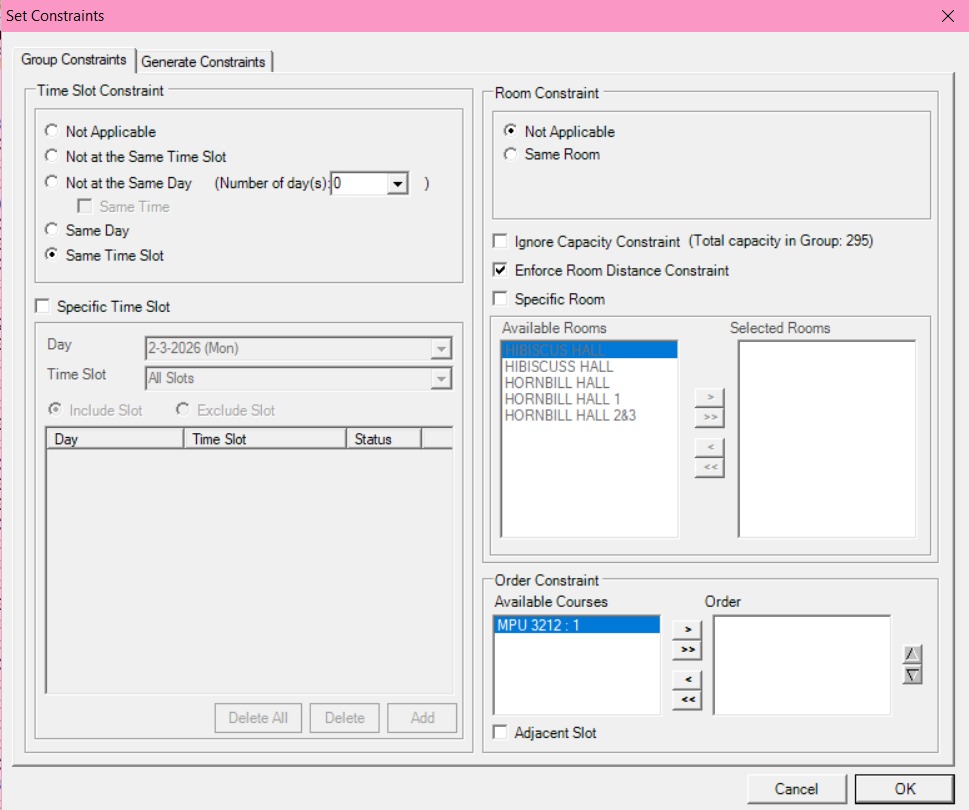
Refer to the table below to know on important constraint settings at Group Constraints.
| Setting | Description |
|---|---|
| Not Applicable | No time slot constraint is applied. The system will assign the exam to any available time slot. |
| Not at the Same Time Slot | All sections under the group will not be scheduled at the same time slot. |
| Not at the Same Day | All sections under the group will not be scheduled on the same day. You can also set the number of days gap. |
| Same Time Slot | All the sections under the group/folder will be having the same examination time. |
| Specific Time Slot | You can use this constraint for specific day and time or range of days and time slots for group of courses (Parent) or single section of a course (Child). |
| Enforce Room Distance Constraint | Usually you may tick this to enforce room distance between the examination rooms. |
| Same Room | You can use this constraint setting if all sections under the group prefer to be slotted into the same room (Parent). |
| Specific Room | You can specify a single room or range of rooms for group of courses (Parent) or single section of a course (Child). |
Table 6.4.1: Important Constraints Settings Explanation
Generate Constraints
Click on the Generate Constraints tab (next to Group Constraints tab) to set the schedule mode.
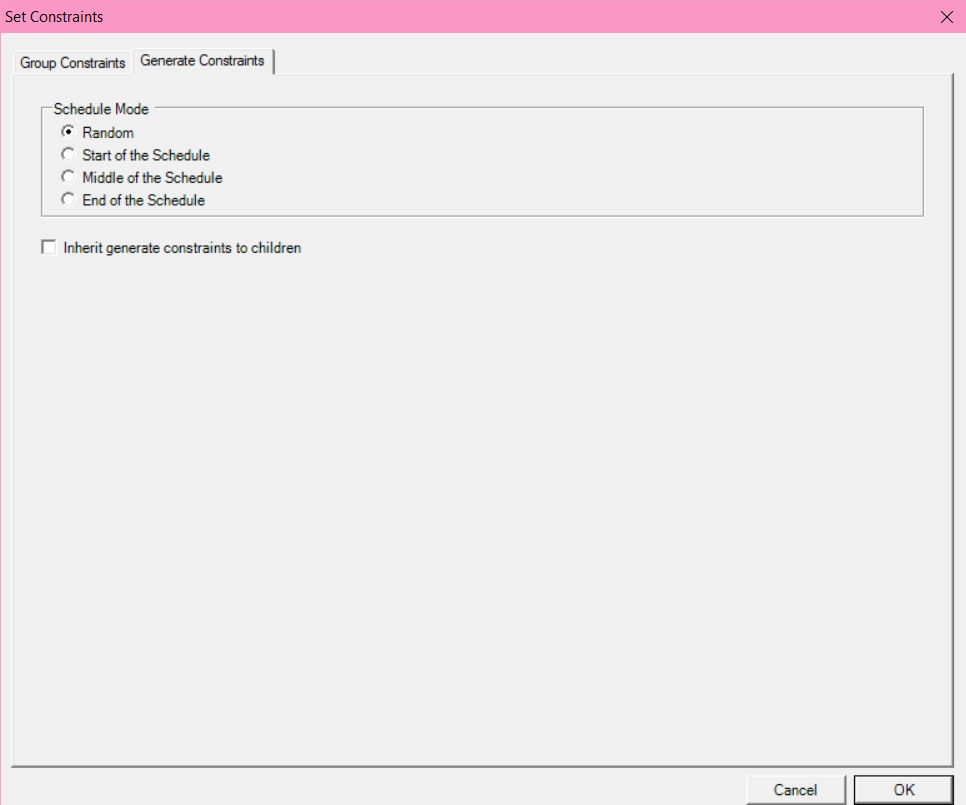
The Schedule Mode determines where in the schedule the exam will be placed:
- Random: Exam will be assigned randomly across the week.
- Start of the Schedule: Exam will be priority assigned at the start of the week/schedule.
- Middle of the Schedule: Exam will be priority assigned at the middle of the week/schedule.
- End of the Schedule: Exam will be priority assigned at the end of the week/schedule.
6.4.2 Constraint at Generate Option
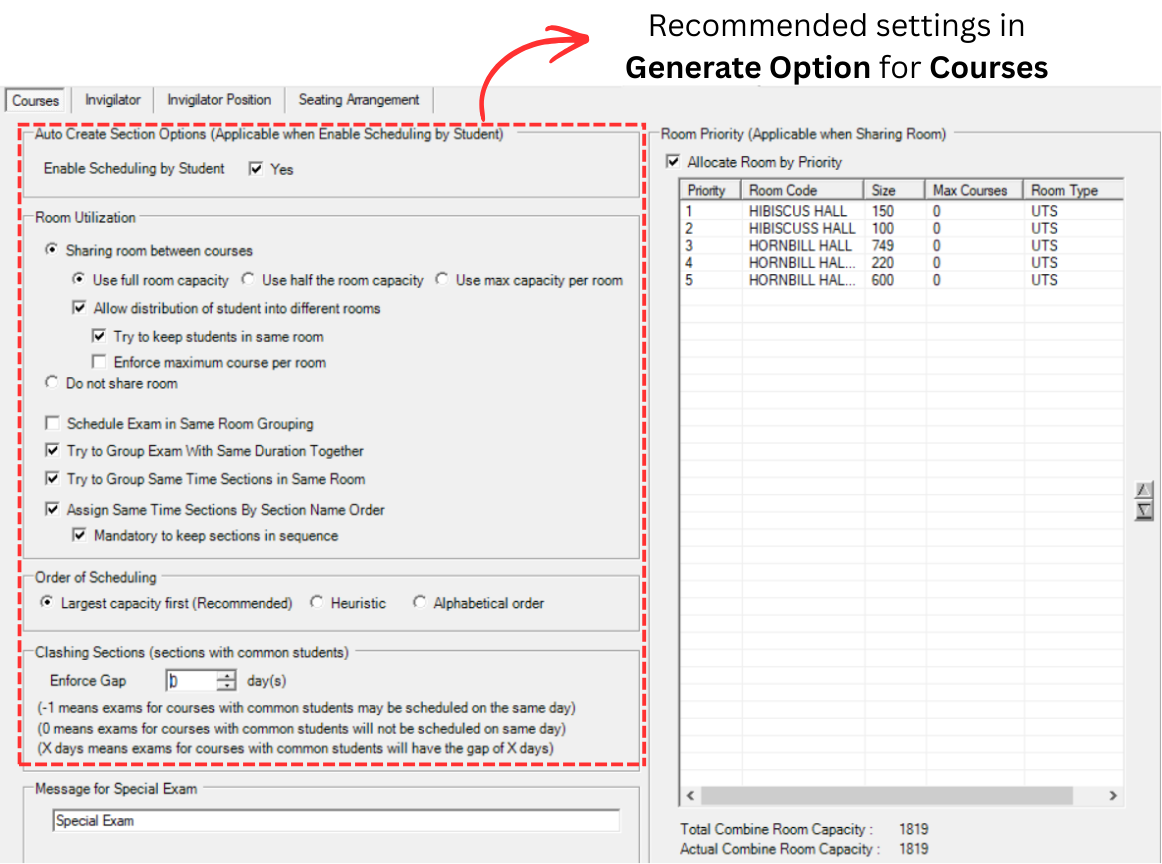
It is very important to set constraint at Generate Option for Courses before you generate. You may go to Generate Options and select Courses.

Below is the Courses Tab under Generate Options. There are 6 main areas to configure.
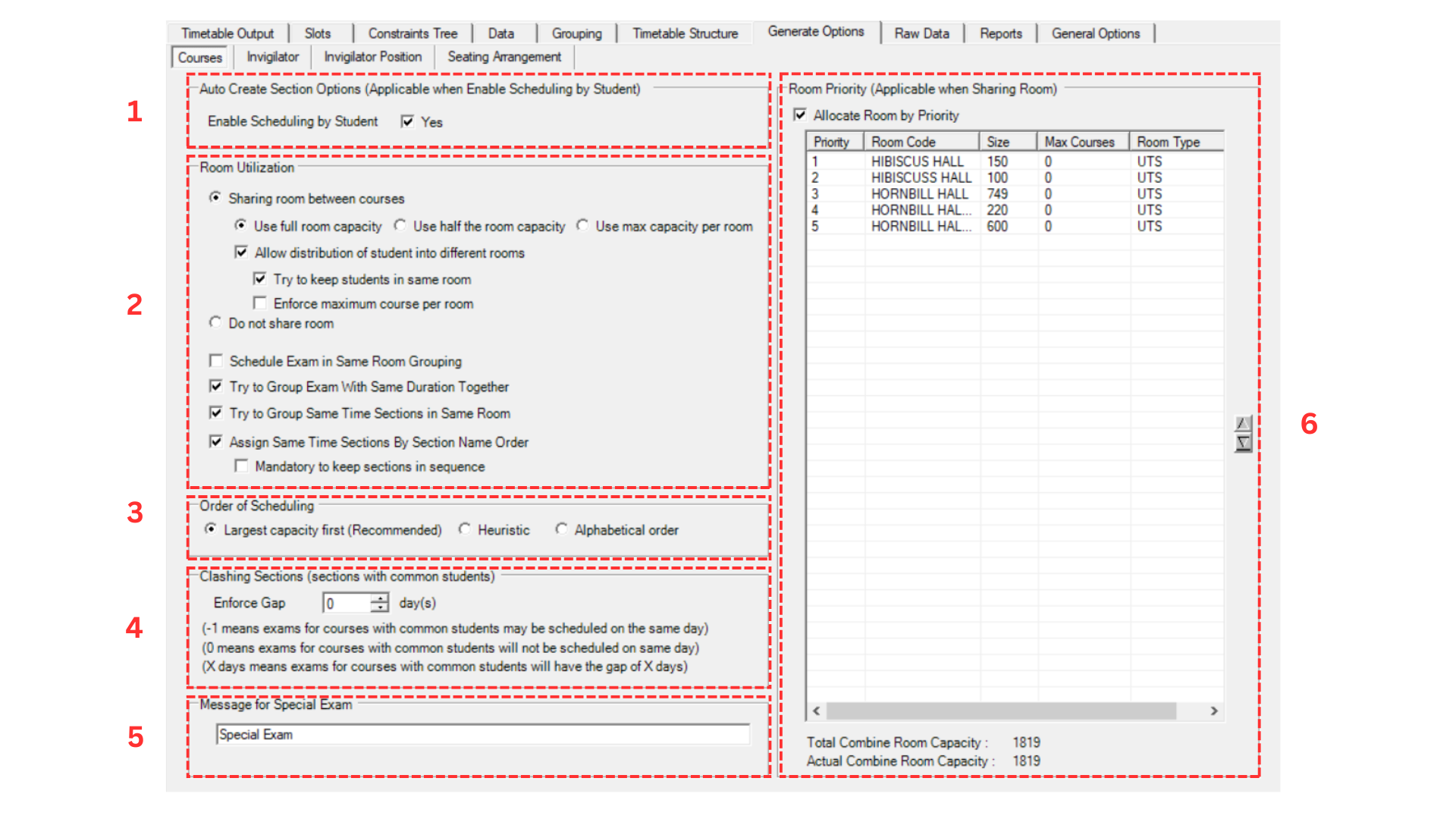
1. Auto Create Section Options

This option is applicable when Enable Scheduling by Student is used.
- Enable Scheduling by Student: Tick Yes if you want to enable scheduling by student. This allows the system to automatically create sections based on student data.
2. Room Utilization
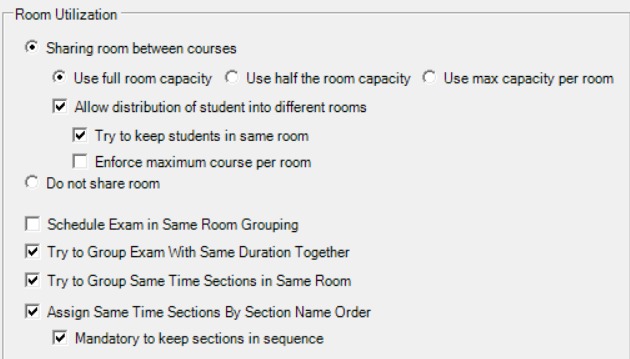
Room Utilization controls how rooms are shared and assigned during generation. Below are the settings:
- You can choose between Sharing room between courses or Do not share room.
- If you choose Sharing room between courses, you need to choose between:
- Use full room capacity: The system will use the full capacity of the room when assigning courses.
- Use half the room capacity: The system will only use half of the room capacity.
- Use max capacity per room: The system will use the maximum capacity set per room.
- If you choose Sharing room between courses, you need to choose between:
- Allow distribution of student into different rooms: Tick to allow students from the same course to be placed in different rooms. If you tick this, you can also:
- Try to keep students in same room: The system will try its best to keep students in the same room.
- Enforce maximum course per room: Limit the maximum number of courses per room. Maximum Course Per Room can be set at the Room List in Timetable Structure.
- Do not share room: Each course will have its own room and will not share with other courses.
Additional room grouping settings:
- Schedule Exam in Same Room Grouping: Tick to arrange exams in the same room grouping.
- Try to Group Exam With Same Duration Together: The system will attempt to group exams with the same duration together in the same room.
- Try to Group Same Time Sections in Same Room: The system will attempt to arrange sections of the same time in the same room.
- Assign Same Time Sections By Section Name Order: Tick to assign sections in order by their name.
- Mandatory to keep sections in sequence: Tick to enforce that sections must be kept in sequence.
3. Order of Scheduling

You can set the order of scheduling by choosing one of the following:
- Largest capacity first (Recommended): Courses with the largest number of students will be scheduled first. This is the recommended option.
- Heuristic: The system will use a heuristic algorithm to determine the best scheduling order.
- Alphabetical order: Courses will be scheduled in alphabetical order.
4. Clashing Sections
Clashing Sections refers to sections with common students. You can set the Enforce Gap to control how clashing sections are handled.
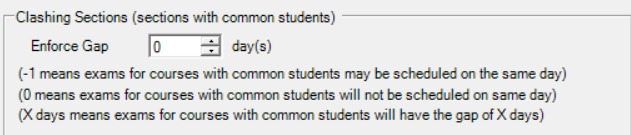
The Enforce Gap value determines how clashing sections are scheduled:
- -1 day: Exams for courses with common students may be scheduled on the same day.
- 0 day: Exams for courses with common students will not be scheduled on the same day. This means there will only be one examination per day for students with common courses.
- X days: Exams for courses with common students will have the gap of X days. For example, if you put 3 days, students will have a 3-day gap between examinations.
You also need to set the Maximum Course Per Day. The default is 2.

5. Message for Special Exam

You can write any message for special exam since special exam would not be having a venue or time slot. This message will appear on the output for special exam courses.
6. Room Priority (Applicable when Sharing Room)
Tick Allocate Room by Priority to enable room priority. You may select any room and click the up or down button to move it up or down in the priority list.
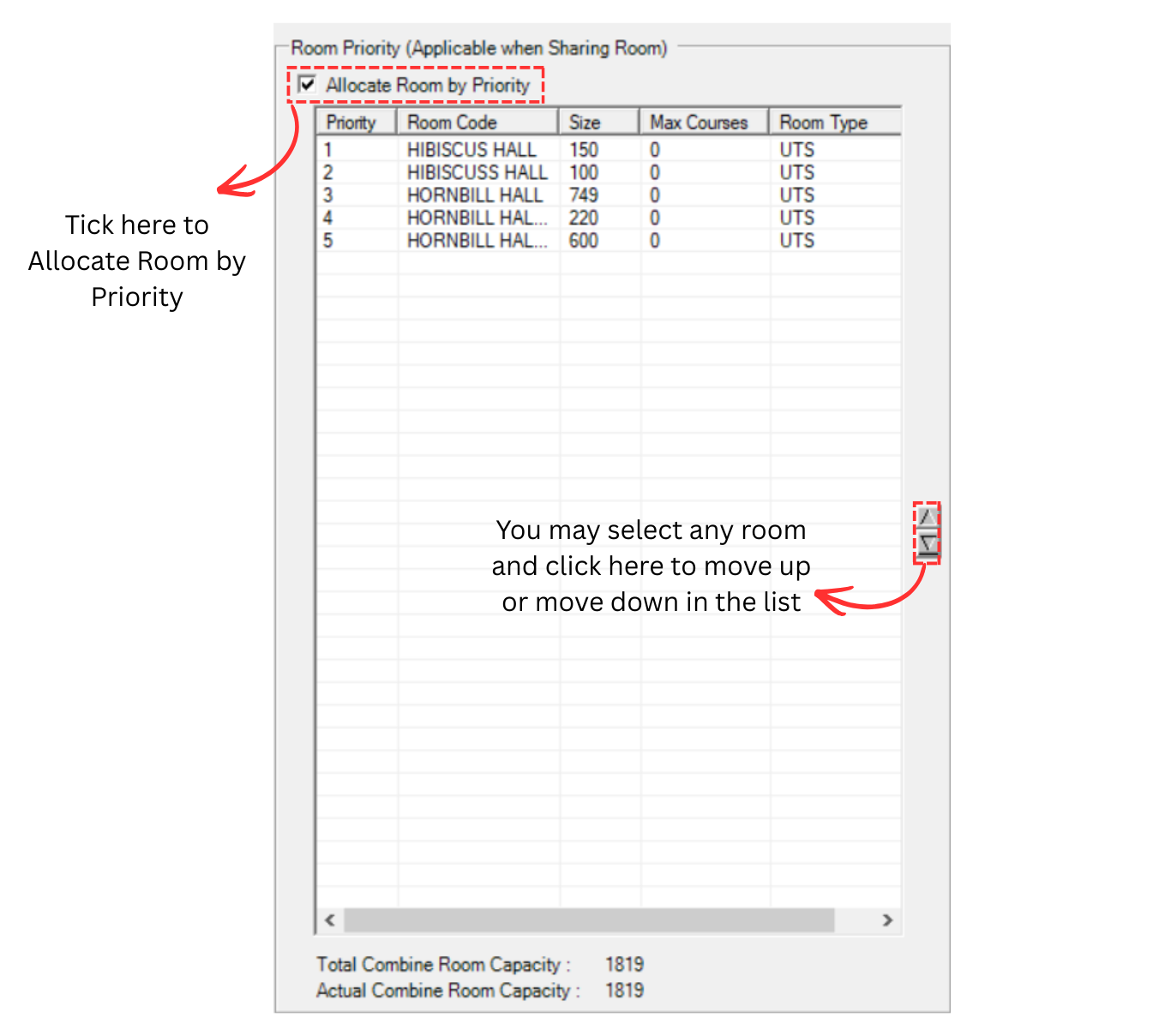
You can move the room up and down based on your priority. For example, we move HORNBILL HALL to priority number 1.
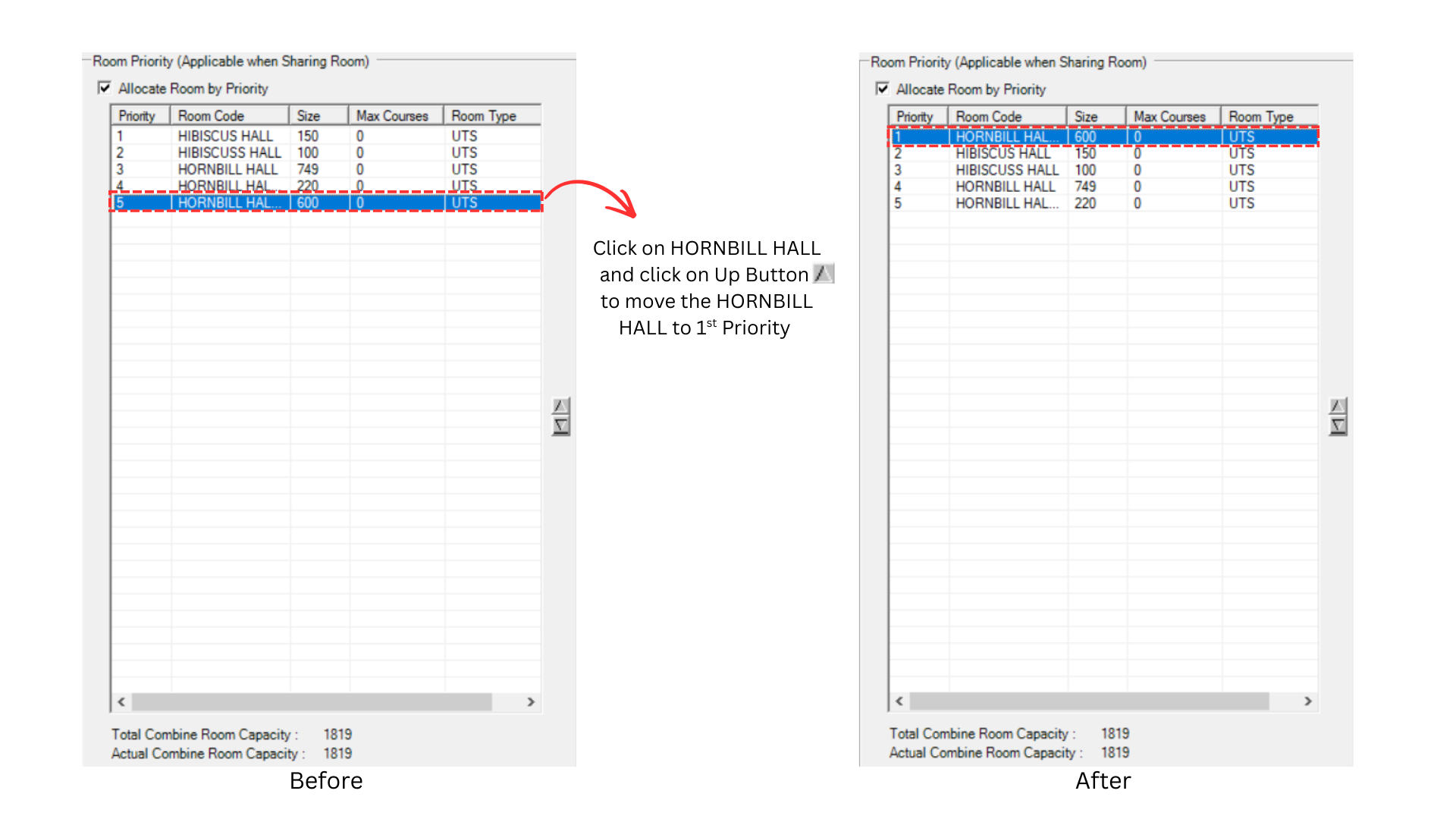
If you use room priority, the program will try its best to fill up the room based on the priority number given. It is important to make sure that the rooms are arranged accordingly to your preference to avoid having the wrong room filled.
Recommended Settings
Below is the course's recommended settings for Generate Option.