2. Password
Recover or reset your TPlus eCampus password through self-service or System Administrator.
2.1 Forgotten Password
If you have forgotten your username or password, you can initiate a password reset from the Login Page.
Step 1: Initiate Reset
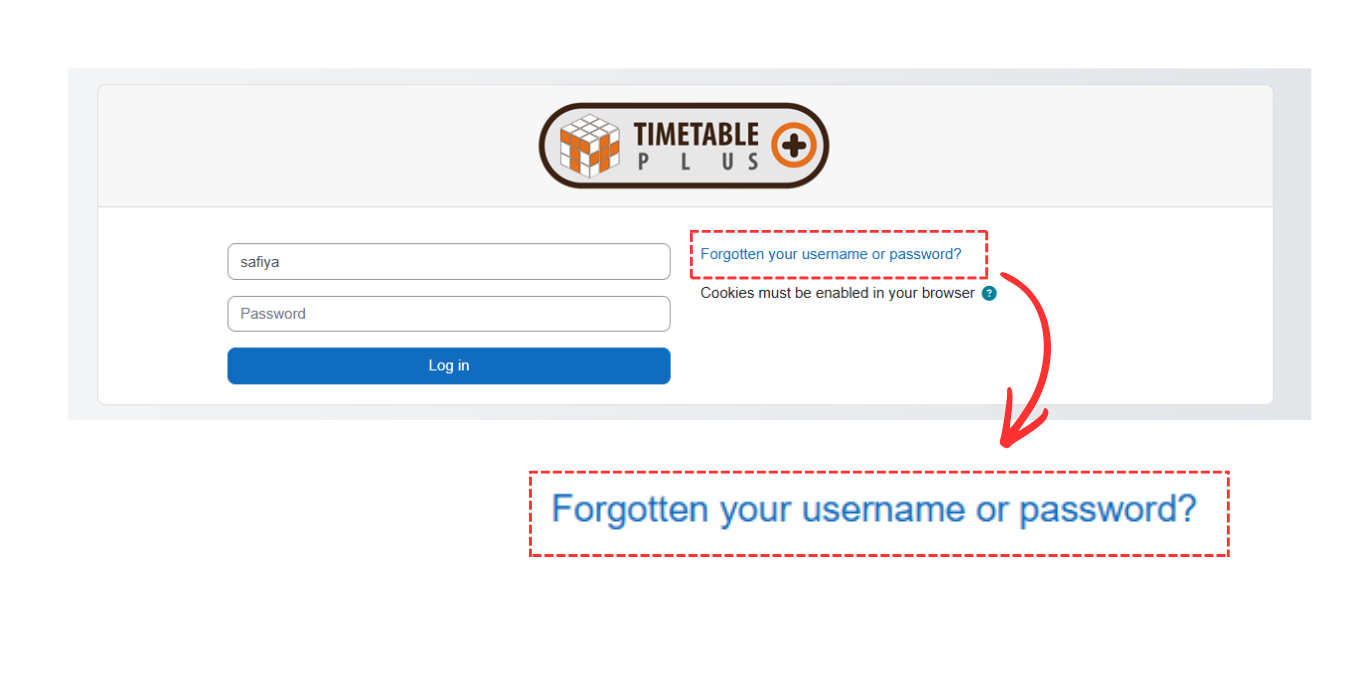
On the Login Page, click the "Forgotten your username or password?" link located on the right side of the login form.
Step 2: Enter Details
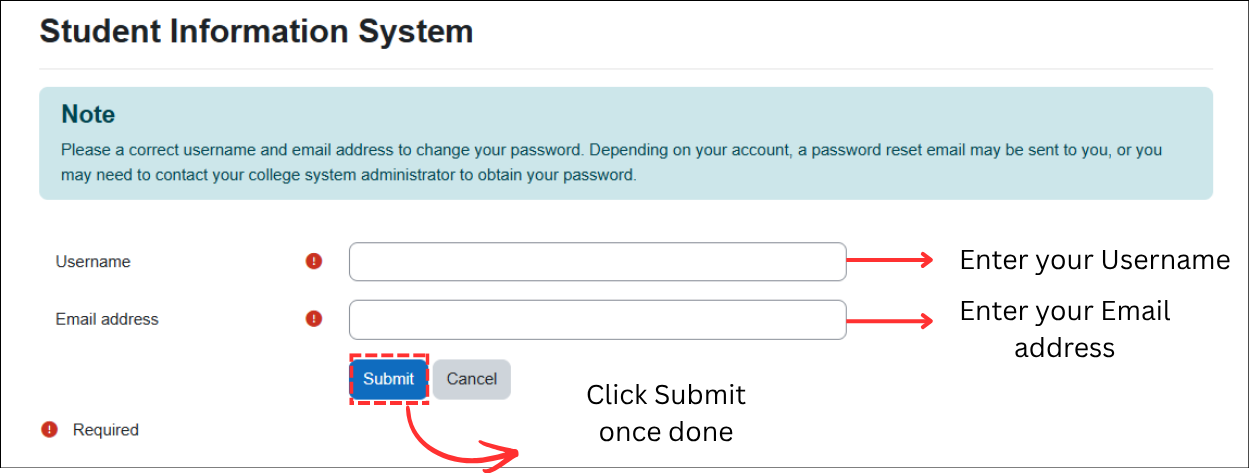
You will be redirected to the password recovery page. A note on the page states: "Please enter a correct username and email address to change your password. Depending on your account, a password reset email may be sent to you, or you may need to contact your college system administrator to obtain your password."
- Enter your Username in the first field.
- Enter the Email address linked to your account in the second field.
- Click "Submit" to send the password reset request.
Step 3: Check Email
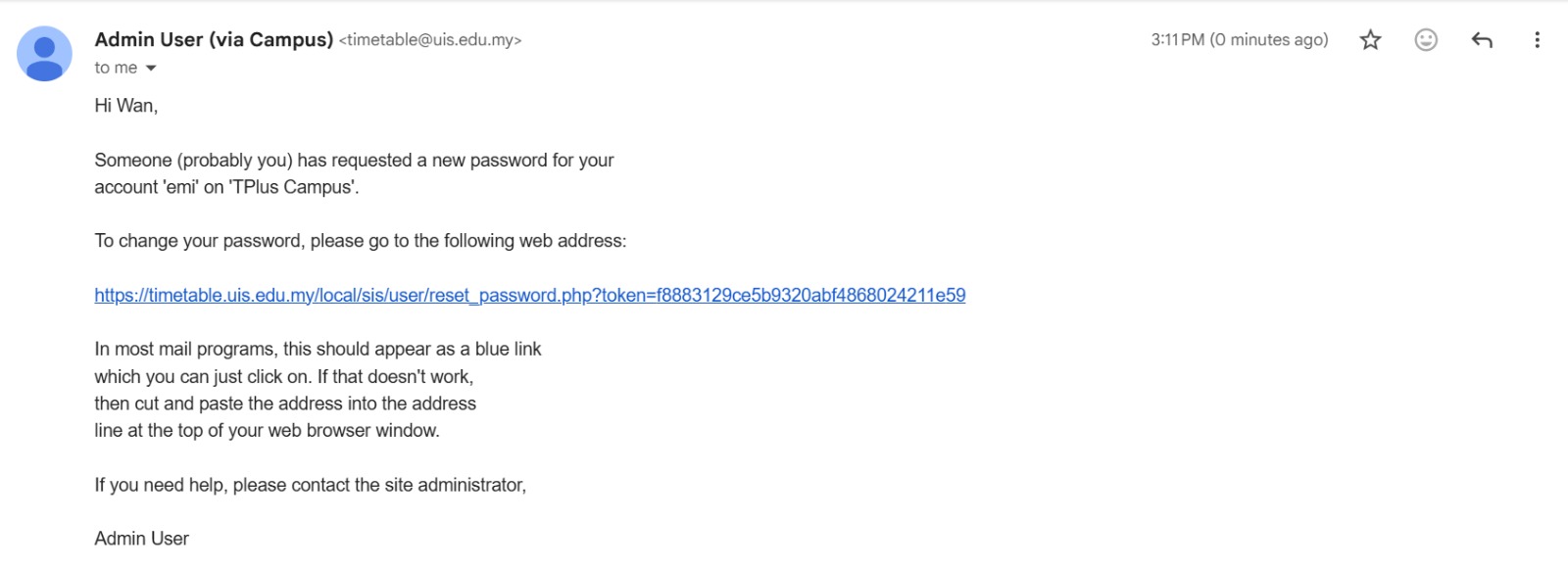
A password reset link will be sent to the email address linked to your account. Check your inbox for the reset email.

Open the password reset email from Admin User (via Campus). The email contains a reset link. Click the blue link to proceed to the Reset Password page.
Step 4: Create New Password
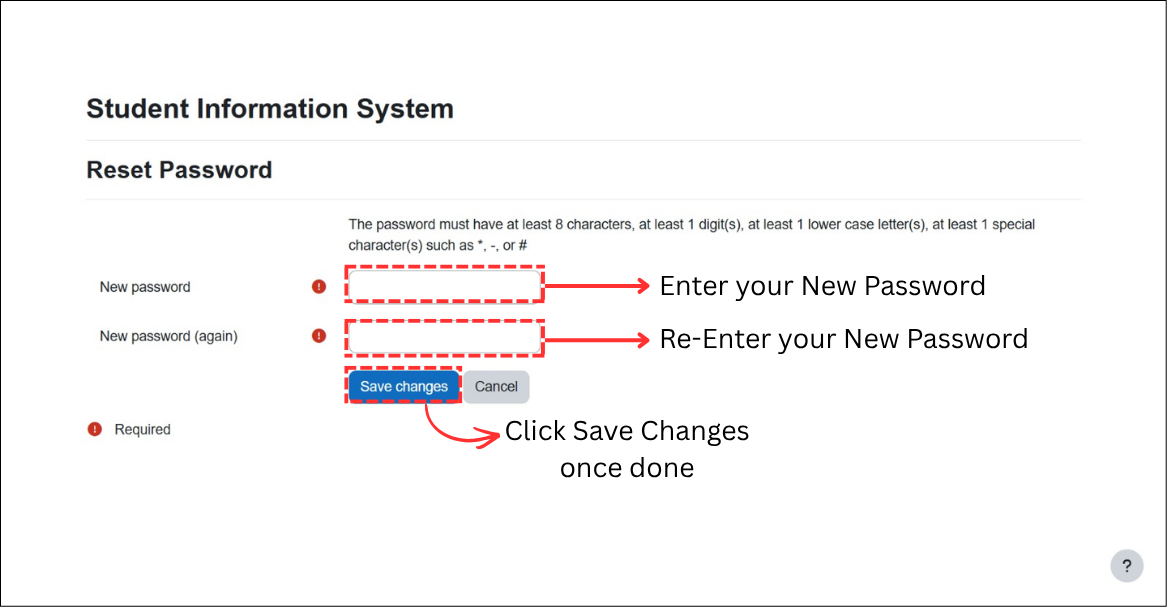
After clicking the reset link, you will be directed to the Reset Password page under the Student Information System.
- Enter your New password. The password must have at least 8 characters, at least 1 digit, at least 1 lowercase letter, and at least 1 special character (such as *, -, or #).
- Re-enter the new password in the New password (again) field.
- Click "Save changes" to update your password.
Step 5: Log In Again
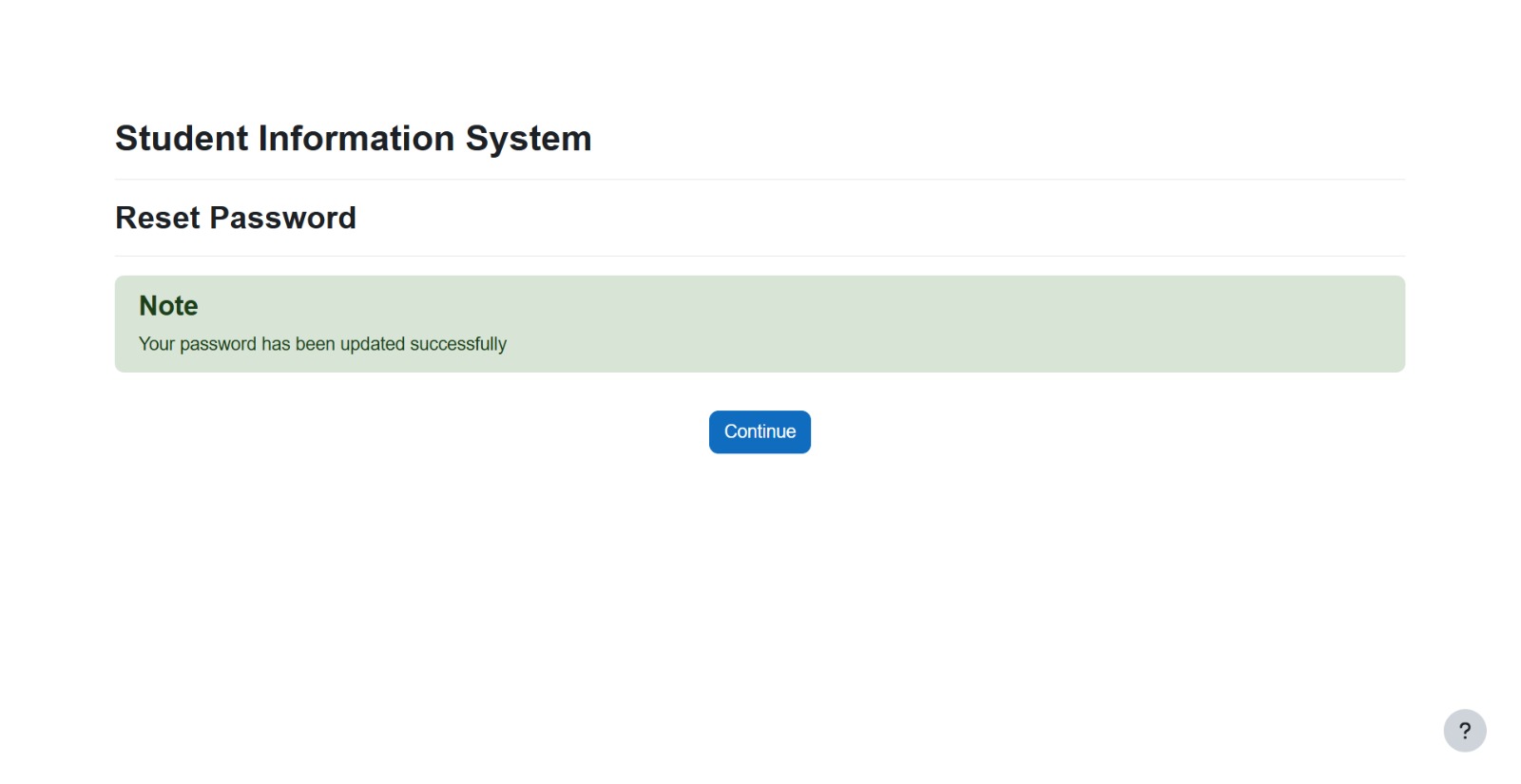
After saving, a success message will appear: "Your password has been updated successfully". Click "Continue" to proceed back to the Login Page, then log in using your username and the new password you just created.
2.2 Admin Password Reset
The System Administrator can reset a user's password back to the default system password. This is useful when a user is unable to reset their own password.
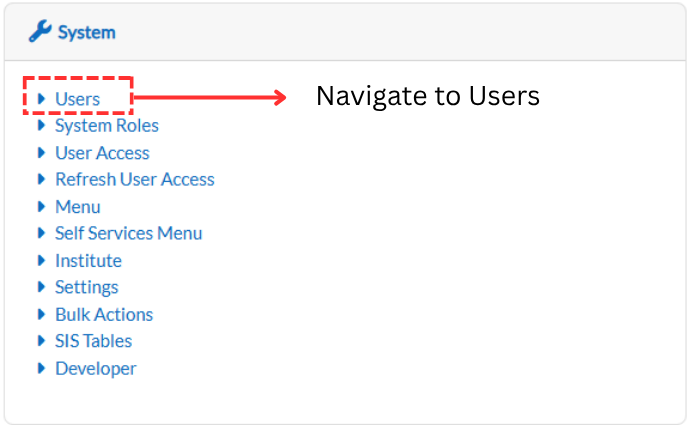
Step 1: Navigate to Users
From the sidebar, go to System and click on Users.
Step 2: View User
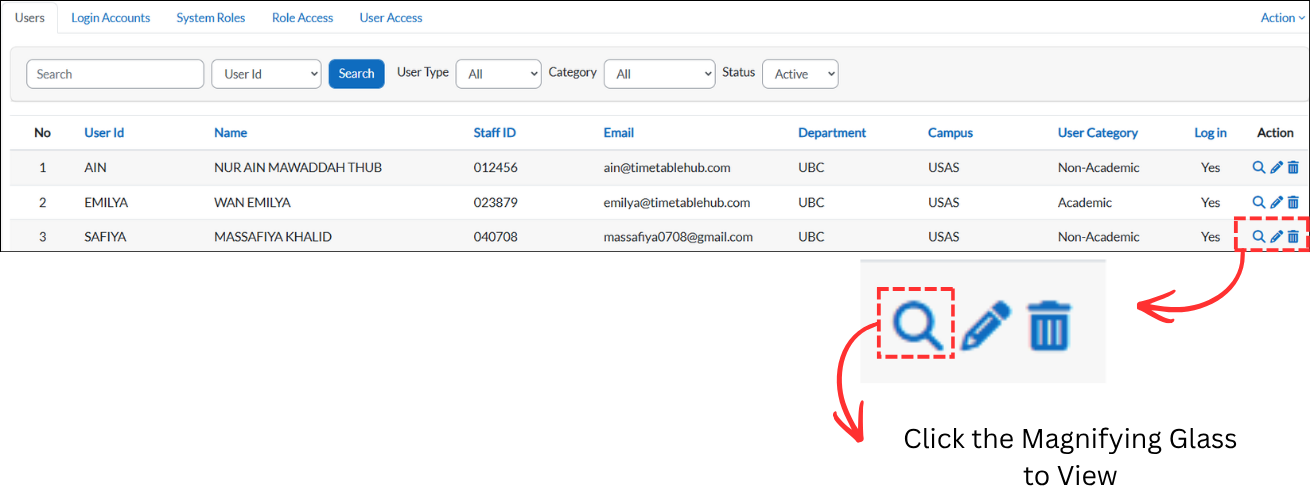
On the Users page, locate the user whose password needs to be reset. Click the magnifying glass icon in the Action column to view the user's details.
Step 3: Go to Account
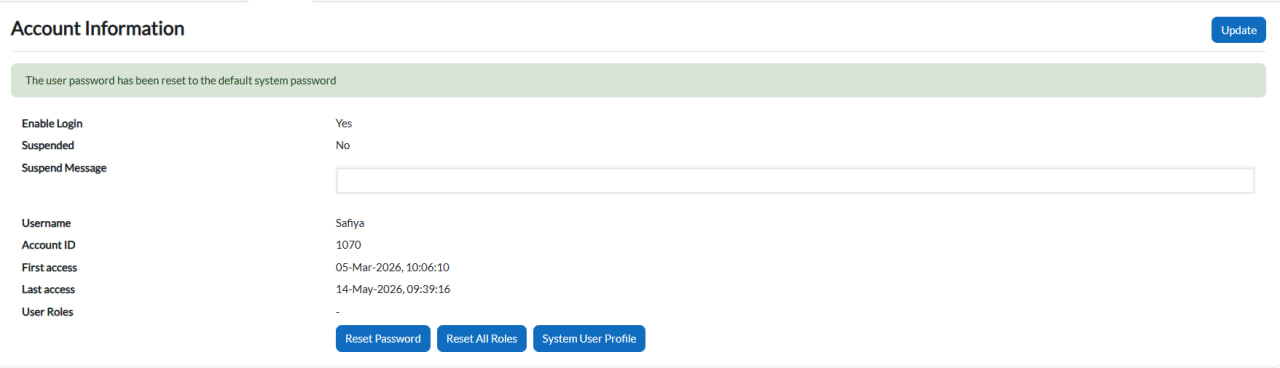
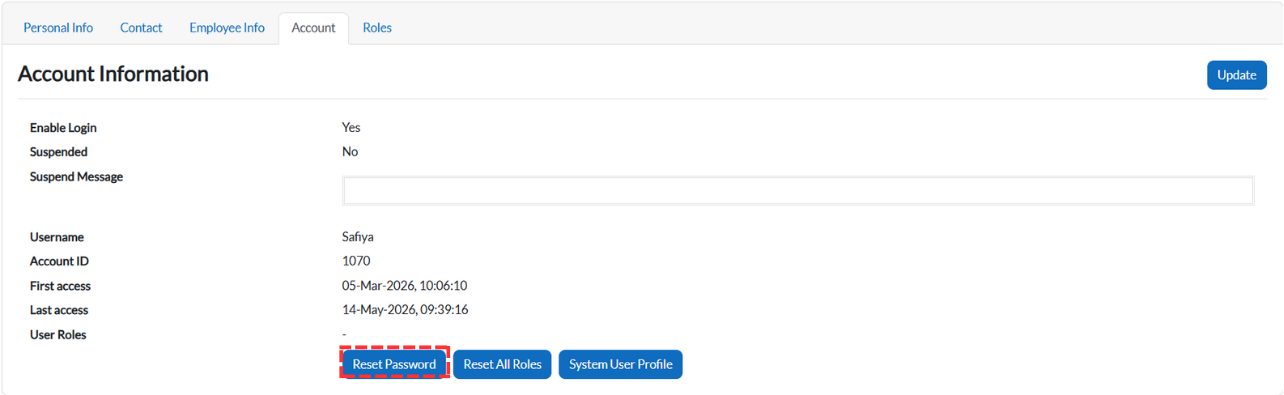
In the user's profile, click the Account tab. This page displays the account information including Enable Login, Suspended status, Username, Account ID, First access, Last access, and User Roles.
Step 4: Reset Password
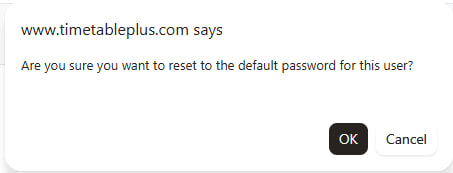
Click the "Reset Password" button. A confirmation dialog will appear asking: "Are you sure you want to reset to the default password for this user?"
Click "OK" to confirm.
Step 5: Password Reset Complete
After clicking OK, a success message will appear: "The user password has been reset to the default system password". The user can now log in using their username and the default password, and will be prompted to change their password on the next login.