1. Login
Learn how to access TPlus eCampus, understand the URL structure, and log in for the first time.
1.1 Understanding of the e-Campus URL
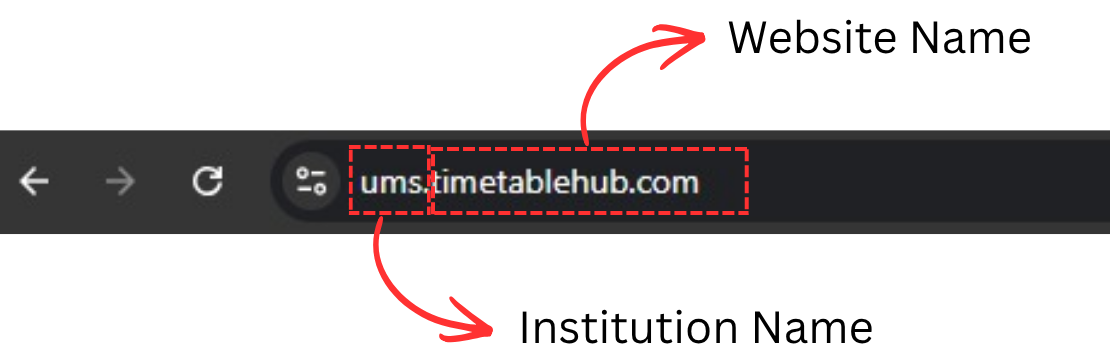
Users must access the correct e-Campus URL for their institution to log in. Each institution has its own unique URL.

The URL consists of two parts:
1.2 Navigate to Log In Page
After accessing your institution's e-Campus URL, you will see the Home Page.
- Open your web browser and go to your institution's e-Campus URL.
- On the Home Page, click "Log in" at the top-right corner of the page.
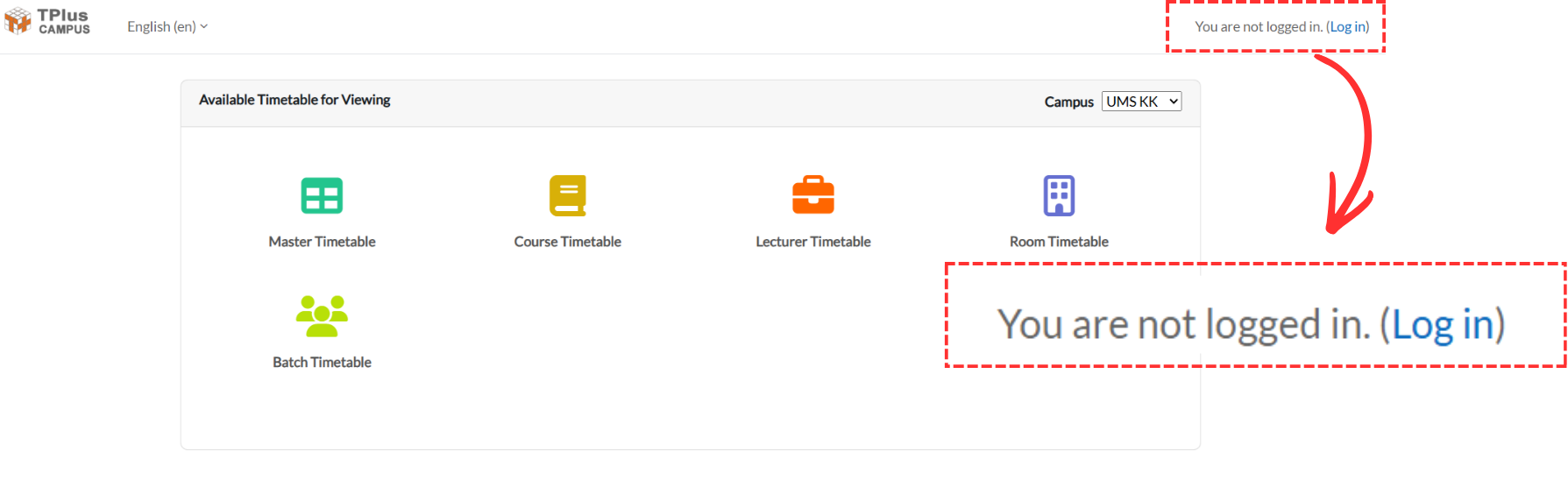
You will be redirected to the Login Page.
1.3 First-Time User Log In
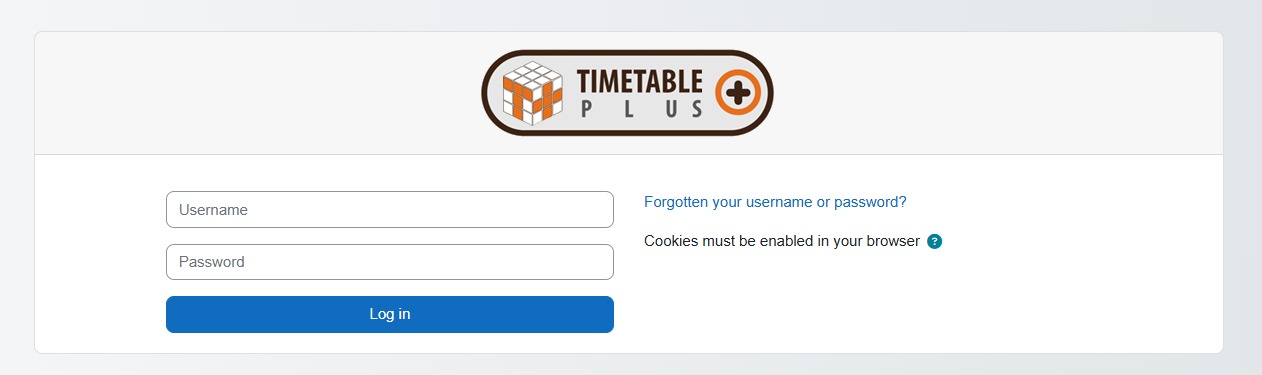
- Enter the Username and Default Password provided by the system administrator.
- After entering the credentials, click the "Log In" button.
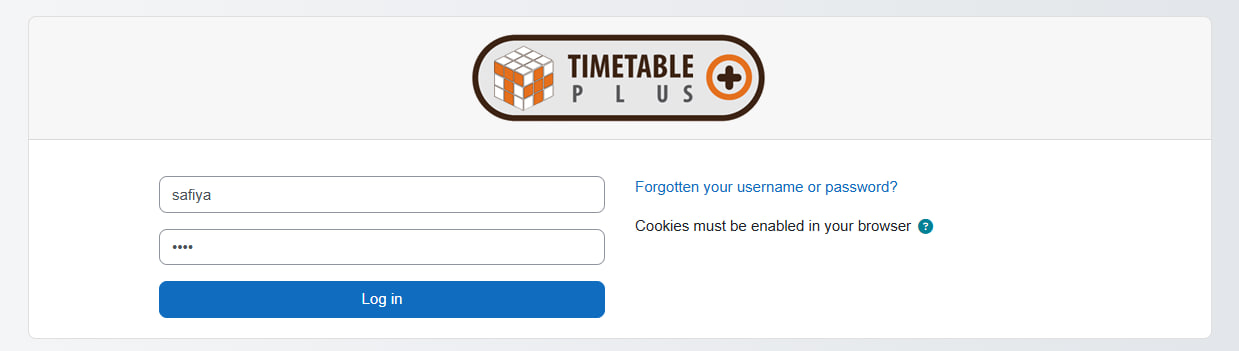
The login page displays the Timetable Plus logo at the top. Enter your username in the first field and your default password in the second field, then click the "Log in" button. A "Forgotten your username or password?" link is also available on the right side of the form if needed.
Resetting Password
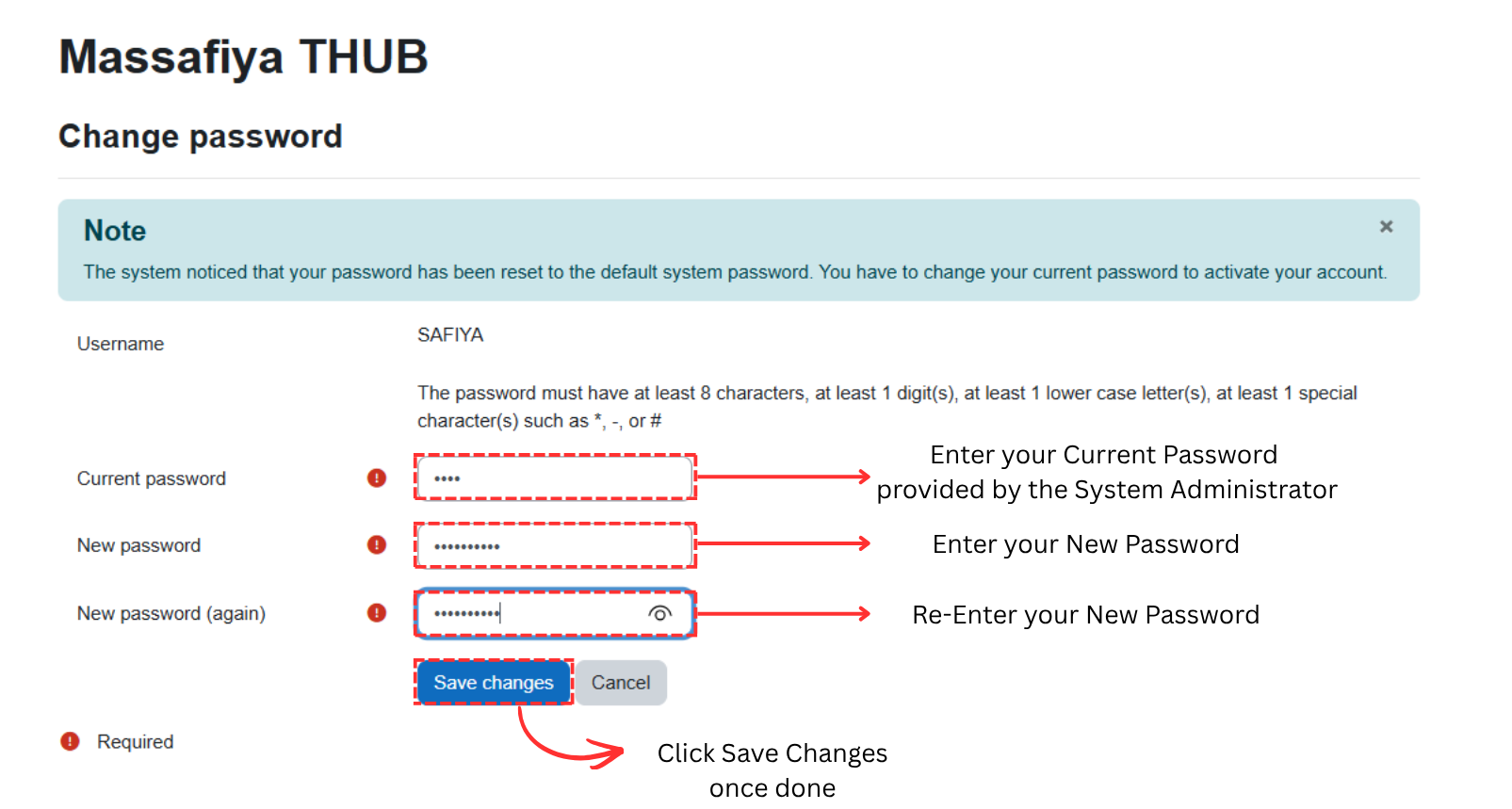
On your first login, the system will display a Change password page with a notice: "The system noticed that your password has been reset to the default system password. You have to change your current password to activate your account."
- Your Username is shown at the top of the form.
- Enter your Current password (the default password provided by the System Administrator).
- Enter your New password. The password must have at least 8 characters, at least 1 digit, at least 1 lowercase letter, and at least 1 special character (such as *, -, or #).
- Re-enter the new password in the New password (again) field to confirm.
- Click "Save changes" to update your password.
Accessing the Dashboard
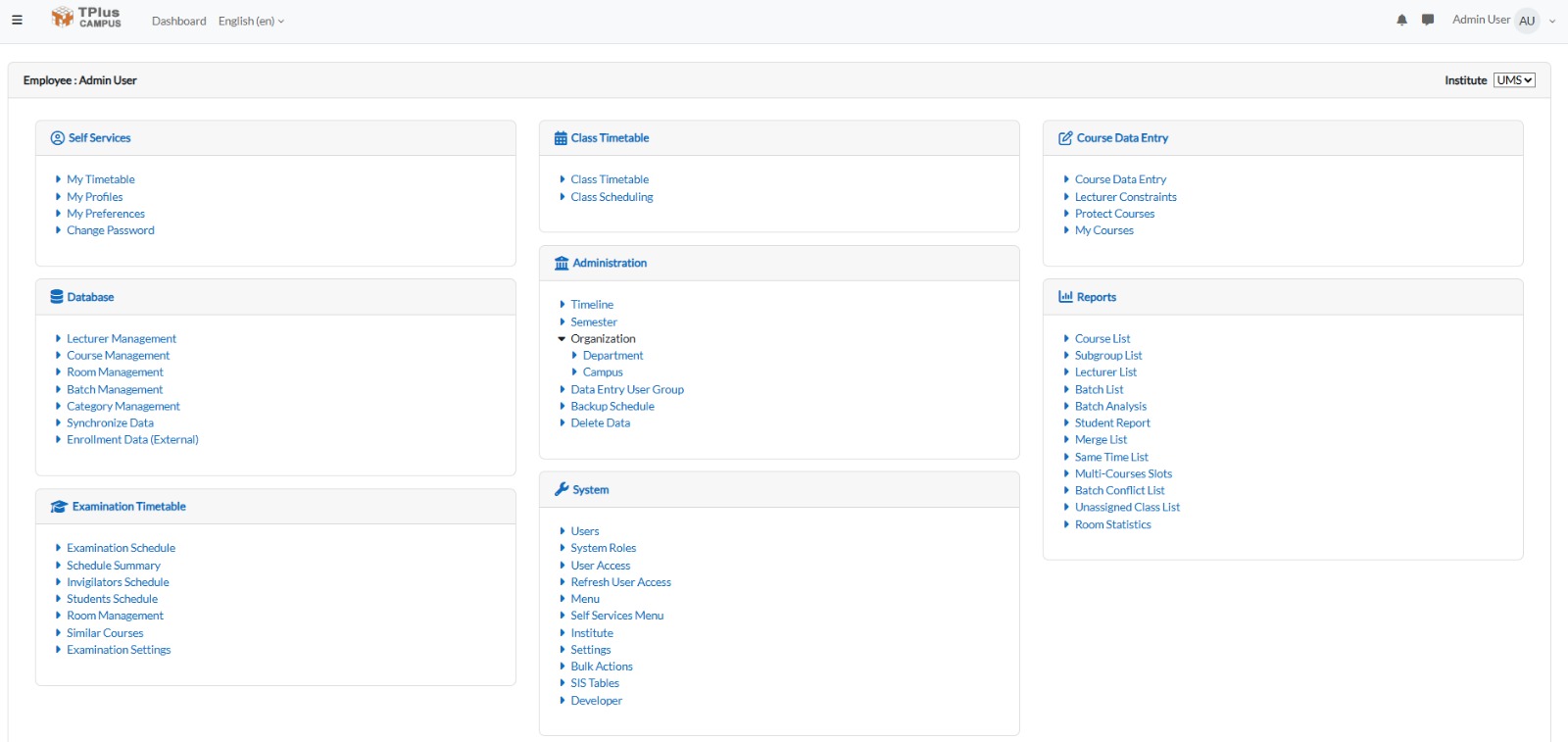
After successfully changing your password, you will be redirected to the Dashboard.